Updating the Company Logo
This guide explains how to update the Company Logo in Exigo Admin. The company logo appears in the top-left corner of the admin interface and represents your company's branding throughout the platform.
Overview
The company logo is managed through the Company Settings page under the Administration section. The logo must meet the following size requirement:
- Maximum dimensions: 300 pixels wide × 60 pixels high
Step-by-step
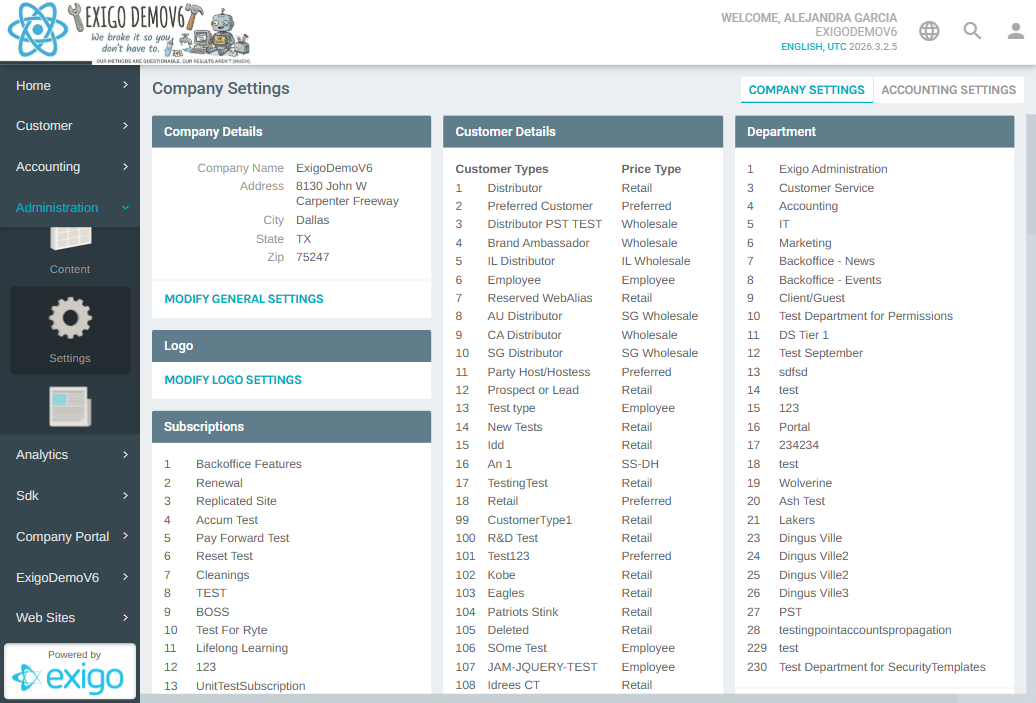
1) Navigate to Company Settings
- In the left navigation sidebar, expand Administration
- Click Settings
- The Company Settings page loads, displaying sections for Company Details, Customer Details, Departments, and more
2) Open the Logo Settings
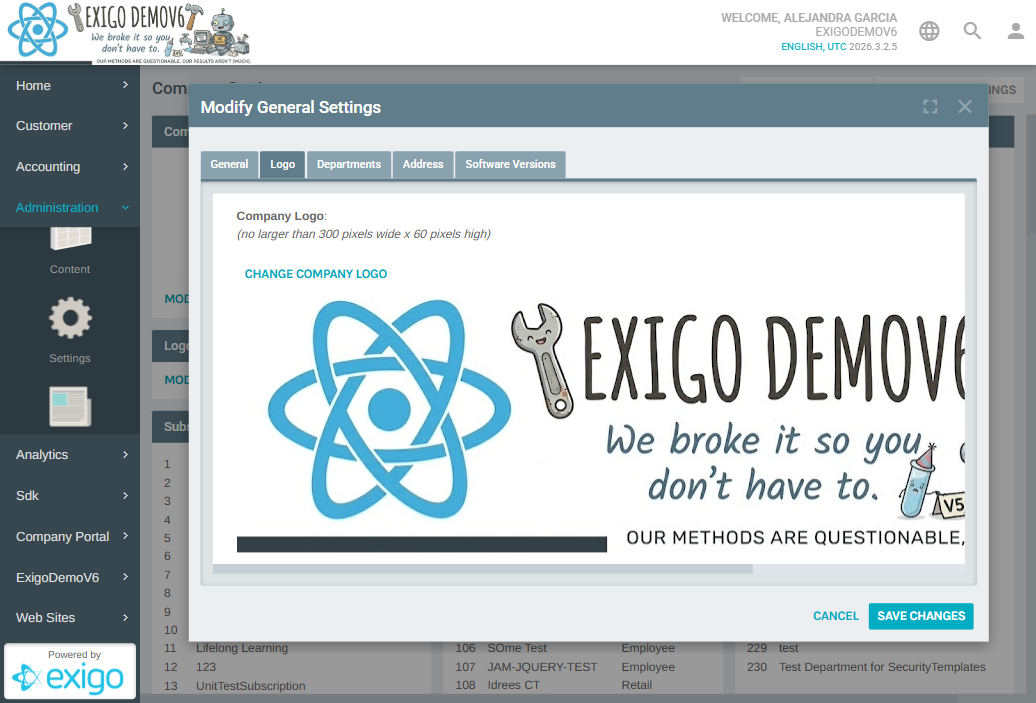
On the Company Settings page, locate the Logo section on the left side. Click the MODIFY LOGO SETTINGS link beneath it.
A modal dialog titled Modify General Settings opens with multiple tabs: General, Logo, Departments, Address, and Software Versions. The Logo tab is automatically selected.
3) Upload a New Logo
- Click CHANGE COMPANY LOGO above the current logo preview
- An Upload Image dialog appears with a Choose File button
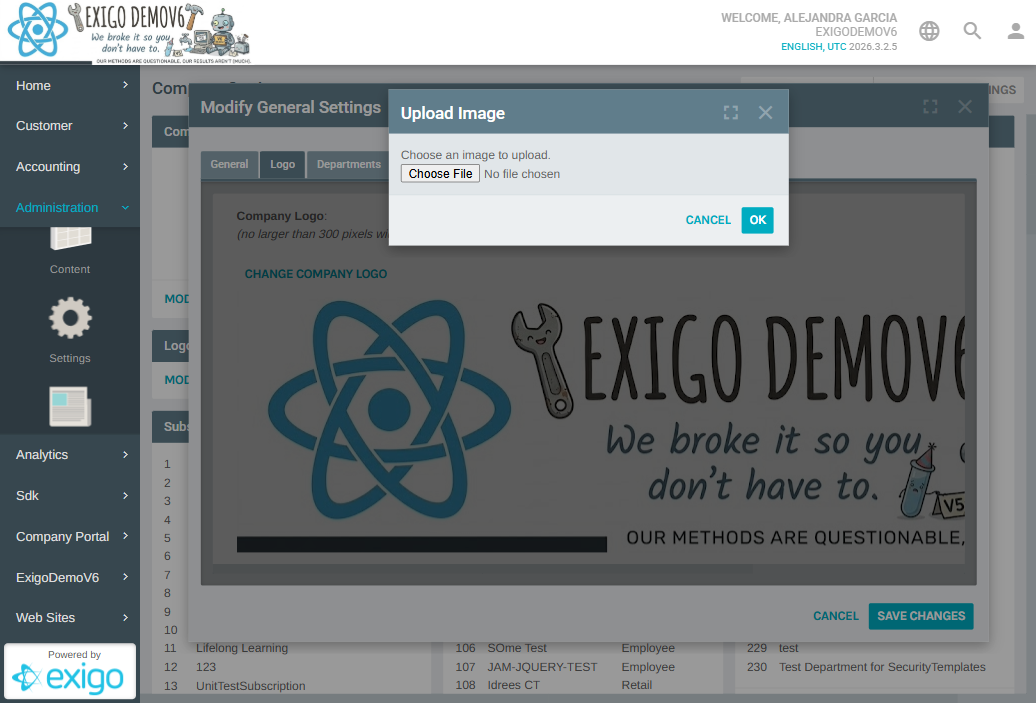
- Click Choose File and select the new logo image from your computer
- After selecting the file, click OK to upload
Warning
The logo must be no larger than 300 pixels wide × 60 pixels high. Images exceeding these dimensions may not display correctly.
4) Save Changes
- After uploading the new logo, verify the preview shows the correct image
- Click SAVE CHANGES at the bottom right of the modal to apply the update
- Click CANCEL to discard the change and keep the current logo
Notes
- The logo update takes effect immediately after saving — it will appear in the top-left corner of the admin interface on the next page load
- Supported image formats typically include PNG, JPG, and GIF
- For best results, use a transparent PNG image that fits within the 300 × 60 pixel constraint
- If the uploaded image is too large or in an unsupported format, the system may reject the upload or display it incorrectly