OrderCalc Promo Rewards
A reward is what a promo gives an order when the promo applies: a discount on the subtotal or on items, a shipping discount, or added items. You build rewards once in the Reward Catalog and reuse them across promos.
Guide Map
| If you need to... | Start here |
|---|---|
| Find, create, or delete catalog rewards | The Reward Catalog |
| Name and describe a reward so it stays accurate | Catalog Rewards Are A Starting Point |
| Choose the right kind of reward | The Five Reward Types |
| Understand the settings every reward shares | How Every Reward Is Set Up |
| Tell qualifications, limits, and caps apart | Qualifications, Limits, And Caps |
| Look up behavior specific to one reward type | Reward Type Details |
| Bring rewards forward after a new company app build | After A New Company App Build |
The Reward Catalog
The Reward Catalog opens from the Promos section of the Order Calc app in Admin. The entries in that section depend on your company's menu setup.
The catalog lists the rewards in your live company app build, with each reward's name, type, scope, and the date it was last changed. Use the search bar to find a reward, New Reward (the pencil icon) to create one, and Remap rewards after a new company app build.

The catalog, searched for one reward.
Creating A Catalog Reward
- Select New Reward.
- Enter a Name. Names must be unique within a reward type; otherwise saving is refused with "A reward with this name already exists for the selected reward type."
- Choose a Reward Type. Each type is shown as its scope and action followed by its name, for example
Order / Discount - OrderSubtotalDiscount. The list contains the reward types in your live company app build. - Enter a Description that says what the reward does (see the next section).
- Fill in the Configuration: the default settings promos start from.
- Select Save.
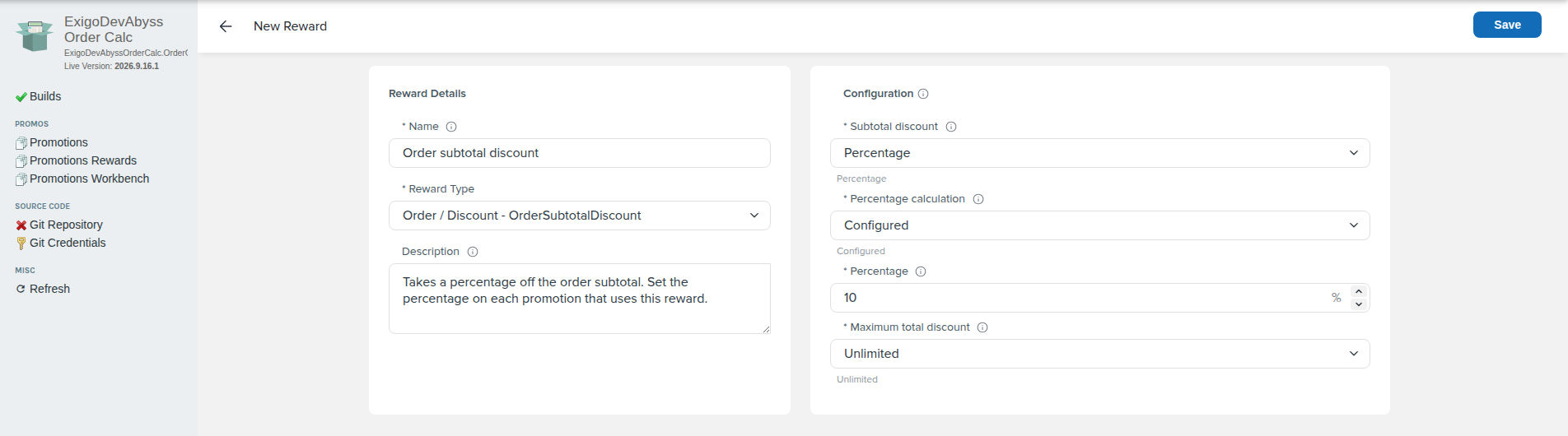
A new catalog reward: Order subtotal discount, with a 10% default.
If you change the reward type after filling in the configuration, the editor asks first: "Change the reward type? Its settings are a different shape, so the current default configuration will be cleared."
Deleting A Catalog Reward
Open the reward, select Delete, and confirm. A reward that a deployed promo uses cannot be deleted: "This reward is linked to at least one deployed promotion and cannot be deleted."
Catalog Rewards Are A Starting Point
When you add a catalog reward to a promo, the promo copies the reward's settings, and you can change them for that promo in the editor's Promotion View. Its Rewards section says so: "Settings changed here apply to this promotion only. The reusable Reward Catalog entry stays unchanged."
Editing a catalog reward later does not change the promos that already use it.
Because each promo can use its own values, name and describe catalog rewards by what they do, not by their values:
| Prefer | Avoid |
|---|---|
| Order subtotal discount | 15% off orders over $75 |
| Takes a percentage off the order subtotal. Set the percentage on each promotion that uses this reward. | Gives 15% off, up to $25 |
A value in the name or description stops being true as soon as a promo uses different settings.
The Five Reward Types
These reward types are built in. Your company app can add its own; they appear in the same list.
| Reward type | Scope / action | What it changes | What it can award |
|---|---|---|---|
OrderSubtotalDiscount |
Order / Discount | The merchandise subtotal | A percentage, or a monetary amount for the whole order |
ItemPriceDiscount |
Item / Discount | The price of selected items already in the order | A percentage, or an amount per unit |
OrderShippingDiscount |
Shipping / Discount | The remaining shipping charge | A percentage, a monetary amount, or a full waiver |
ItemShippingDiscount |
Item / ShippingDiscount | The shipping cost basis of selected items, before shipping is calculated | A percentage, or an amount per unit |
AddItems |
Item / AddItems | Adds a product or a complete bundle to the order | The product or bundle, with its price |
How Every Reward Is Set Up
Rewards share the same building blocks. Each reward type uses the ones that apply to it:
| Setting | The question it answers | Used by |
|---|---|---|
| What you award | The kind of benefit, such as a percentage, an amount, a full shipping waiver, or an added product | Every reward type |
| Which items | Which products in the order can receive the reward | Item price and item shipping discounts |
| How much | Where the value comes from | Every reward type |
| How many units | How many units receive the reward, and which ones first | Item price and item shipping discounts |
| Cap on the result | The most the reward can give in total: an amount, or a number of added units | Percentage subtotal and order shipping discounts, item price and item shipping discounts, and single products added per step |
The Reward Type Details list the exact settings for each type.
Which Items
Products to discount (item price discounts) and Products to adjust (item shipping discounts) offer three choices:
| Choice | Meaning |
|---|---|
| All Products | Every product on the order, including products added to the catalog later |
| Selected Items | Only the products you list |
| Every Item Except | Every product except the ones you list |
Only units already on the order can receive an item reward.
How Much
Percentages, amounts, and unit counts all offer the same five ways to decide the value. Amounts are always in the order's currency; a reward never names a currency.
| Choice | The value is... |
|---|---|
| Configured | The value you enter |
| From Order Measurement Tiers | The value at the highest threshold an order measurement reaches |
| From Qualifying Item Quantity Tiers | The value at the highest threshold reached by the combined quantity of products you list |
| From All Product Quantity Tiers | The value at the highest threshold reached by the combined quantity of all products |
| Per Step | A value for each complete step, such as each $100 of subtotal or each 3 units |
What is measured. An order measurement can be the merchandise subtotal (before promotion discounts, excluding shipping and tax), business volume, commissionable volume, or Other 1 through Other 10, shown under your company's names for them. The grand total, tax, shipping, and handling cannot be measured.
Measurements and quantities are read from the order as it stood before any promotion changed it, so an item added or a discount given by another reward never changes what a reward earns.
Qualifying in these settings means the products you list in the reward, not the promo's qualifications. See Reward Settings Are Not Qualifications.
Tiers. The highest threshold reached decides the value. Lower tiers are not added together, and if no threshold is reached, the reward earns nothing.
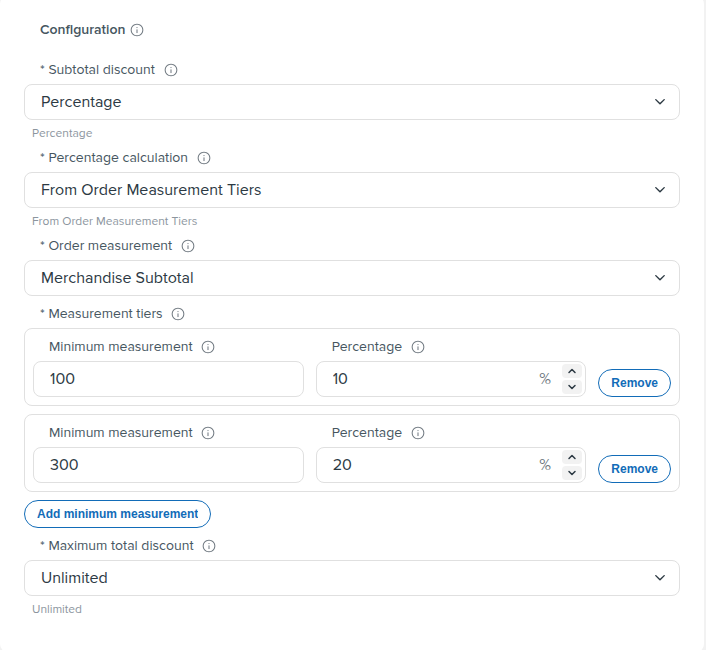
Tiers on the merchandise subtotal: 10% from $100, 20% from $300. An order with a $350 subtotal earns 20%.
Per Step. Choose How a step is earned (Order Measurement, Qualifying Item Quantity, or All Product Quantity) and how much completes one step. Then:
- Repeat limit caps how many complete steps count: Unlimited, or Up To a maximum number of repeats.
- How percentages combine decides how percentage steps add up. Add Points adds them: three 10% steps give 30%. Compound applies each step to what remains: three 10% steps give 27.1%.
- Maximum percentage (percentages), Maximum calculated amount (amounts), or Maximum units (unit counts) caps the value the steps can earn. A percentage can never exceed 100%.
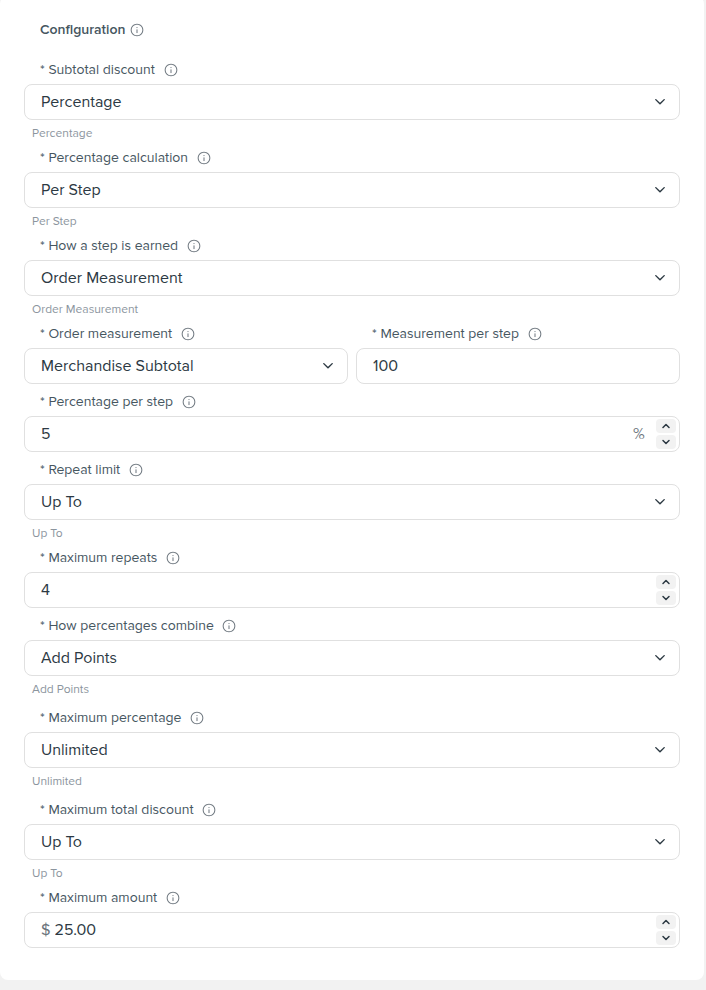
5% for each $100 of merchandise subtotal, counted at most 4 times, with the total discount capped at $25.
How Many Units
Units to discount (item price discounts) and Units to adjust (item shipping discounts):
- All Eligible: every unit of the chosen items.
- Limited: a Number of units, decided by the same five choices as How Much, and Which units first:
- Lowest Basis First: starts with the lowest item price, or the lowest shipping cost basis for a shipping reward.
- Highest Basis First: starts with the highest.
- Cart Order: follows the order of the cart.
Cap On The Result
A cap limits the total effect of the reward: Unlimited, or Up To a value.
| Cap | What it limits | Used by |
|---|---|---|
| Maximum total discount | The total amount taken off, across all affected units | Percentage subtotal and order shipping discounts, item price discounts |
| Maximum total basis reduction | The total shipping basis removed | Item shipping discounts |
| Maximum added units | The total units added | Add Items, for a single product added per step |
A bundle has no unit cap: it is always added as complete copies, and its repeat limit decides how many.
These caps are separate from the caps inside a Per Step rule (Repeat limit, Maximum percentage, Maximum calculated amount, and Maximum units). The Per Step caps limit what the rule earns; these limit what the reward gives.
Qualifications, Limits, And Caps
A promo answers three questions in order: does it apply to this order, can it still be used, and how much does each reward give. Each question has its own kind of rule:
| Rule | Set on | Decides | Effect |
|---|---|---|---|
| Qualification | The promo | What an order needs for the promo to apply | If any qualification fails, the promo does not apply |
| Limit | The promo, or one of its rewards | Whether the promo or the reward can still be used, such as once per customer | A failed promo limit stops the whole promo. A failed reward limit skips only that reward; the promo's other rewards still apply |
| Cap | A reward's own settings | The most that reward gives | The reward still applies, and gives no more than the cap |
The Authoring And Management Guide covers adding qualifications and limits to a promo.
Caps Are Not Limits
A cap is part of the reward's own logic. "10% off, up to $25" and "a free mug per $100, at most five" each describe one reward. A limit is a usage rule around the reward: "once per customer" says nothing about how much the reward gives, only whether it can be used again.
When a cap is reached, the customer still gets the reward, just no more of it. When a limit is not met, the customer gets none of it.
Repeat limit is a cap despite its name: it sits inside the reward's settings and bounds how many steps the reward counts.
Reward Settings Are Not Qualifications
Tiers, steps, and product quantities measure the order, so they can look like qualifications, especially settings named Qualifying Item Quantity and Qualifying products. They only decide how much the reward gives:
- Qualifications decide whether the promo applies. Every qualification on the promo must pass.
- Each reward then works out its own value from its own settings. A reward that reaches no tier or completes no step gives nothing, even though the promo applied.
- A reward never reads the promo's qualifications. The products it counts are the ones listed in the reward, and a qualification's threshold is never reused: qualifying at $50 and earning "per $100" are separate settings.
Example: A Free Shaker Bottle For Every Two Protein Tubs
The offer: a customer who buys the Starter Kit or the Deluxe Kit gets a free Shaker Bottle for every two Protein Tubs they buy.
- Qualification:
ProductInCartQualification, with Products in the cart set to Contains Selected Products and the Starter Kit and the Deluxe Kit as the Item codes. Either kit is enough. - Reward: Add Items with the Shaker Bottle as a Single Product, Units per award 1, and Price of added item set to Exact with a unit price of 0. Set How often to add the product to Per Step, with How a step is earned set to Qualifying Item Quantity, the Protein Tub as the Qualifying products, and 2 Qualifying units per step.
| Order | Result |
|---|---|
| Starter Kit and four Protein Tubs | The promo applies, and two complete steps add two free Shaker Bottles |
| Deluxe Kit and one Protein Tub | The promo applies, but no step is complete, so no Shaker Bottle is added |
| Four Protein Tubs, without a kit | The qualification fails, so the promo does not apply |
The qualification decides who gets the offer; the reward decides how many Shaker Bottles they get. To require a Protein Tub before the promo applies at all, add a second ProductInCartQualification for the Protein Tub: every qualification must pass, so the promo then needs a kit and a Protein Tub.
To give at most five Shaker Bottles per order, set Maximum added units to Up To 5. That is a cap. To let each customer use the offer only once, add a MaxUsesPerCustomerLimit to the promo. That is a limit.
Reward Type Details
Order Subtotal Discount
Reduces the merchandise subtotal.
- Subtotal discount: Percentage, with an optional Maximum total discount, or Monetary Amount, a total for the order rather than an amount per item.
Example: 10% at $100 and 20% at $300, with a $25 maximum total discount. A $350 order earns 20%, which is $70, and the cap applies $25.
Item Price Discount
Discounts selected items that are already in the order.
- Products to discount, Discount method (Percentage or Amount Per Unit), Units to discount, and Maximum total discount.
- The maximum total discount is shared across the discounted lines in proportion to each line's discount. Each line's discount is spread across its units in whole cents and never rounded up, with or without a cap, so a total that does not divide evenly gives slightly less: $40 over three units is $13.33 each, or $39.99.
Example: the order has two T-shirts at $20 each and one hoodie at $40.
| Settings | Result |
|---|---|
| 50% off, one unit, Lowest Basis First | $10 off one T-shirt |
| 50% off, one unit, Highest Basis First | $20 off the hoodie |
| 50% off all eligible units, $10 maximum total discount | $5 off the T-shirt line and $5 off the hoodie |
Order Shipping Discount
Reduces the remaining shipping charge.
- Shipping discount: Percentage (with an optional Maximum total discount), Monetary Amount, or Full Waiver.
- If the order's shipping amount was set manually, the reward leaves it unchanged. Separate handling fees are never waived.
Example: the remaining shipping charge is $15.
| Settings | Result |
|---|---|
| 50% | Shipping becomes $7.50 |
| $20 monetary amount | Only the $15 is removed |
| Full waiver | The $15 is removed; any handling fee stays |
Item Shipping Discount
Reduces the shipping cost basis of selected items before shipping is calculated.
- Products to adjust, Shipping basis reduction (Percentage or Amount Per Unit), Units to adjust, and Maximum total basis reduction.
- The cap limits how much shipping basis is removed, not the final shipping savings, which depend on how shipping is calculated.
Example: the order has two T-shirts with a $4 shipping basis each and one hoodie with an $8 shipping basis.
| Settings | Result |
|---|---|
| 50% off, one unit, Highest Basis First | The hoodie's basis drops to $4 |
| 50% off all eligible units, $4 maximum total basis reduction | Each T-shirt's basis drops to $3 and the hoodie's to $6 |
Add Items
Adds a product or a complete bundle to the order.
- Items to add: Single Product or Complete Bundle.
- Product selection (or Bundle selection): Configured, or chosen by tiers. Each tier has its own product or bundle, and only the highest tier reached is awarded.
- Product to add: the Product, its Units per award, and the Price of added item:
- Catalog: the current catalog price.
- Exact: the unit price you enter. Zero makes the item free.
- Catalog Less Amount or Catalog Less Percentage: a discount from the catalog price, never below zero.
- How often to add the product (or bundle): Once, or Per Step with a repeat limit. Per Step for a single product also has Maximum added units. A bundle is always added as complete copies.
- If any product in a bundle is unavailable, none of the bundle is added.
Example: two mugs per $100 of merchandise subtotal, with a maximum of 5 added units. A $300 order earns three steps, which would be six mugs, and the maximum adds five.
After A New Company App Build
Rewards belong to the company app build they were created with. When a new build goes live, rewards from earlier builds no longer appear in the catalog until you remap them.
Remap rewards brings them forward. It lists each reward that still uses an earlier build, matched to the same implementation in the current build:
| Status | Meaning |
|---|---|
| Ready to remap | The reward's settings fit the current build as they are |
| Ready to remap with the changes below | The reward can move after the changes shown |
| N fields need attention | Fix the highlighted settings before the reward can move |
| Implementation unavailable | The current build has no matching reward implementation |
| Ambiguous match | More than one implementation in the current build matches |
Select the rewards to move and confirm. The selected rewards are remapped together, or not at all if any of them cannot be. Each reward keeps its ID, no copies are created, and promos are not changed.
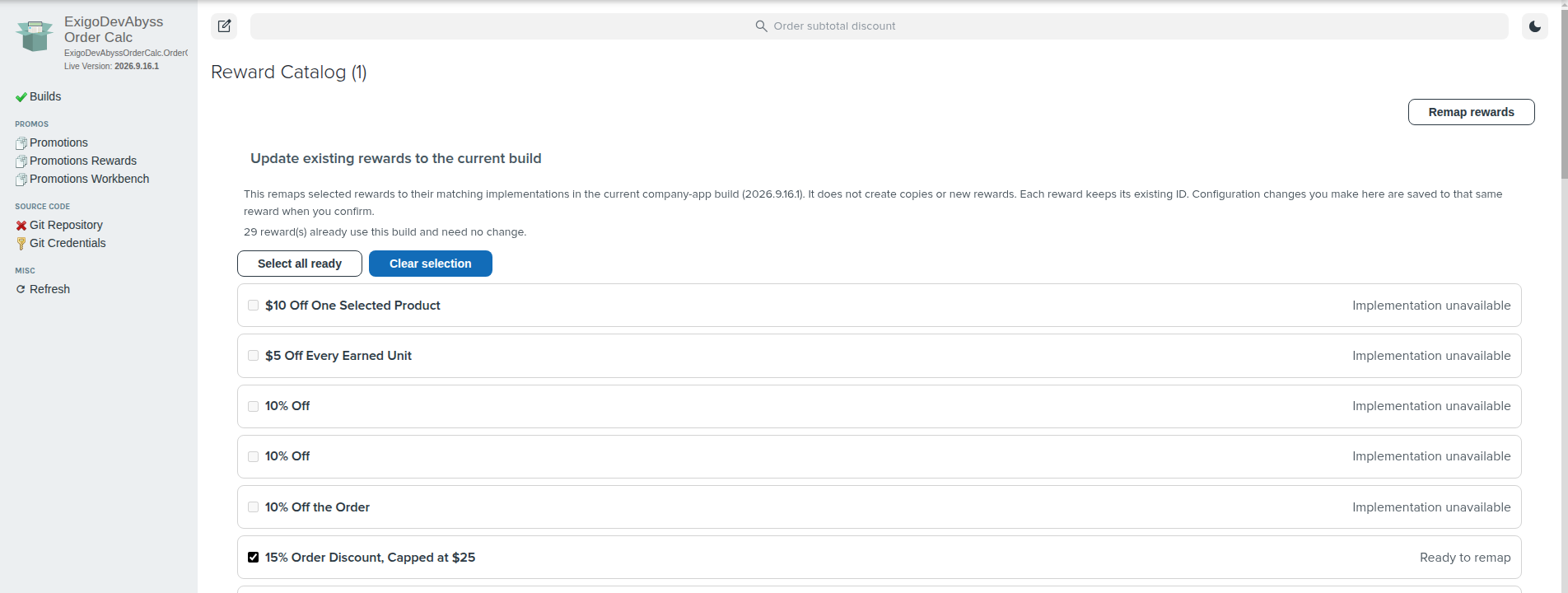
Remap rewards, before confirming. Rewards marked Ready to remap are selected; rewards without a matching implementation cannot be selected.
Continue Reading
- For reusable promo setups and lists of values, continue to OrderCalc Promo Templates And Saved Groups.
- For common offers built from these rewards, see OrderCalc Promo Common Offers.
- For building promos that use these rewards, see the OrderCalc Promo Authoring And Management Guide.
- For how rewards fit into the platform, see the OrderCalc Promo Platform Overview.
- For creating a custom reward type in your company app, see the OrderCalc Promo Extension Authoring Guide.