Check Templates
This document provides a step-by-step guide for managing Check Templates in the Exigo Admin portal.
Overview
Check Templates control the physical layout of printed checks produced from Exigo — primarily used for commission payouts, vendor payments, or any disbursement paid by check. Each check template is tied one-to-one to a Bank Account: when a check is drawn against a bank account, the system uses that account's template to determine the check style (MICR layout), margins, and the memo line that appears on the printed check.
A check template consists of four elements:
- Check Style — the pre-defined MICR/check stock layout (numbered Style 1 through Style 89).
- Top Margin — vertical offset applied at print time.
- Left Margin — horizontal offset applied at print time.
- Check Statement memo — the default memo text printed on the check's memo line.
Accessing Check Templates
Navigation Path
- Log in to the Exigo Admin portal.
- Navigate to Administration > Settings.
- Select the ACCOUNTING SETTINGS tab.
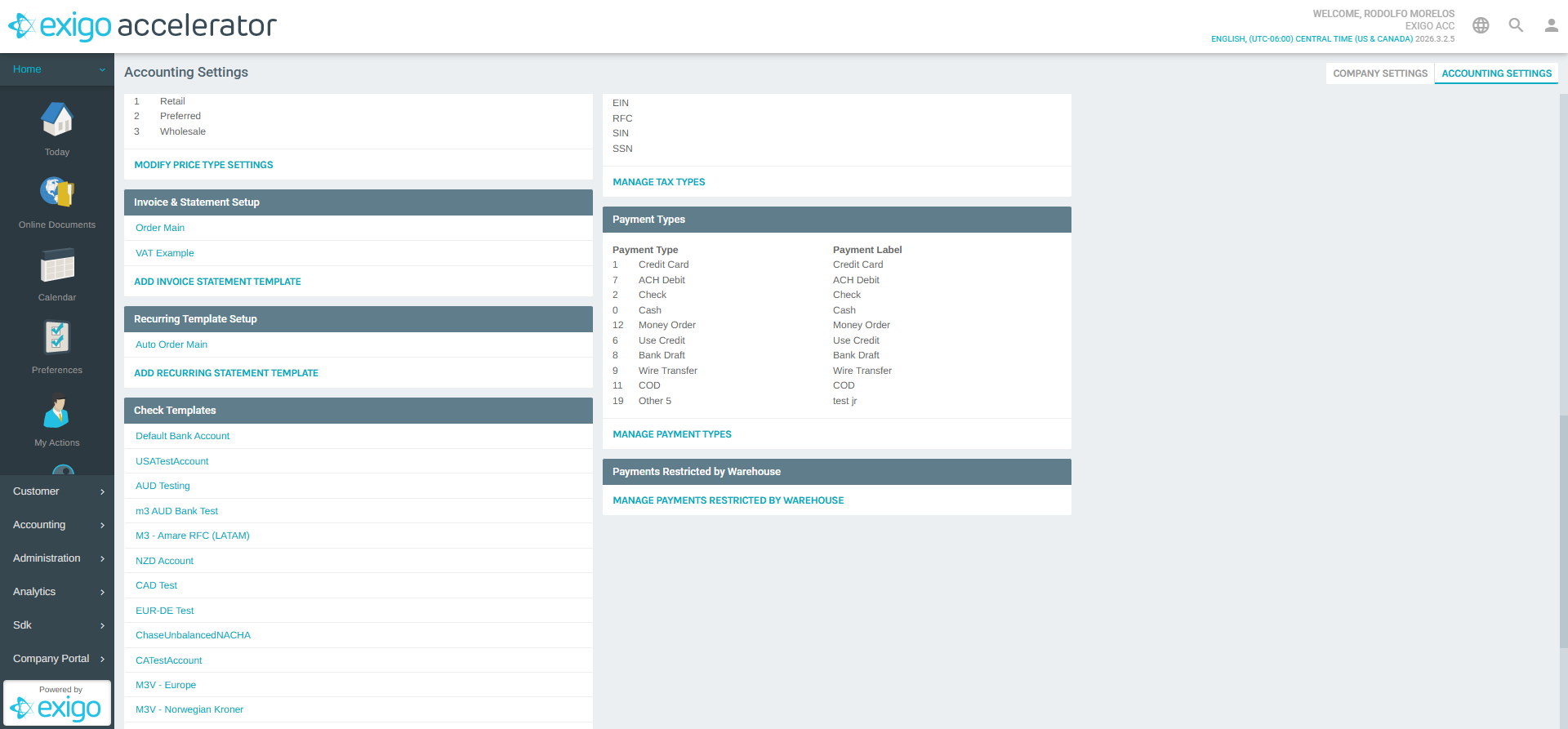
- Scroll down to the Check Templates section (located just below Recurring Template Setup).
Viewing Existing Check Templates
The Check Templates section lists one template per configured bank account. In the example environment these include:
| Template Name | Purpose |
|---|---|
| Default Bank Account | Checks drawn from the default bank account |
| USATestAccount | USD test bank account |
| AUD Testing | Australian dollar test account |
| m3 AUD Bank Test | Secondary AUD test account |
| M3 - Amare RFC (LATAM) | LATAM-region bank account |
| NZD Account | New Zealand dollar account |
| CAD Test | Canadian dollar test account |
| EUR-DE Test | Euro (Germany) test account |
| ChaseUnbalancedNACHA | Chase unbalanced NACHA account |
| CATestAccount | Canadian test account |
| M3V - Europe | European bank account |
| M3V - Norwegian Kroner | NOK bank account |
| M3V - Denmark Krone | DKK bank account |
| Xyngular-PH | Philippines bank account |
| JuicePlus USD | USD JuicePlus account |
| JuicePlus CAD | CAD JuicePlus account |
| JuicePlus SEPA | SEPA (Europe) JuicePlus account |
| M3 Master | Master consolidated account |
The list is automatically derived from the Bank Account section above — every bank account has a corresponding check template entry. To add a new check template, first add a new bank account via ADD NEW BANK ACCOUNT; the matching check template entry will appear automatically.
Click any template name to open the Check Template Setup dialog.
Editing a Check Template
Click a template name (e.g., Default Bank Account) to open the Check Template Setup popup. Unlike invoice and recurring templates, the check template editor is a single page with no tabs.
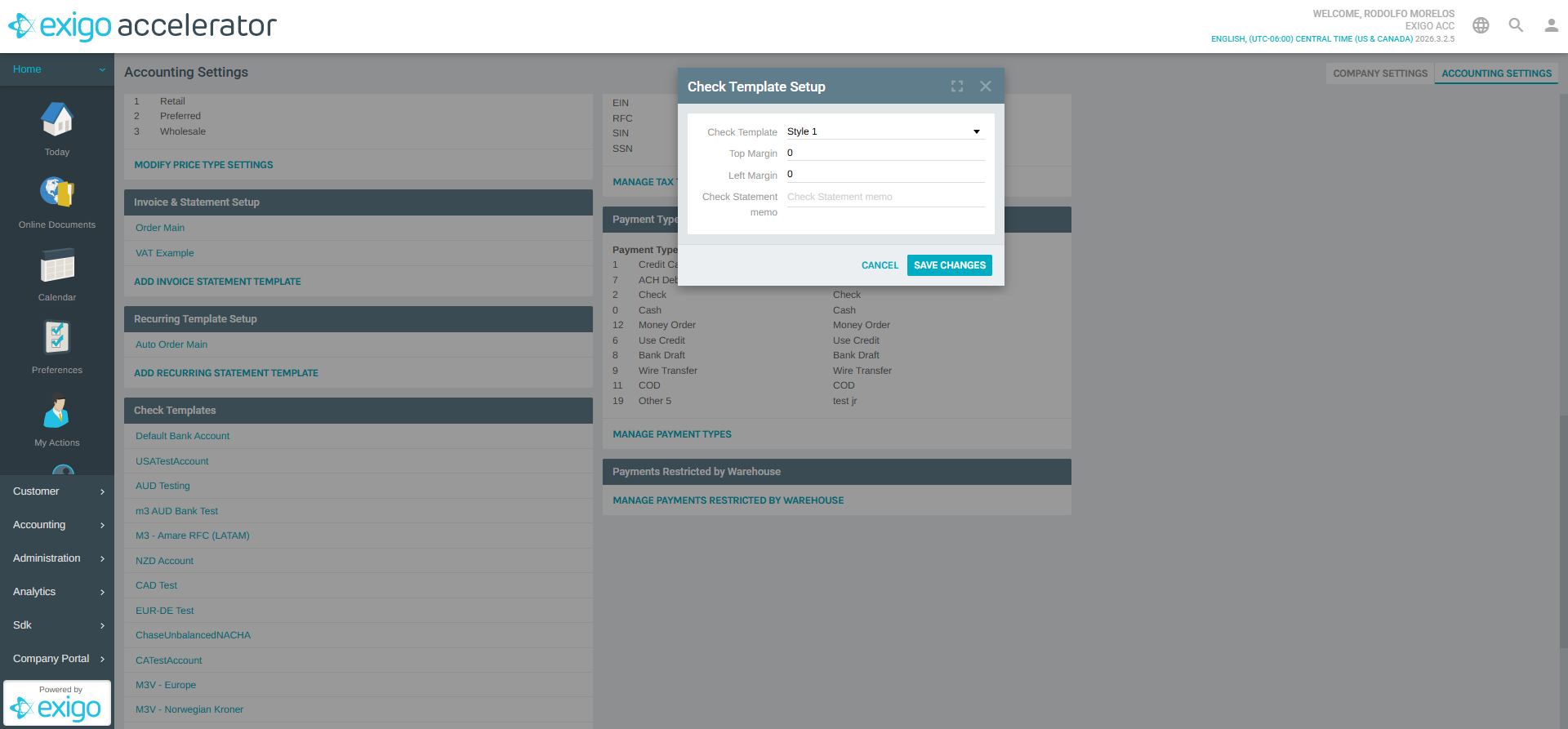
The dialog exposes the following fields:
Check Template (Style)
A dropdown that selects the check stock / MICR layout to use. Each style corresponds to a pre-defined Exigo check format designed for specific check stock vendors and country requirements. Available styles in the current version are:
- Style 1 – Style 11
- Style 14 – Style 24
- Style 26 – Style 50
- Style 86 – Style 89
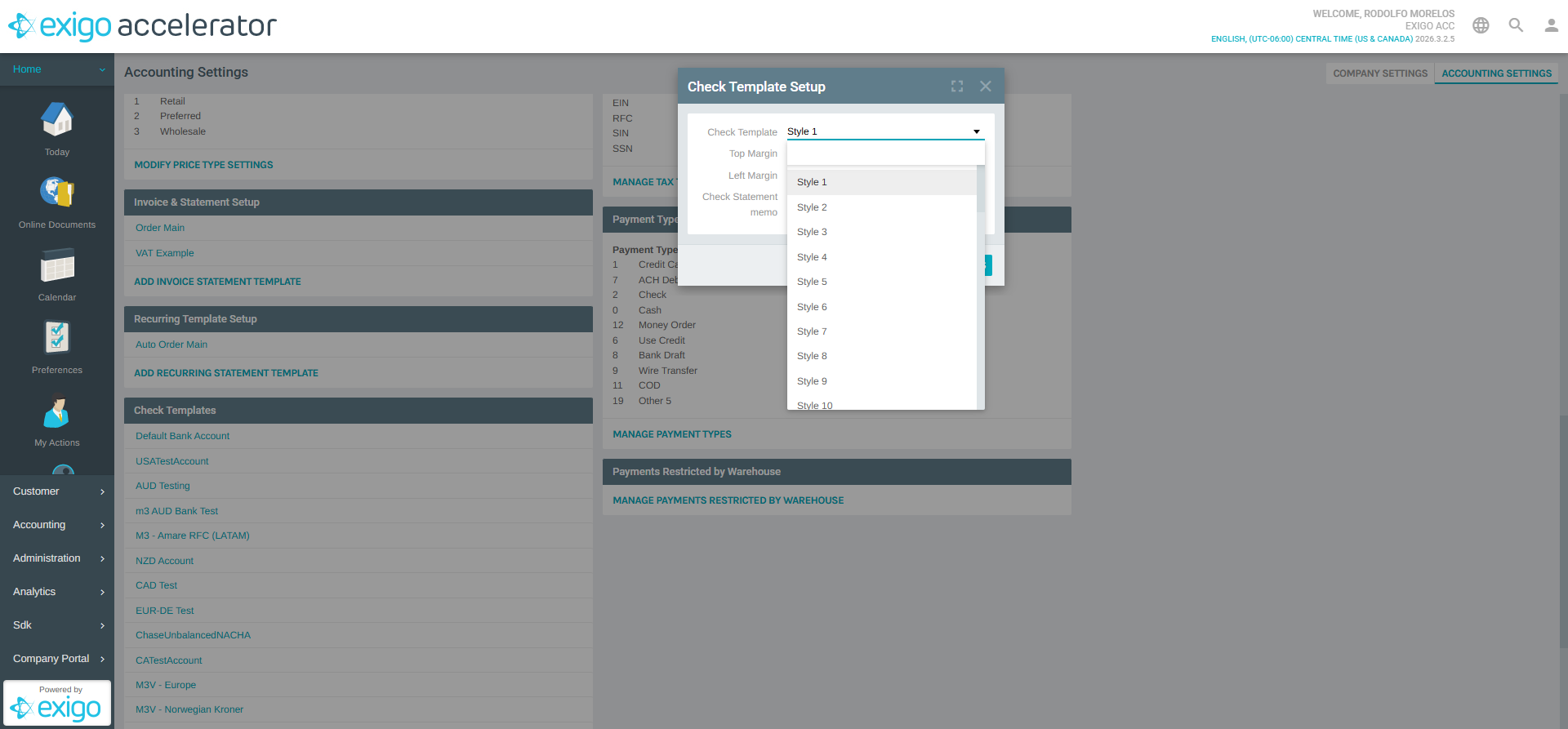
Pick the style that matches the physical check stock purchased for that bank account. Using the wrong style will result in misaligned text, MICR line, signature block, or routing/account numbers on the printed check.
Top Margin
A numeric offset (in printer points) applied to the top of the printed check. Adjust in small increments (e.g., 1, -2) to correct vertical misalignment when printing. Default: 0.
Left Margin
A numeric offset applied to the left edge of the printed check. Use this to correct horizontal misalignment. Default: 0.
Check Statement memo
A free-form multi-line text field whose content is printed on the memo line of every check drawn against this bank account. Typical contents include:
- "Commission Payment"
- "Vendor Payment"
- A reference to an internal payment batch or period
Leave blank if you do not want a default memo (the memo can still be populated dynamically per check run if supported by your process).
Actions
- SAVE CHANGES — persists the template.
- CANCEL — closes the dialog without saving.
- The fullscreen and close icons in the upper right maximize or dismiss the popup.
Adding a New Check Template
Check templates are not added directly. They are created automatically whenever a new bank account is added. To add a new check template:
- In the Bank Account section of the Accounting Settings page, click ADD NEW BANK ACCOUNT.
- Complete the bank account setup (name, currency, routing information, etc.).
- Once the bank account is saved, a new entry appears in the Check Templates section with the same name.
- Click the new entry to configure its style, margins, and memo.
For details on creating a bank account, see the Bank Account section in Accounting Settings (documentation pending).
Best Practices
- Align margins after printing a test check. Print a single test check, compare to a pre-printed check stock sample, and adjust Top/Left Margins by small amounts (1–3 points) until the text aligns with the printed fields.
- Match the style to your check stock. Confirm with your check stock vendor which Exigo style number corresponds to their layout before ordering large quantities.
- Use a meaningful memo. A clear default memo (e.g., "Commission Payment") helps payees reconcile checks and reduces support calls.
- Keep templates consistent per currency/region. When you operate multiple bank accounts for the same currency or country, use the same style across them to simplify operations and stock management.
- Test after any printer or driver change. Margin offsets are printer-dependent; a driver update or printer swap can shift alignment and require re-calibration.
Related Concepts
- Bank Account — Each check template is tied to one bank account. See the Bank Account section in Accounting Settings.
- Invoice & Statement Setup — Templates for printed invoices. See Invoice & Statement Setup.
- Recurring Template Setup — Templates for recurring (auto-order) statements. See Recurring Template Setup.
- Payment Types — Check is one of the available payment types in the system. See the Payment Types section in Accounting Settings.
System Notes
- Check Templates are located at Administration > Settings > Accounting Settings > Check Templates.
- A check template is automatically created when a new bank account is added and is automatically removed when the bank account is removed.
- The available style numbers are not sequential (Styles 12, 13, 25, and 51–85 are not present); the gaps correspond to retired or internal-only layouts.
- Top and Left Margin values accept positive or negative numbers to shift content in any direction.
- The Check Statement memo is stored per template and reused for every check printed against that bank account unless overridden at print time.