Back Office Configuration > General Settings
Overview
The General Settings section, accessible from Company Portal > Back Office Configuration > Settings in the Exigo admin panel, centralizes configuration for the distributor Back Office portal. It controls markets, custom dashboard widgets, visual tree behavior, silent login keys, company social network links, and team dashboard types.
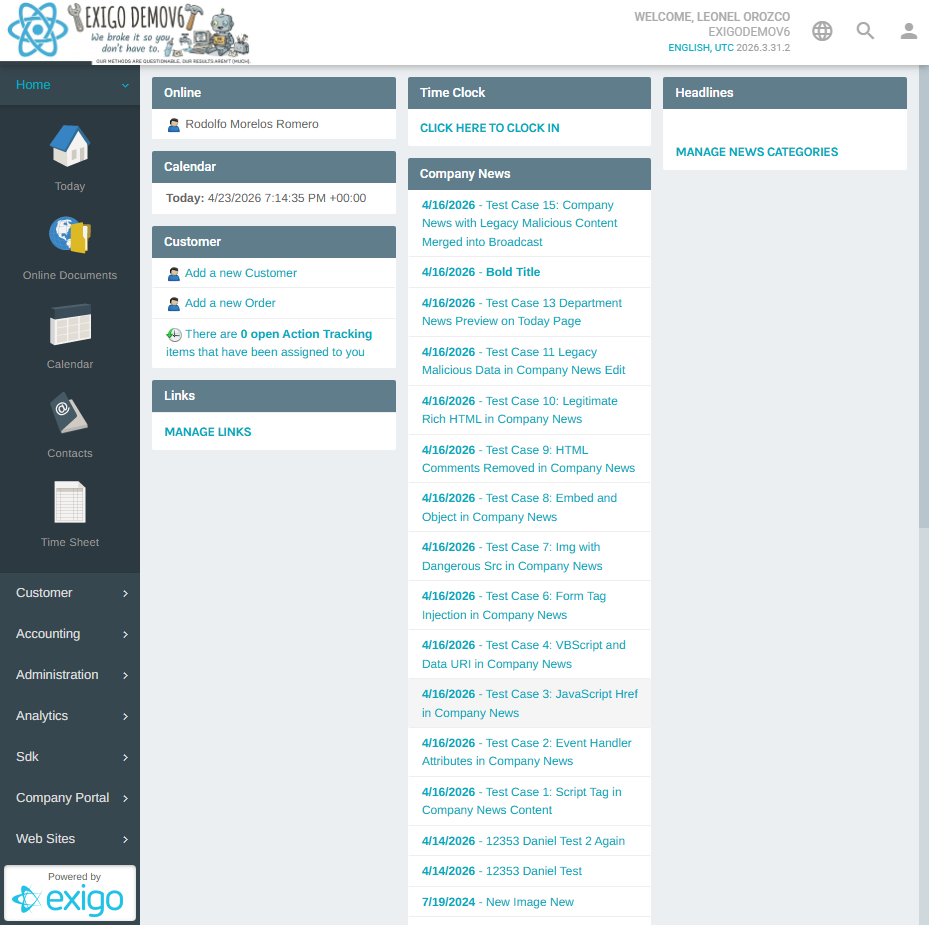
Navigating to BackOffice General Settings
- Log in to the Exigo admin panel.
- In the left sidebar, expand the Company Portal section.
- Click Back Office Configuration.
The Back Office Management portal opens in a dedicated view.
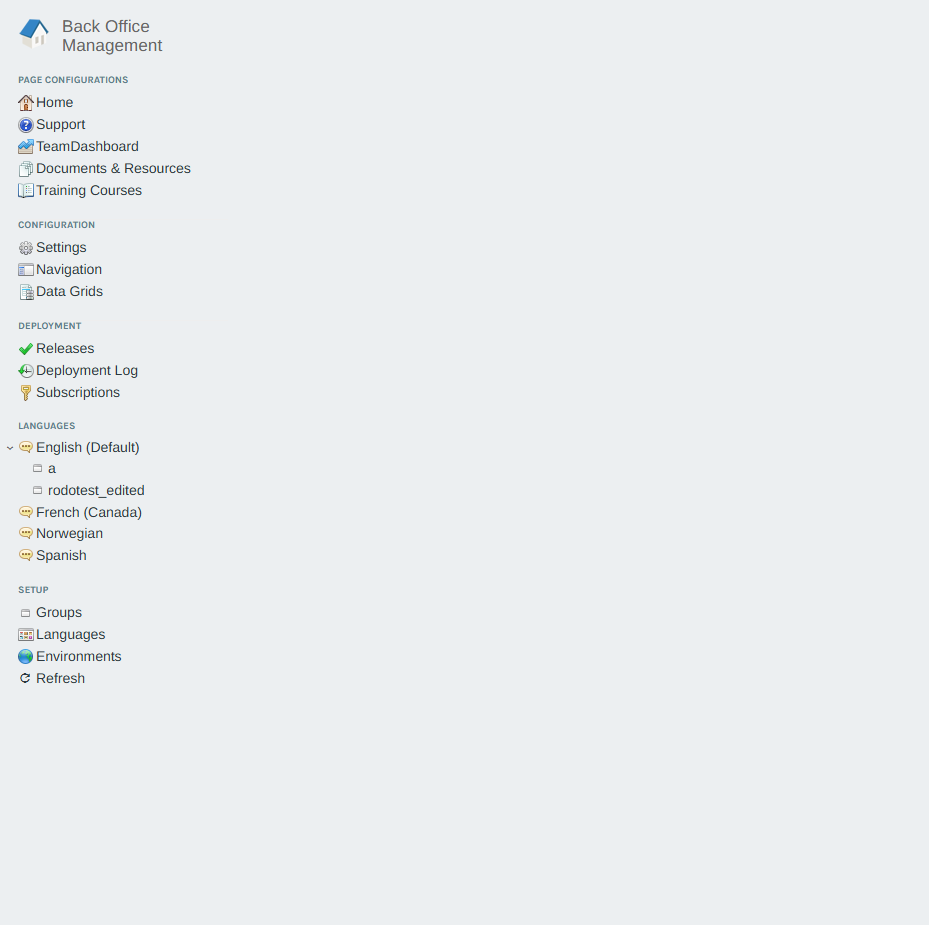
- In the Configuration section of the left menu, click Settings.
The Web Site Settings page loads in the main content area.
Web Site Settings Overview
The Web Site Settings page summarizes all configurable areas of the Back Office portal in a single view.
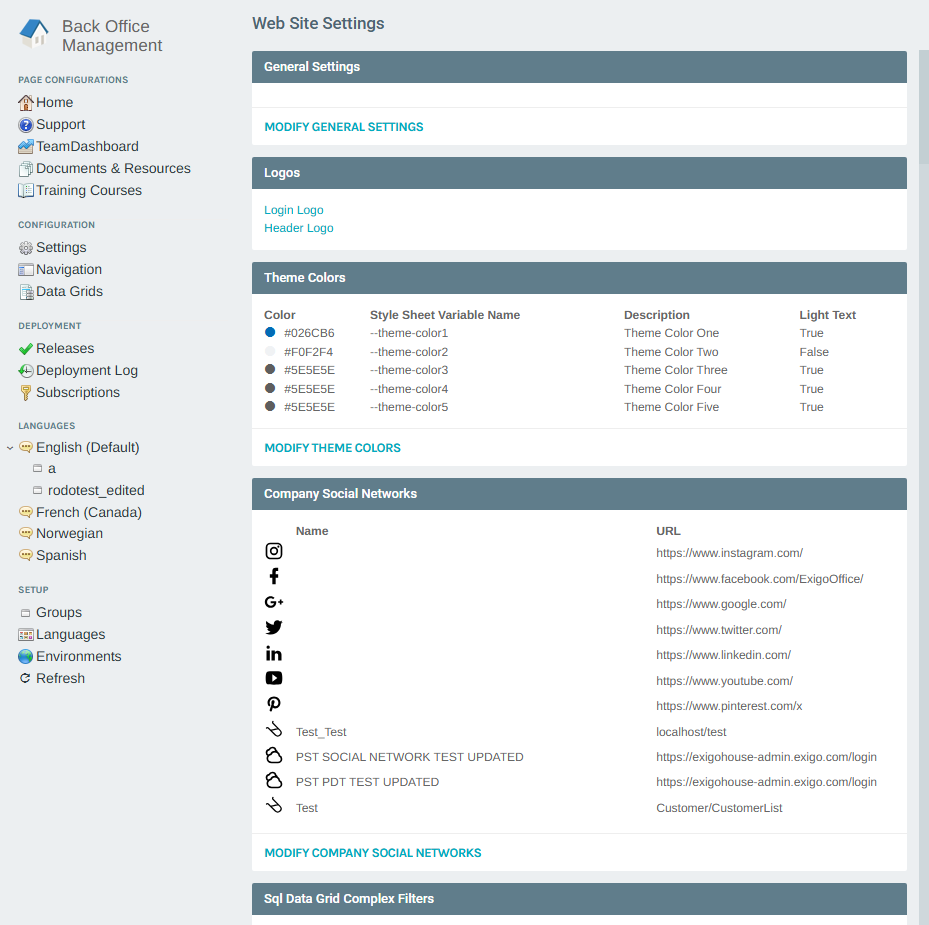
| Section | Description |
|---|---|
| General Settings | Opens the Modify General Settings popup for Markets, Widgets, Trees, Keys, Social Networks, and Dashboard Types |
| Logos | Manage the Login Logo and Header Logo images |
| Theme Colors | Configure the five CSS theme color variables used across the portal |
| Company Social Networks | Summary of configured social media links |
| Sql Data Grid Complex Filters | Named filter presets used in SQL Data Grid components |
| Markets | List of available markets with schema associations |
| Custom Widgets | Registered custom dashboard widget components |
| Team Dashboard Types | Types available in the Team Dashboard |
| Visual Tree | Tree viewer configurations (Binary, Enrollment, Unilevel) |
| Silent Login Keys | API keys used for silent login authentication |
| Party Settings | Party feature configuration and KPI templates |
Opening Modify General Settings
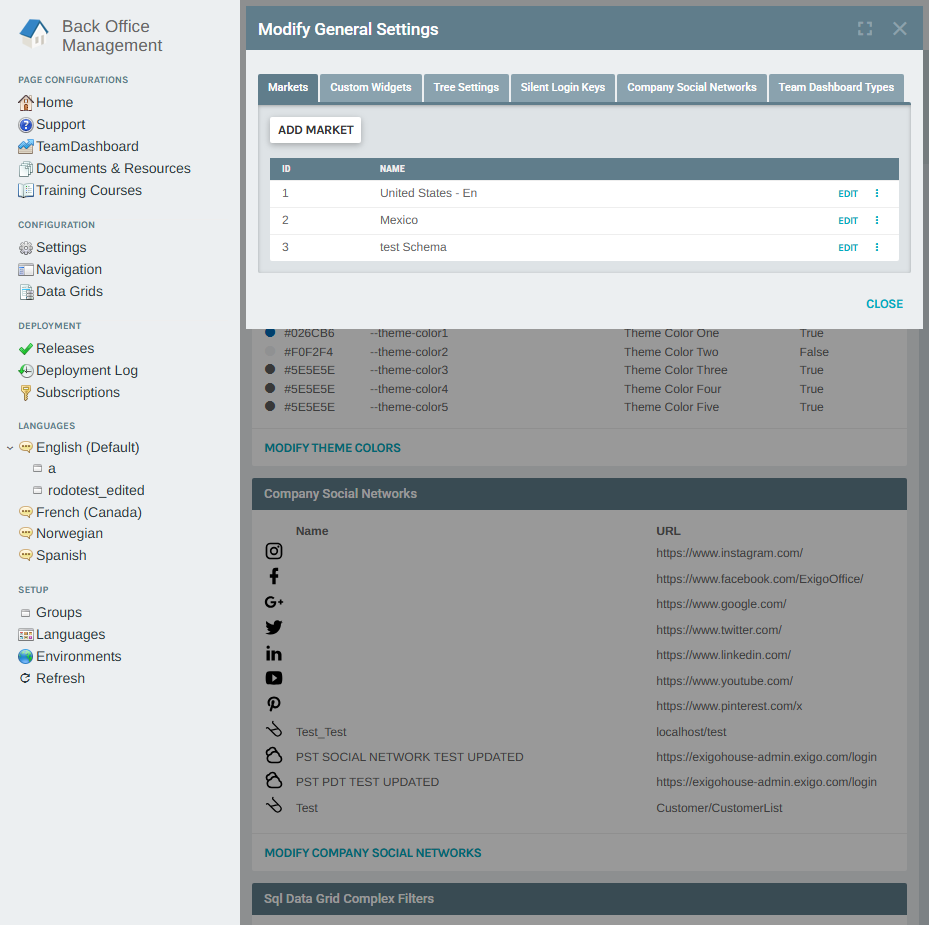
From the General Settings section at the top of the page, click MODIFY GENERAL SETTINGS.
The Modify General Settings popup opens with six tabs.
Markets Tab
The Markets tab lists the markets available in the Back Office portal. Each market maps to a specific schema and locale configuration.
| Column | Description |
|---|---|
| ID | Unique identifier for the market |
| Name | Display name (e.g., United States - En, Mexico) |
Click ADD MARKET to create a new market. Click EDIT on any row to modify its name, schema, or locale settings.
Custom Widgets Tab
The Custom Widgets tab manages reusable dashboard widget components that can be placed on Back Office pages.
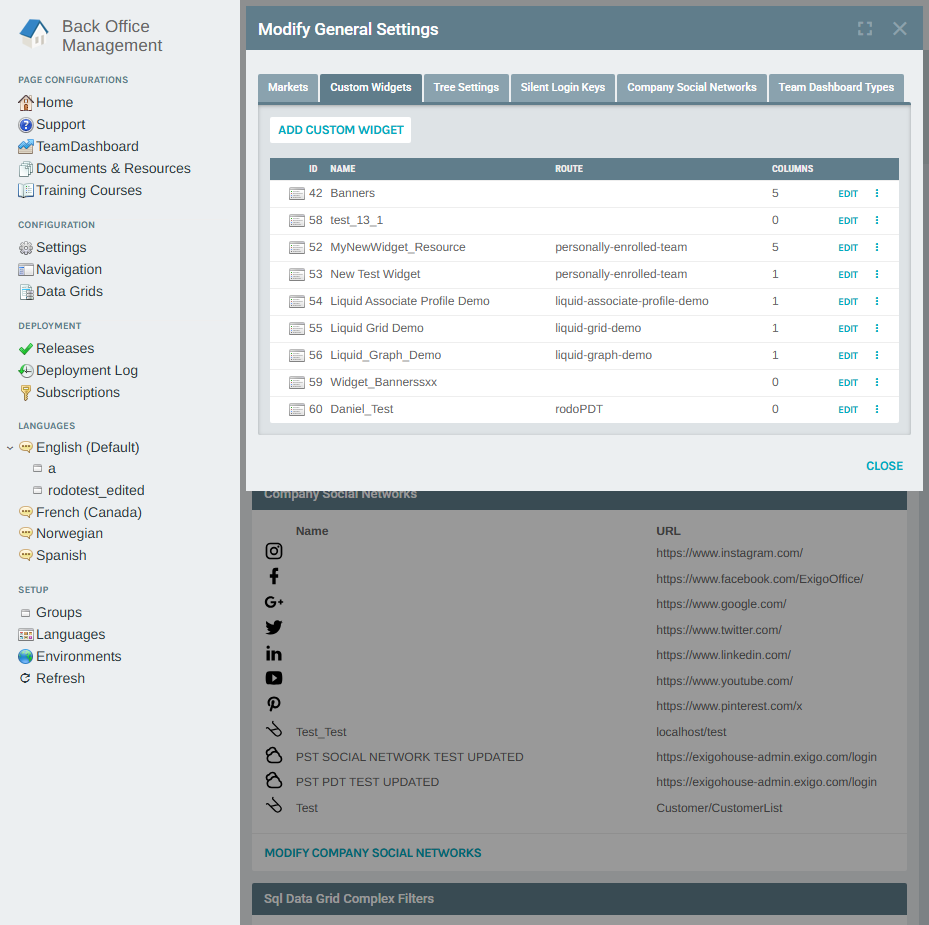
| Column | Description |
|---|---|
| ID | Unique identifier for the widget |
| Name | Display name of the widget |
| Route | The URL route the widget loads (e.g., personally-enrolled-team) |
| Columns | Number of grid columns the widget occupies |
Click ADD CUSTOM WIDGET to register a new widget component. Click EDIT to update an existing widget's name, route, or column span.
Tree Settings Tab
The Tree Settings tab contains two sub-sections: Tree Viewer Settings (global viewer configuration) and Tree Settings (per-tree configuration).
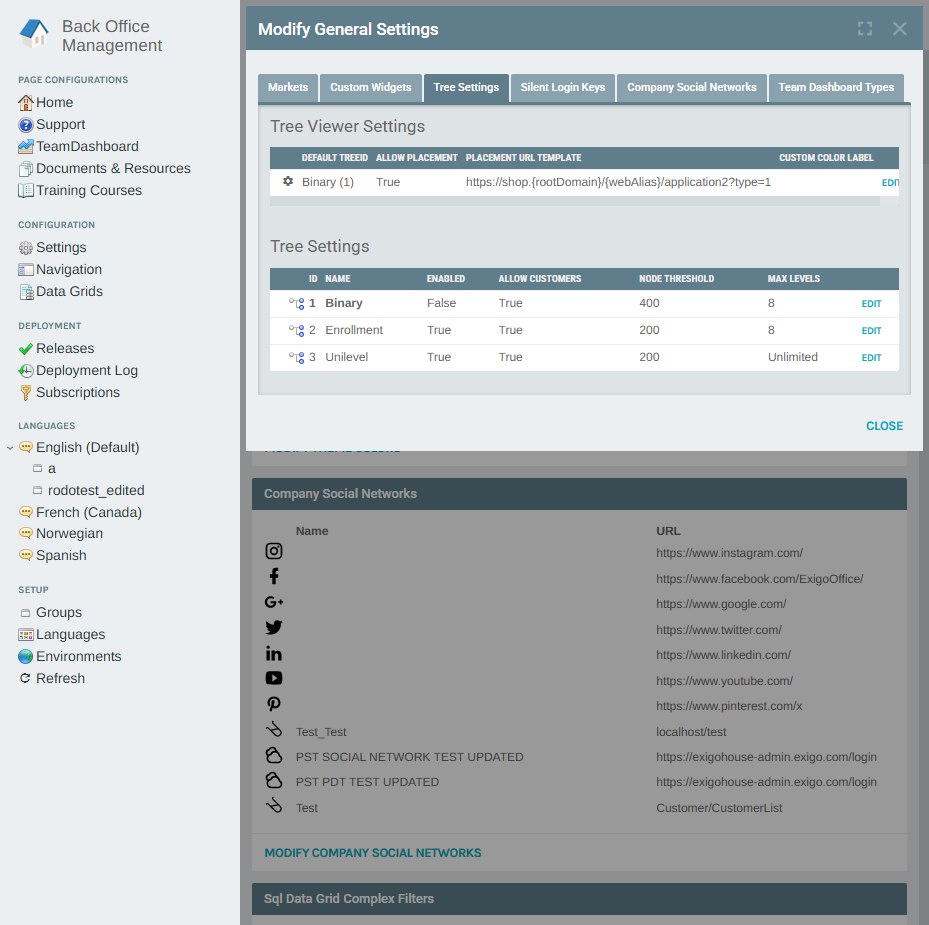
Tree Viewer Settings
| Column | Description |
|---|---|
| Default Tree ID | The tree displayed by default in the viewer |
| Allow Placement | Whether users can place members from the viewer |
| Placement URL Template | URL template used when initiating a placement action |
| Custom Color Label | Optional label override for color coding |
Tree Settings
| Column | Description |
|---|---|
| ID | Unique identifier for the tree type |
| Name | Tree name (e.g., Binary, Enrollment, Unilevel) |
| Enabled | Whether this tree is active in the portal |
| Allow Customers | Whether retail customers appear in the tree |
| Node Threshold | Maximum number of nodes loaded per level |
| Max Levels | Maximum depth the tree viewer will render |
Click EDIT on any tree row to adjust its configuration.
Silent Login Keys Tab
The Silent Login Keys tab manages API keys that allow external systems to authenticate distributors into the Back Office portal without requiring a password.
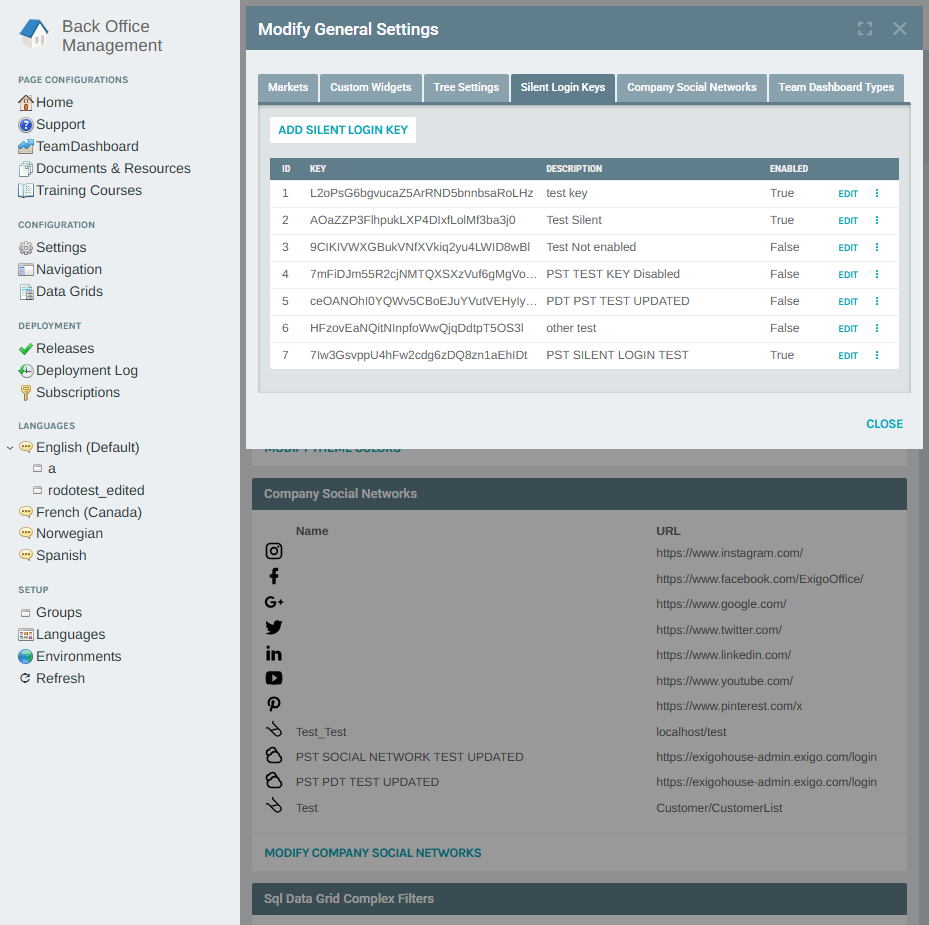
| Column | Description |
|---|---|
| ID | Unique identifier for the key |
| Key | The generated API key string (partially masked) |
| Description | Human-readable label for the key |
| Enabled | Whether this key is active (True / False) |
Click ADD SILENT LOGIN KEY to generate a new key. Click EDIT to update the description or toggle the enabled state.
Company Social Networks Tab
The Company Social Networks tab configures the social media links that appear in the Back Office portal for distributors.
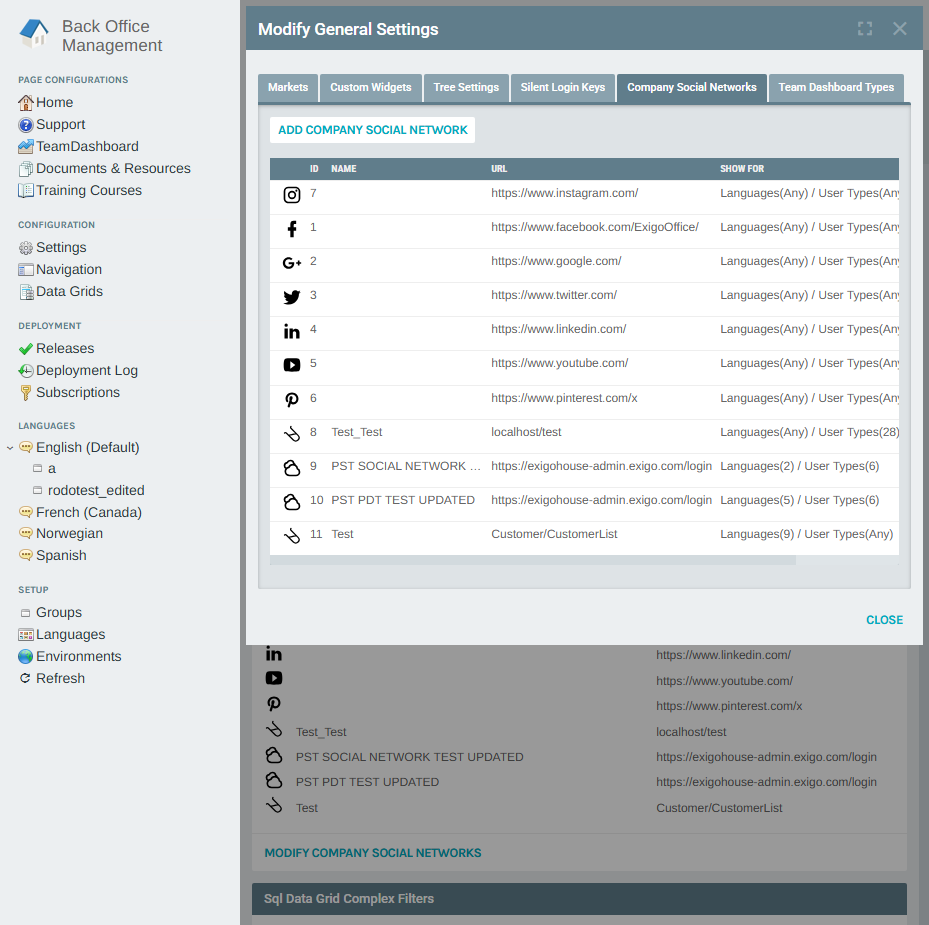
| Column | Description |
|---|---|
| ID | Unique identifier |
| Name | Optional custom label for the network |
| URL | The destination URL for the social media link |
| Show For | Language and User Type filter controlling visibility |
Click ADD COMPANY SOCIAL NETWORK to add a new link. Click the row to edit an existing network's URL or visibility filters.
Team Dashboard Types Tab
The Team Dashboard Types tab defines the tree-view types available in the Team Dashboard widget inside the distributor Back Office.
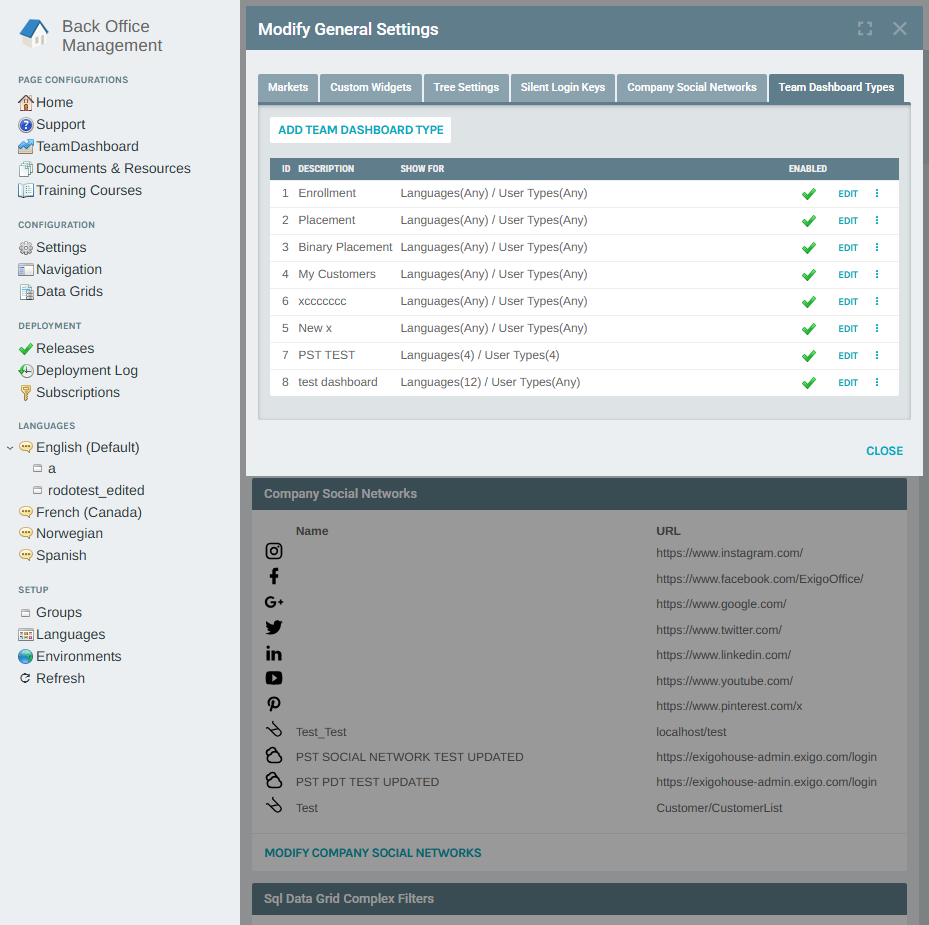
| Column | Description |
|---|---|
| ID | Unique identifier |
| Description | Display name of the dashboard type (e.g., Enrollment, Binary Placement) |
| Show For | Language and User Type filter controlling visibility |
| Enabled | Green checkmark indicates the type is active |
Click ADD TEAM DASHBOARD TYPE to create a new type. Click EDIT to modify an existing type's description or visibility rules.
Summary
| Feature | Description |
|---|---|
| Location | Company Portal > Back Office Configuration > Settings > Modify General Settings |
| Markets | Define available markets and their schema/locale associations |
| Custom Widgets | Register and configure dashboard widget components |
| Tree Settings | Configure the visual tree viewer and per-tree behavior |
| Silent Login Keys | Manage API keys for passwordless distributor authentication |
| Company Social Networks | Set the social media links shown in the portal by language and user type |
| Team Dashboard Types | Define the tree views available in the Team Dashboard widget |