Country VAT
This document provides a step-by-step guide for managing Country VAT settings in the Exigo Admin portal.
Overview
Country VAT (Value-Added Tax) is the table that tells Exigo which countries must charge VAT on orders, what percentage applies, and whether the same percentage also applies to shipping charges in that country. When a customer places an order, Exigo looks up the shipping destination's country in this table and — if a row exists — applies the configured VAT percentage to both order lines and (optionally) the shipping line.
A Country VAT row stores three pieces of information:
- Country — the destination country the rule applies to (must be an enabled country under Accounting Settings → Country).
- VAT (%) — the percentage tax applied to item subtotals in that country. Supports up to four decimal places (e.g.,
18.0000,20.0000,21.0000). - Tax On Shipping (%) — the percentage tax applied to shipping charges. Typically matches VAT but some jurisdictions tax shipping at a different rate (or do not tax it at all →
0).
If a country is not listed in this table, Exigo will not apply VAT to orders shipping to it, regardless of any other tax setting. This makes the list the authoritative record of VAT-collecting jurisdictions for the company.
Accessing Country VAT
Navigation Path
- Log in to the Exigo Admin portal.
- Navigate to Administration > Settings.
- Select the ACCOUNTING SETTINGS tab.
- Scroll down to the Country VAT section (located near the bottom of the page, after Payment Card).
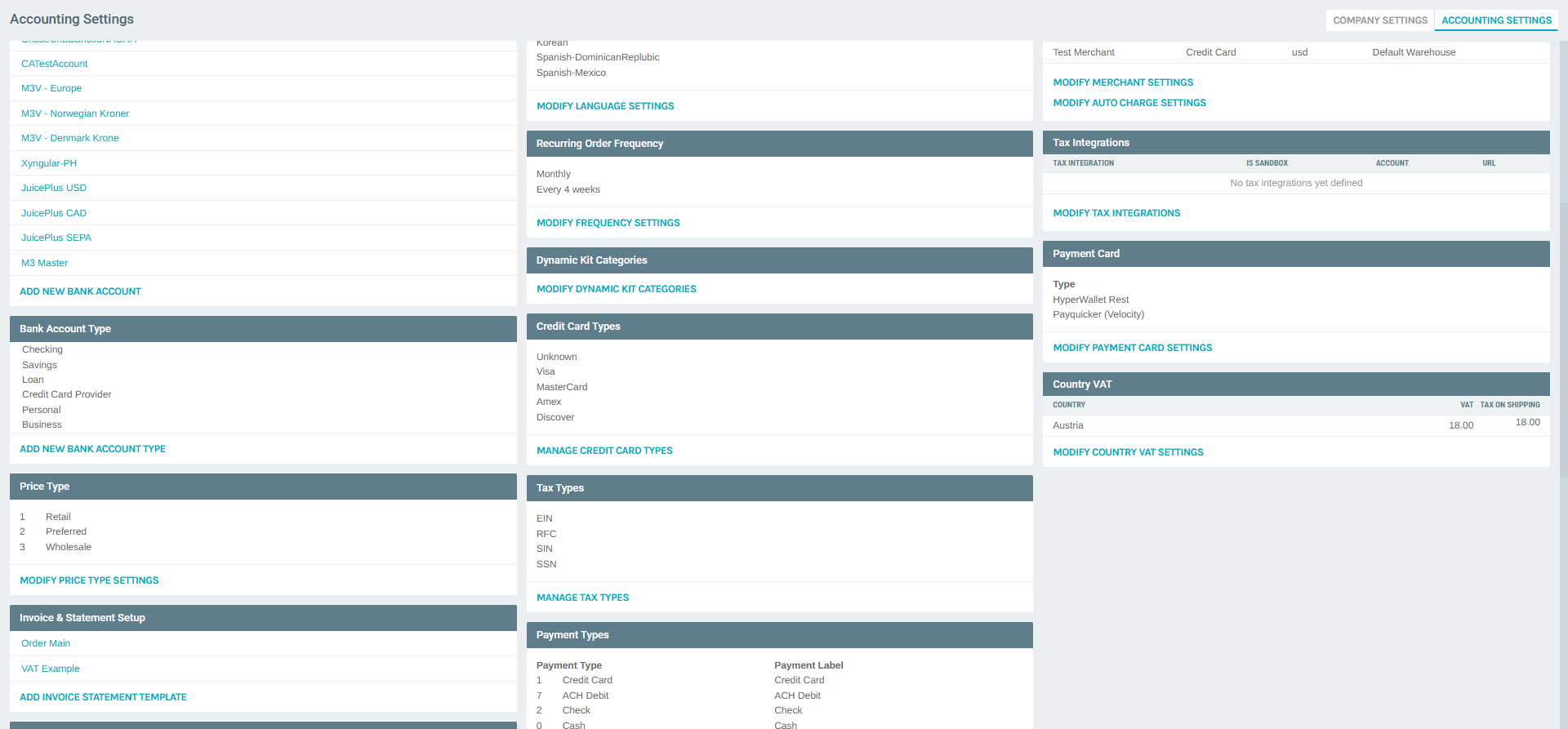
The section shows a preview table with one row per configured country, listing its COUNTRY, VAT, and TAX ON SHIPPING values, followed by a MODIFY COUNTRY VAT SETTINGS action button.
Viewing Configured Country VAT Settings
Click MODIFY COUNTRY VAT SETTINGS to open the Country VAT Settings list dialog.
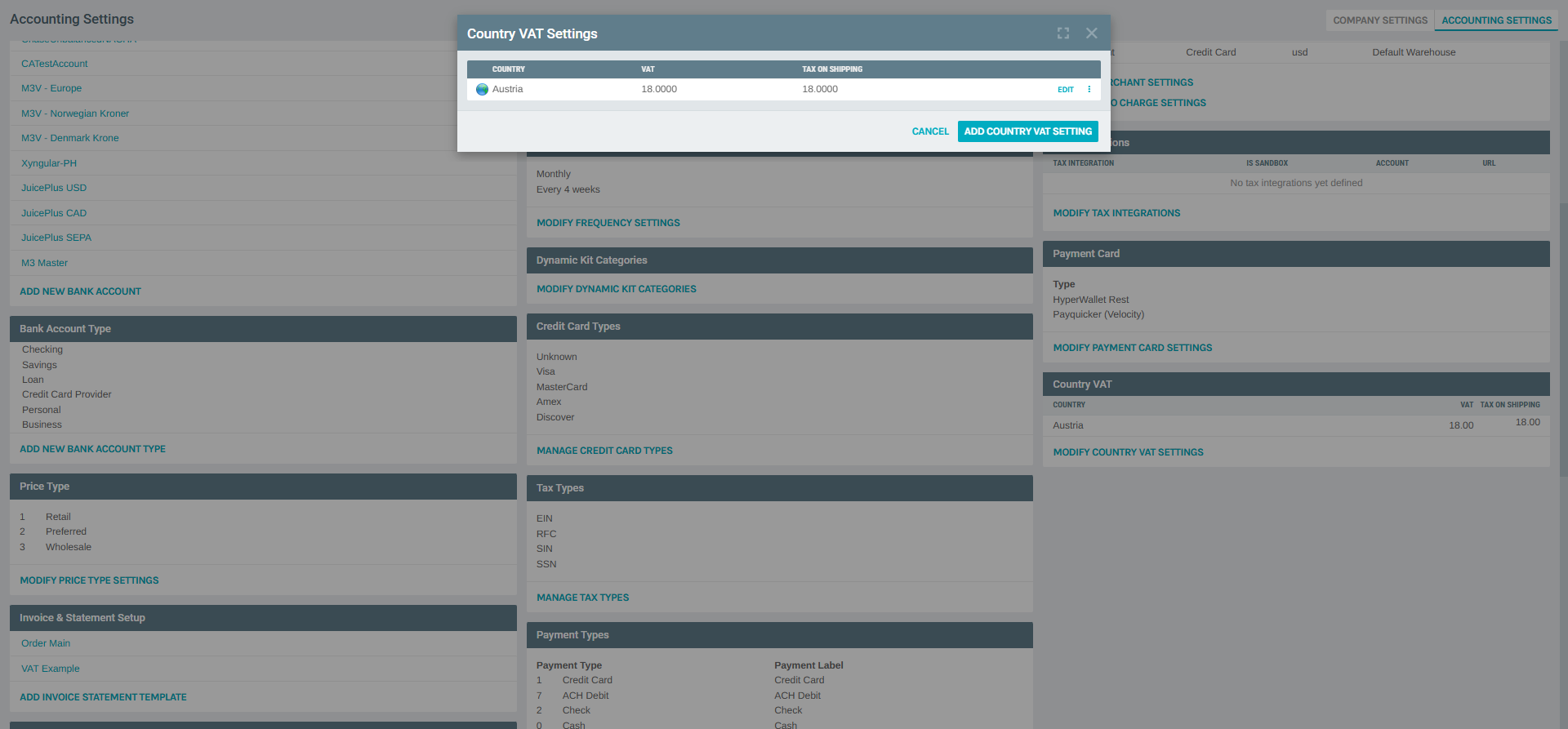
The dialog displays the same three columns as the summary panel, plus an EDIT action per row and a row-level ⋮ (more) menu:
| Column | Description |
|---|---|
| Country | The country the VAT rule applies to. |
| VAT | Percentage applied to order line items. |
| Tax On Shipping | Percentage applied to shipping charges (may be 0 if untaxed). |
From this dialog you can:
- Click ADD COUNTRY VAT SETTING (top-right) to add a new VAT rule for a country.
- Click EDIT on any row to change the country, VAT rate, or Tax On Shipping rate of that rule.
- Use the row-level ⋮ menu to access the delete action for the rule.
- Click CANCEL to close the dialog without making changes.
Adding a New Country VAT Setting
From the list dialog, click ADD COUNTRY VAT SETTING. The Country VAT Setup dialog opens in add mode.
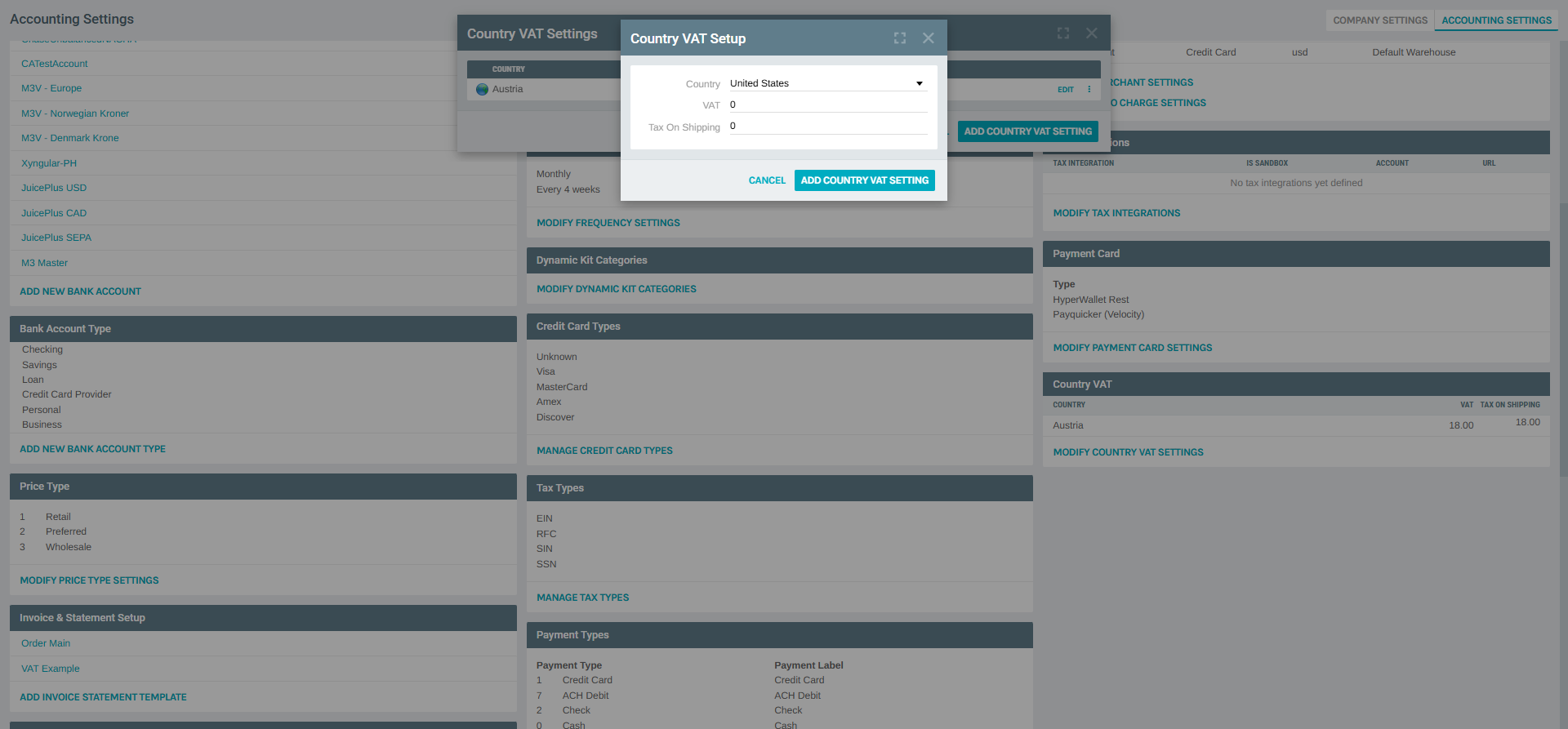
Fill in the three required fields:
Country
A dropdown of countries that are enabled for the company under Accounting Settings → Country (the MODIFY COUNTRY SETTINGS list). Only enabled countries can receive a VAT rule, because VAT only makes sense for jurisdictions the company actually ships to.
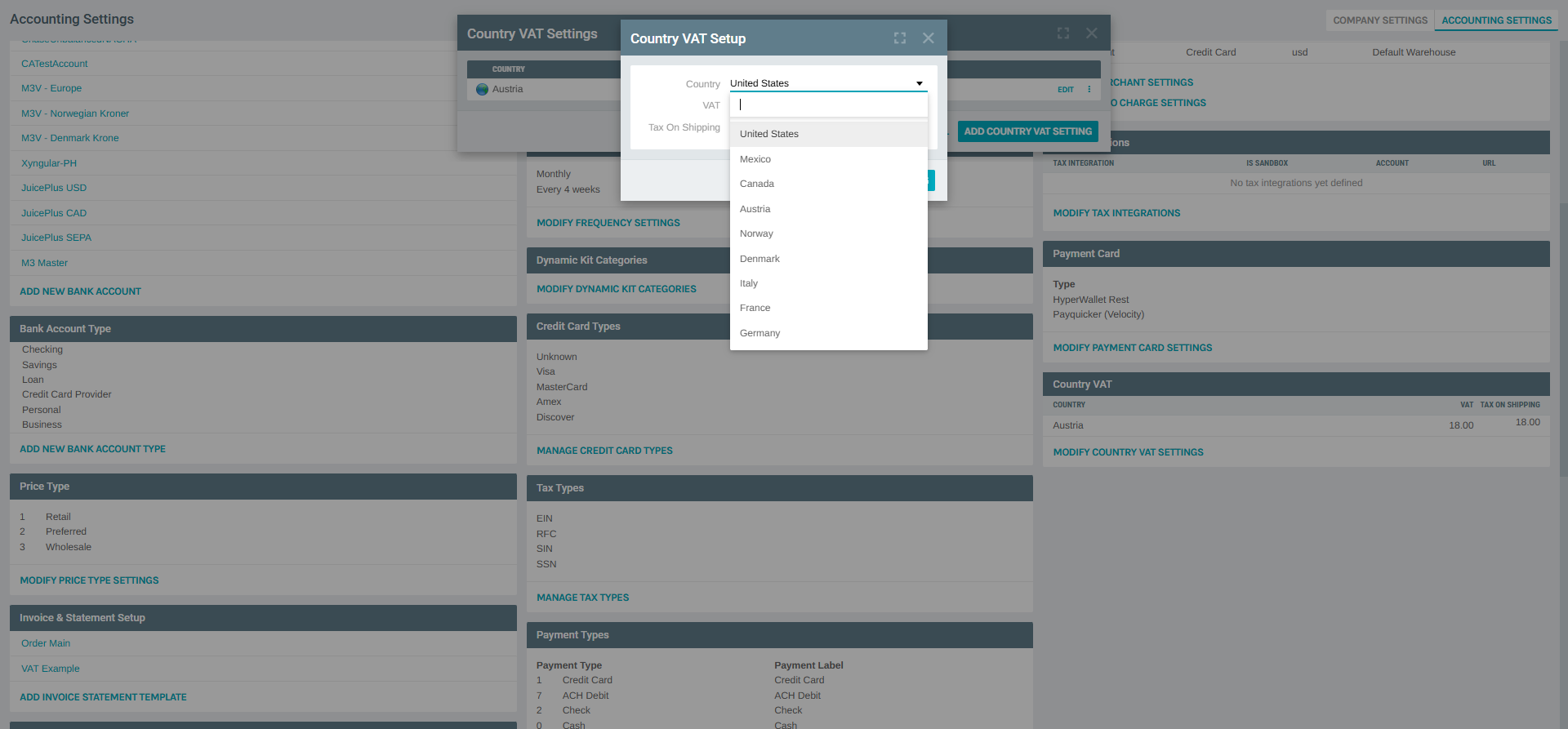
In the example environment, the enabled countries are:
- United States
- Mexico
- Canada
- Austria
- Norway
- Denmark
- Italy
- France
- Germany
Countries already present in the Country VAT list continue to appear in the dropdown, but adding a duplicate will update the existing row rather than create a second one.
Note
If the country you need is not in the dropdown, first enable it under Accounting Settings → Country → MODIFY COUNTRY SETTINGS, then return to Country VAT.
VAT
A numeric field (percentage) for the tax rate applied to item subtotals in the selected country. Supports up to four decimal places. Examples: 18.0000 (Austria standard rate), 19.0000 (Germany), 20.0000 (France / UK), 21.0000 (Italy), 25.0000 (Denmark / Norway).
Default value when adding: 0.
Tax On Shipping
A numeric field for the tax rate applied to shipping charges in the selected country. Most EU jurisdictions tax shipping at the same rate as goods, so typically this matches the VAT field. Set to 0 when shipping is exempt from tax in that country.
Default value when adding: 0.
Click ADD COUNTRY VAT SETTING (header button) to save. The dialog closes and the new row appears in the list.
Editing a Country VAT Setting
From the list dialog, click EDIT on any row. The Country VAT Setup dialog opens in edit mode with the existing values pre-filled.
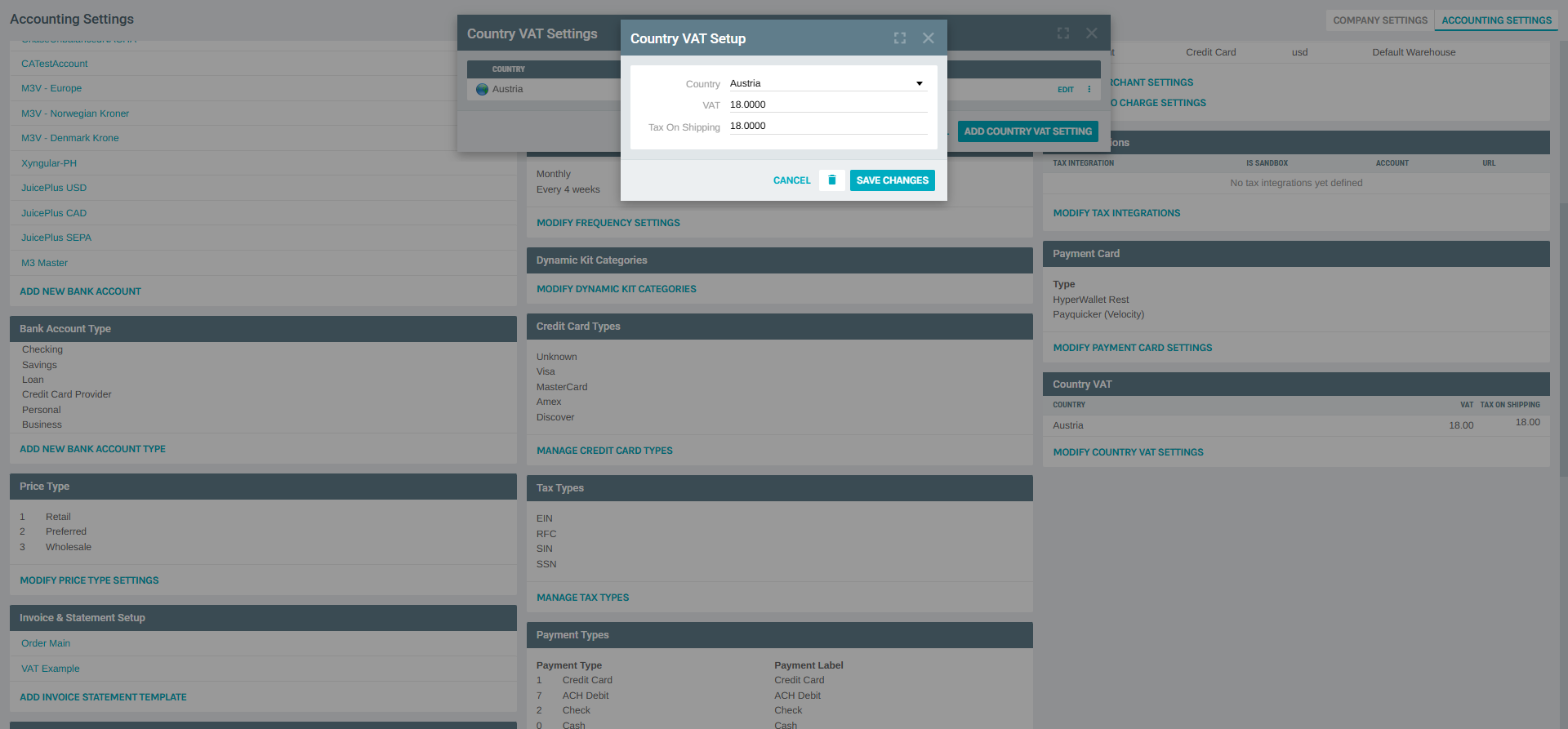
The same three fields (Country, VAT, Tax On Shipping) are editable. Change any of them and click SAVE CHANGES to persist.
The edit dialog also exposes two additional actions in the header:
| Button | Action |
|---|---|
| SAVE CHANGES | Persists the changes to the VAT rule. |
| delete (🗑) | Removes this VAT rule entirely (no confirmation beyond the destination page). |
| CANCEL | Closes the dialog without saving. |
Deleting a Country VAT Setting
From the edit dialog, click the delete (🗑) icon to remove the VAT rule for that country.
Deleting stops VAT collection for that country
Deleting a row does not refund or reverse VAT already collected on prior orders — it only changes behavior for orders placed after the change. If you need to temporarily stop charging VAT, consider setting both VAT and Tax On Shipping to 0 instead; this preserves the row (and its audit trail) while effectively disabling tax.
Best Practices
- Keep rates aligned with local statute. VAT rates change periodically by country (e.g., temporary COVID-era reductions, fiscal reforms). Audit this list annually and after any known regulatory change, ideally with input from a local tax advisor.
- Use full decimal precision. The field stores up to four decimals (
18.0000), so enter values exactly as published by the tax authority — avoid rounding19.5%to20%. - Match VAT and Tax On Shipping unless your jurisdiction differs. In most EU countries the same rate applies to both. When a country exempts shipping (rare, but e.g., some intra-EU zero-rated supplies), set Tax On Shipping to
0while keeping the VAT rate on items. - Enable the country first. The Country VAT dropdown is restricted to countries enabled under Country Settings — if you're preparing to ship into a new market, enable the country there before setting up its VAT rule.
- Combine with a VAT-aware invoice template. VAT postings alone do not change how an invoice looks. Pair each VAT-collecting country with an invoice/statement template that breaks out VAT on the printed document (see the included VAT Example template under Invoice & Statement Setup).
- Don't use Country VAT as a sales-tax system. For US sales tax — which is state- and sometimes ZIP-level rather than country-level — configure a proper tax integration under Tax Integrations (e.g., Avalara) instead of approximating with a single
United StatesCountry VAT row.
Related Concepts
- Invoice & Statement Setup — templates (including the VAT Example template) that actually render VAT breakouts on printed invoices.
- Bank Accounts — VAT is collected into the bank account tied to the merchant used at checkout; make sure bank/merchant/currency align with the VAT-collecting country.
- Country Settings (Accounting Settings → Country → MODIFY COUNTRY SETTINGS) — the enabled-countries list that governs which countries can receive a VAT rule.
- Tax Integrations (Accounting Settings → Tax Integrations) — for jurisdictions that require full tax-calculation integrations (Avalara, etc.) instead of a single percentage.
Notes
- Country VAT is a company-wide setting — it applies across every storefront, API client, and Admin entry point in the company.
- Changes take effect immediately on new orders; there is no cache refresh or deploy step.
- The percentage is interpreted as a VAT percentage, not a decimal multiplier — enter
18(or18.0000) to represent 18%, not0.18. - Only one row per country can exist. Attempting to add a second VAT setting for an already-listed country replaces the existing values rather than creating a duplicate.
- Exigo stores the rate internally with four-decimal precision; the summary panel in Accounting Settings rounds the display to two decimals.