Action Tracking Categories
This document provides a step-by-step guide for managing Action Tracking Categories (also called Action Tracking Types) in the Exigo Admin portal.
Overview
Action Tracking Categories classify the action-tracking records that users create against customers, orders, and other records throughout the Admin portal. Each category is a reusable, company-defined label that describes the kind of action being logged — for example, Refunds, Damaged Orders, Customer Follow-Up, Compliance Review, etc.
These categories drive:
- The Type dropdown shown when adding a new action-tracking entry (e.g., from the Actions tab on a customer record, from My Actions, from an order, etc.).
- How action-tracking items are filtered, grouped, and reported in the My Actions list, the Today home page counter, and Accounting/Customer reports that reference action tracking.
- Whether a category is still selectable (Enabled = True) or has been retired (Enabled = False). Disabling a category hides it from new entries while preserving historical records that were already tagged with it.
Action Tracking Categories are configured per company and are shared across all admin users.
Accessing Action Tracking Categories
Navigation Path
- Log in to the Exigo Admin portal.
- Navigate to Administration > Settings.
- Make sure the COMPANY SETTINGS tab is selected (it is the default).
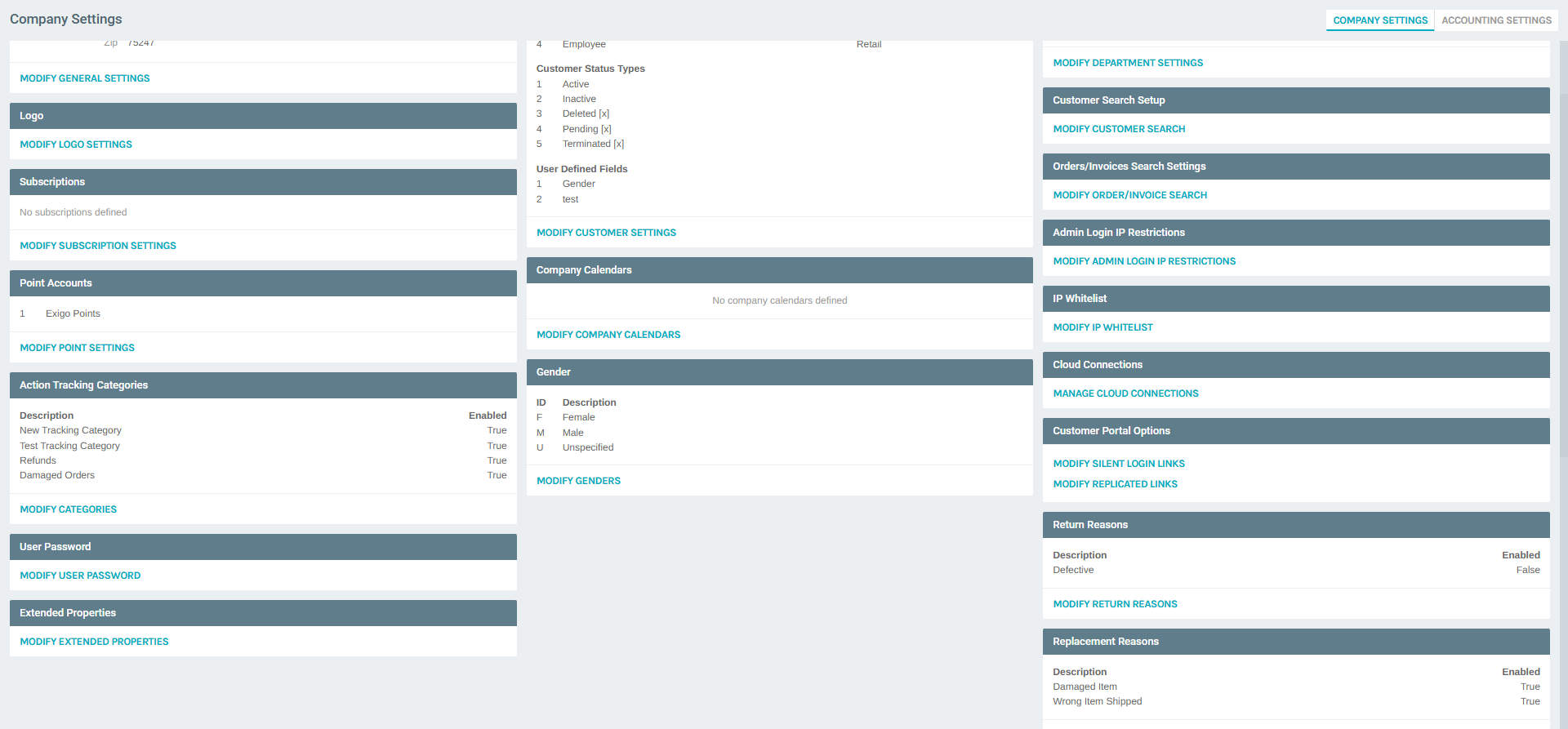
- Scroll to the Action Tracking Categories section.
Viewing Existing Categories
The Action Tracking Categories section displays a read-only summary of every configured category with two columns:
| Column | Meaning |
|---|---|
| Description | The category name shown in action-tracking dropdowns. |
| Enabled | True if the category is available for new entries, False if retired. |
In the example environment, the configured categories are:
- New Tracking Category — Enabled
- Test Tracking Category — Enabled
- Refunds — Enabled
- Damaged Orders — Enabled
To modify, add, or disable categories, click MODIFY CATEGORIES. This opens the Modify General Settings popup on the Action Tracking tab.
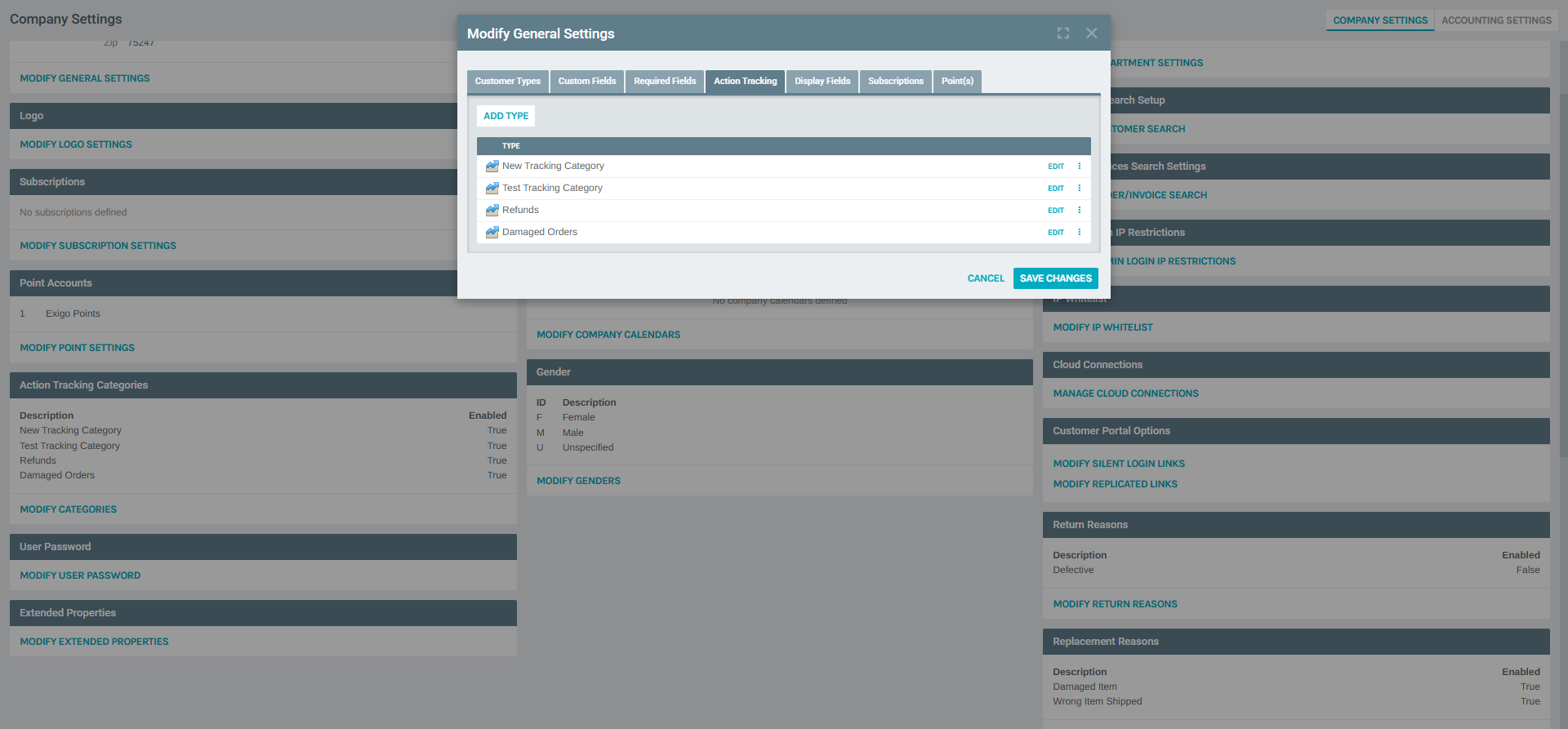
The Action Tracking tab lists each category as a row with an EDIT link and a ⋮ (more) menu for row-level actions (such as delete). Use the ADD TYPE button in the upper-left corner to create a new category.
Adding a New Category
- In the Action Tracking Categories section, click MODIFY CATEGORIES.
- In the Modify General Settings popup, stay on the Action Tracking tab.
- Click ADD TYPE in the upper-left of the list.
- The Action Tracking Type Setup dialog opens.
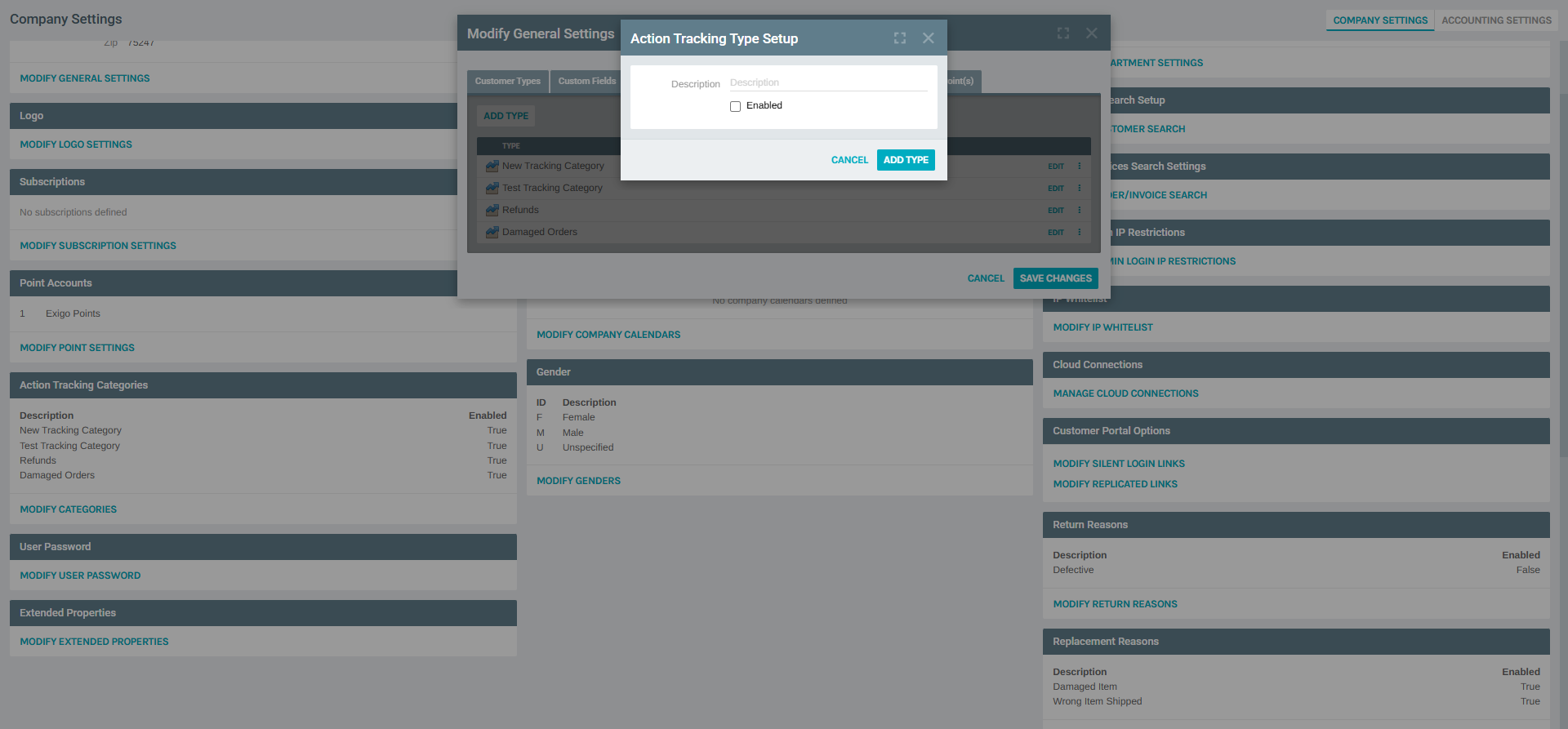
Complete the dialog:
- Description (required) — the label that will appear in action-tracking dropdowns throughout the Admin portal. Keep it short, descriptive, and unique (for example,
Compliance Review,Shipping Issue,VIP Follow-Up). - Enabled — check to make the category immediately available for new entries. Leave unchecked to create the category in a retired state (typically only useful when pre-staging categories that should not yet be selectable).
Click ADD TYPE to save, or CANCEL to close the dialog without saving. The new category appears in the list and in the Action Tracking Categories summary on the Company Settings page.
Editing an Existing Category
- In the Action Tracking tab of the Modify General Settings popup, click EDIT on the row for the category you want to change.
- The Action Tracking Type Setup dialog opens, pre-populated with the current values.
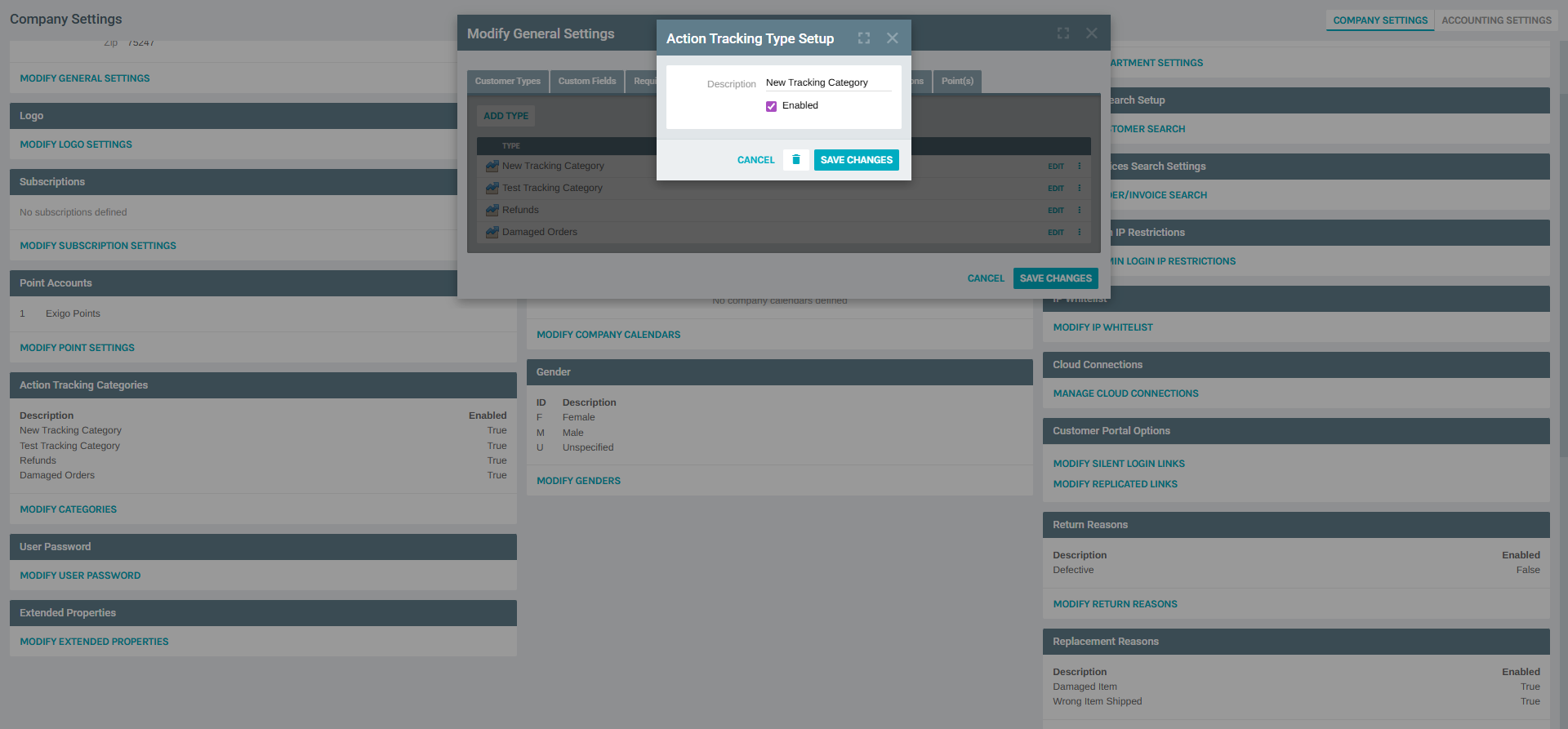
Available fields:
- Description — rename the category. Existing action-tracking records already tagged with this category will display the new name immediately (the record stores a reference to the category, not a copy of the name).
- Enabled — toggle availability. Uncheck to retire the category: it will stop appearing in new-entry dropdowns, but historical records remain intact and continue to display the category name.
Available actions in the dialog:
- SAVE CHANGES — persists the edits.
- delete (trash icon) — permanently removes the category. Use with care; see the warning below.
- CANCEL — closes the dialog without saving.
Deleting vs. disabling
Prefer disabling (unchecking Enabled) over deleting. Deleting a category can leave historical action-tracking records without a resolvable category label, depending on how downstream reports and extensions consume the data. Disabling preserves full history and simply removes the category from new-entry pickers.
Best Practices
- Use a small, stable set of categories. Fewer, clearer categories (5–12) make reporting and filtering more useful than dozens of near-duplicates.
- Name categories by purpose, not by team.
Compliance Reviewages better thanJane's Reviews; purpose-based names survive reorganizations. - Disable, don't delete. Retire categories by unchecking Enabled to preserve historical reporting integrity.
- Keep descriptions consistent. Use the same capitalization and phrasing style (e.g., Title Case, singular nouns) across all categories for a tidy dropdown.
- Review periodically. Once or twice a year, audit the list; disable categories that have not been used in a long time and add any recurring themes that have emerged organically in free-text notes.
Related Concepts
- My Actions — the personal work queue where action-tracking items assigned to the current user are listed. See My Actions.
- Today — the home page shows an "open Action Tracking items assigned to you" counter sourced from these categories. See Today.
- Customer Search / Customer Record — action-tracking items are most commonly created against a customer record. See Customer Search.
- Creating Custom Fields — the Modify General Settings popup where Action Tracking Categories live also hosts Custom Fields, Required Fields, and other company-wide customer settings. See Creating Custom Fields.
System Notes
- Action Tracking Categories are located at Administration > Settings > Company Settings > Action Tracking Categories.
- They are edited through MODIFY CATEGORIES → Action Tracking tab, which is implemented as the fourth tab (
tab=4) of the Modify General Settings (customer settings) popup. - Each category has two stored fields: Description (string) and Enabled (boolean). There is no icon, color, or per-user assignment configured on the category itself — icons visible in some older UIs are assigned client-side by category name or are legacy values no longer editable from this screen.
- Disabling a category is non-destructive: historical action-tracking records continue to reference it and display its description.
- Deletion is permanent and cannot be undone from the UI; coordinate with a database administrator if you need to recover a deleted category.
- The category list is company-wide; all admin users share the same set of categories.