Sync Destinations
This document provides a step-by-step guide for managing Sync Destinations in the Exigo Company Portal.
Overview
Sync Destinations define external SQL Server databases that Exigo can replicate data to. The Exigo Data Sync engine continuously copies selected tables and columns from the Exigo production database to these external destinations, giving companies a read-replica they control for:
- Reporting and analytics — run heavy queries and reports against the sync database without impacting Exigo production performance.
- Custom integrations — feed downstream systems (CRM, BI, data warehouses) from a database the company owns.
- Back-office tools — power custom dashboards, admin portals, or back-office applications that read Exigo data directly via SQL.
Each sync destination stores a SQL Server connection string (server, database, credentials) and can be independently enabled or disabled. Once a destination is created and enabled, the Exigo Sync Engine will begin replicating the configured data sets to it.
Accessing Sync Destinations
Navigation Path
- Log in to the Exigo Admin portal.
- In the left sidebar, expand Company Portal.
- Click Sync Management.
The Sync Destinations list page opens automatically, as it is the default view within Sync Management.
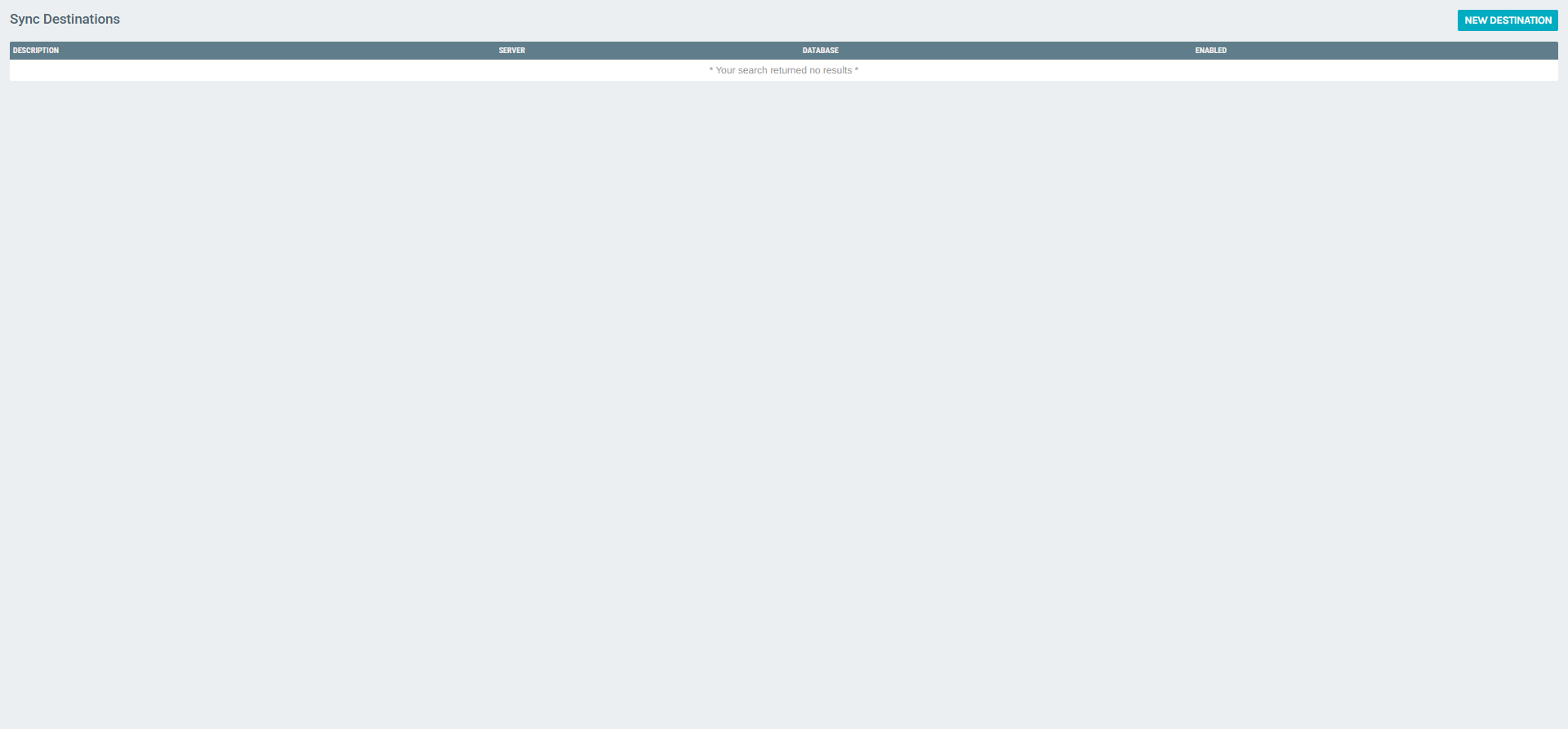
Viewing Configured Sync Destinations
The list page displays all configured sync destinations in a table with the following columns:
| Column | Description |
|---|---|
| Description | A friendly name for the sync destination (e.g., "Reporting DB", "BI Warehouse"). |
| Server | The SQL Server hostname or IP address. |
| Database | The target database name on the server. |
| Enabled | Whether the sync engine is actively replicating to this destination. |
If no destinations have been configured, the table displays "Your search returned no results."
From this page you can:
- Click NEW DESTINATION (top-right) to create a new sync destination.
- Click on any existing row to edit the destination's connection settings.
Adding a New Sync Destination
Click NEW DESTINATION to open the Manage Sync Destination dialog.
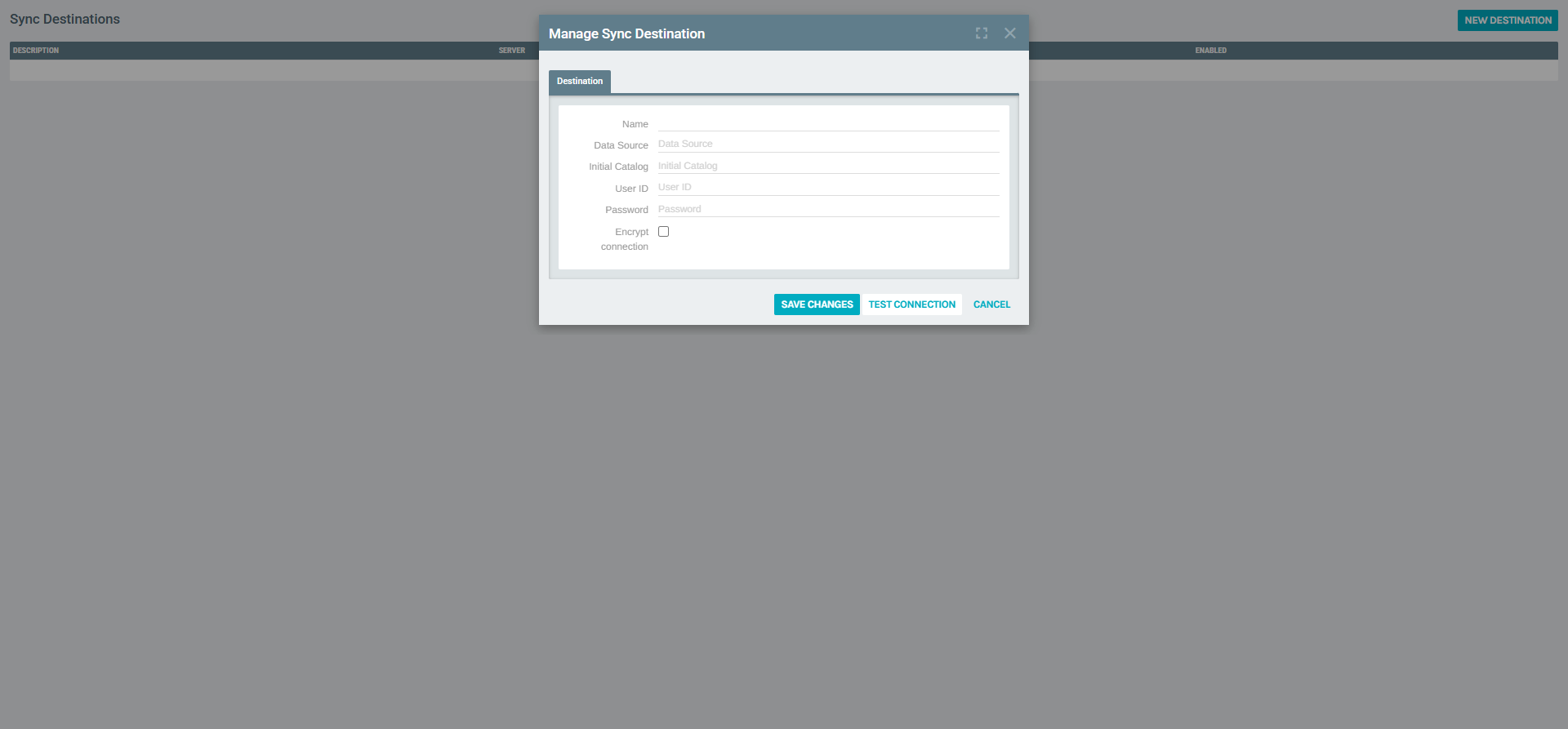
The dialog contains a Destination tab with the following fields:
Connection Fields
| Field | Required | Description |
|---|---|---|
| Name | Yes | A descriptive label for this destination (e.g., "Production Reporting DB"). This appears in the DESCRIPTION column of the list. |
| Data Source | Yes | The SQL Server hostname, IP address, or named instance (e.g., myserver.database.windows.net or 192.168.1.100\SQLEXPRESS). |
| Initial Catalog | Yes | The name of the target database on the server (e.g., ExigoReporting). The database must already exist on the server. |
| User ID | Yes | The SQL Server authentication username with write permissions to the target database. |
| Password | Yes | The password for the SQL Server user. |
| Encrypt connection | No | Checkbox. When checked, the connection to the target SQL Server uses TLS/SSL encryption. Recommended when connecting over the internet or to Azure SQL. |
Action Buttons
| Button | Action |
|---|---|
| TEST CONNECTION | Validates the connection string by attempting to connect to the target SQL Server with the provided credentials. Use this before saving to ensure the server is reachable and the credentials are valid. |
| SAVE CHANGES | Saves the destination. If this is a new destination, it is created and appears in the list. If editing, the changes are persisted. |
| CANCEL | Closes the dialog without saving. |
Always test before saving
Click TEST CONNECTION before clicking SAVE CHANGES. A failed connection test indicates a firewall, credential, or network issue that must be resolved before the sync engine can replicate to this destination.
Editing a Sync Destination
From the list page, click any row to reopen the Manage Sync Destination dialog with the existing values pre-filled. Modify any field and click SAVE CHANGES to persist.
Enabling or Disabling a Sync Destination
The Enabled status controls whether the sync engine actively replicates to the destination. Disabling a destination pauses synchronization without deleting the configuration — the data already replicated remains in the target database, but no new changes are pushed until the destination is re-enabled.
Best Practices
- Use a dedicated SQL Server login. Create a service account specifically for Exigo sync rather than using a personal or shared DBA account. This makes auditing easier and limits blast radius if credentials are compromised.
- Grant minimal permissions. The sync user needs
db_datareaderanddb_datawriterroles on the target database, plusddl_adminif the sync engine needs to create or alter tables. Avoid grantingsysadminordb_owner. - Encrypt connections to cloud databases. If the target is Azure SQL, AWS RDS, or any internet-facing SQL Server, always check Encrypt connection to protect data in transit.
- Pre-create the target database. The sync engine writes to a database specified in Initial Catalog — it does not create the database itself. Ensure the database exists and the user has access before saving the destination.
- Name destinations descriptively. Use names that indicate purpose and environment (e.g., "Prod Reporting – East US", "Staging BI Sync") so administrators can quickly identify each destination in the list.
- Test the connection after any infrastructure change. If the target server moves, its IP changes, firewall rules are updated, or passwords are rotated, re-test from the Manage dialog to confirm continued connectivity.
- Disable before maintenance. If the target database will be offline for maintenance (backups, schema migrations), disable the sync destination first to avoid error accumulation in the sync engine, then re-enable once the server is back.
Related Concepts
- Sync Database Users (Company Portal > Sync Database Users) — manages the SQL Server users that can be created directly from the portal for sync databases.
- Creating New API Users — API users interact with the Exigo API; sync destinations complement API access by providing direct SQL read access to replicated data.
Notes
- Sync Destinations is accessed from the Company Portal section of the Exigo sidebar, not from Administration > Settings. The Company Portal runs on a separate Exigo Accelerator host (vg7.exigo.com).
- The sync engine replicates data on a schedule managed by Exigo — there is no user-configurable interval in the Sync Destinations UI. Contact Exigo Support to adjust replication frequency if needed.
- Deleting a sync destination stops replication permanently. The target database is not dropped — it retains whatever data was last replicated.
- Connection credentials are stored encrypted within Exigo and are never displayed in plain text after initial entry.
- Each company can have multiple sync destinations, allowing replication to different servers or databases for different use cases (reporting, integration, backup).