Recurring Order FAQ
See the sections below for configuration steps in the Exigo Portal.
What is a Recurring Order?
A recurring order in Exigo is a scheduled order that is created and billed on a pre-determined frequency, commonly
referred to as an autoship or subscription.
What Frequencies are Available?
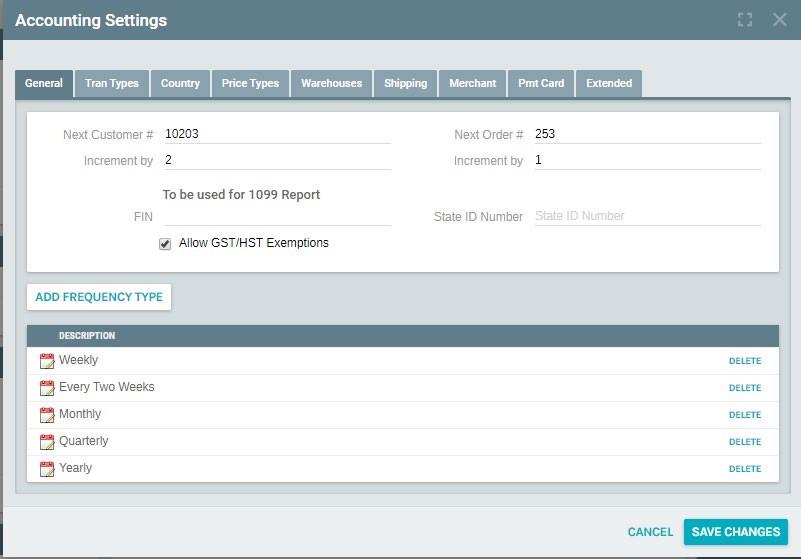
Available order frequencies are weekly, bi-weekly, monthly, quarterly, bi-annually, annually, and bi-monthly. These
options are enabled in Exigo Admin by navigating to:
Administration > Settings > Accounting Settings > Modify General Settings > Add Frequency Type.
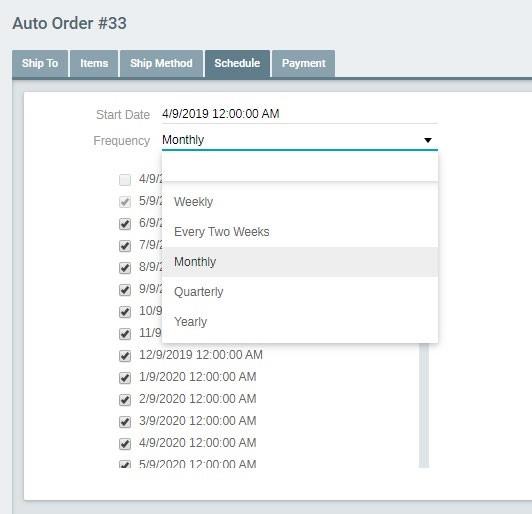
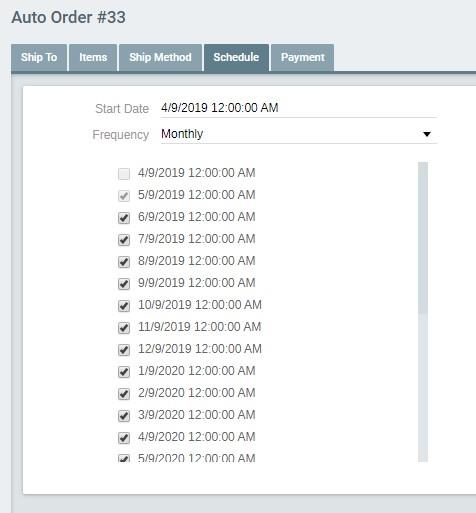
Once enabled, they will appear as options on the Schedule tab when adding or editing a recurring order:
How Often will Orders be Generated from Recurring Orders?
Once the recurring order is created, the schedule queue is updated with the next run date based on the Start Date
and Frequency type entered. You can see the queue on the Schedule tab:
The Automated Recurring Order (ARO) service runs every two hours. This service looks for any recurring orders
that have scheduled dates earlier than when the service is running. If a record exists in the queue, then an order
will be generated, and the schedule is updated to show it has already processed. The Last Run Date and the Next
This means that any changes to the recurring orders throughout the day will be picked up on the next running of
the service and you do not have to wait until after midnight for the recurring orders to process.
What Status Will Appear on the Order?
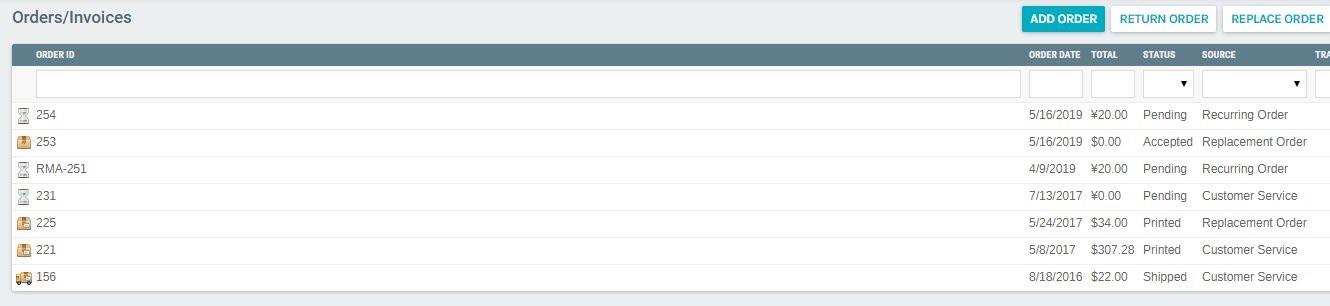
Orders generated by the Recurring Order will appear on the Customer screen under Orders/Invoices. The status is
based on the payment method the order is set to use:
How Do I Process Payments for the Orders Generated by Recurring
CCPENDING - The order will be saved with this status if the payment method is Primary or Secondary
Credit Card on File.
ACHPENDING - If the Payment method is Debit Checking Account, Primary Wallet Account or Secondary
Wallet Account then the order will be saved with this status.
PENDING - If the Payment method is Customer Will Send Payment, the order will be saved with this
status.
Orders?
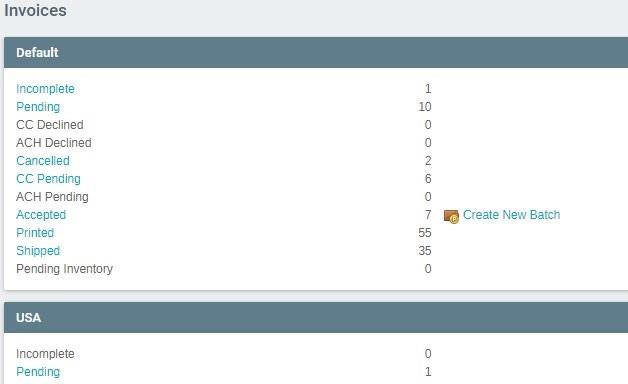
Once the Automated Recurring Order (ARO) service runs, all orders will appear under the appropriate warehouse.
You can see this by going to Accounting > Invoices.
CREDIT CARD PAYMENTS
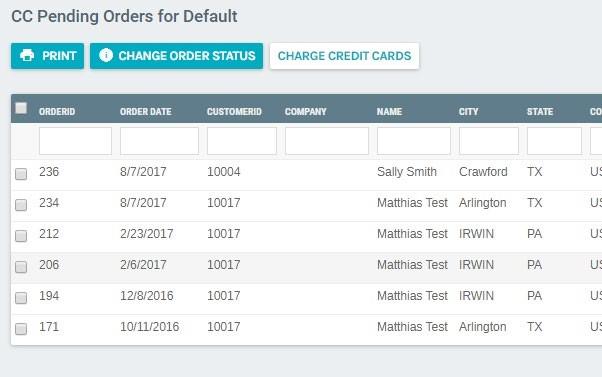
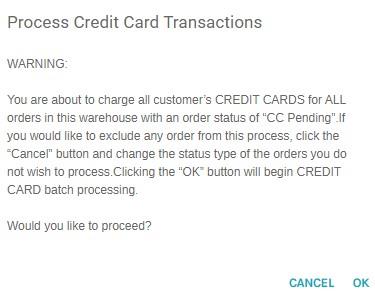
To process credit card payments for CC Pending orders, click on "CC Pending". At the top of the popup window,
click on the "Charge Credit Cards" button.
After you confirm the charge attempt:
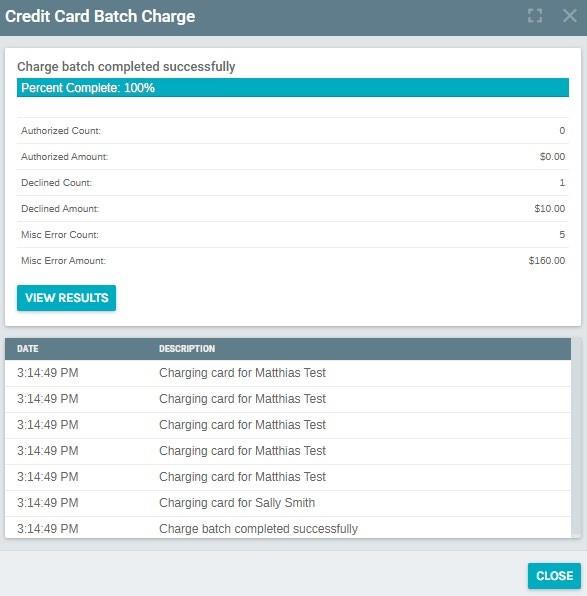
The Credit Card Batch Charge screen will appear:
You can then monitor the batch charging of the payments. If another User attempts to process the CC Pending
orders by clicking on the same button, they will be redirected to this Batch Charge screen.
As the batch charge process runs, any payment attempt that is authorized by your credit card gateway will
automatically create the Payment record for the order and will change the Order status to Accepted.
For any payment attempt that is declined, no payment record is created, and the order status will be changed to
CC Declined.
If there is a miscellaneous error the order may stay in CC Pending status.
ACH (ECHECK OR WALLET) PAYMENTS
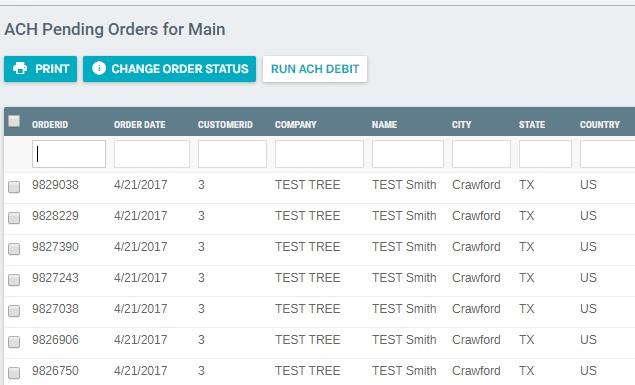
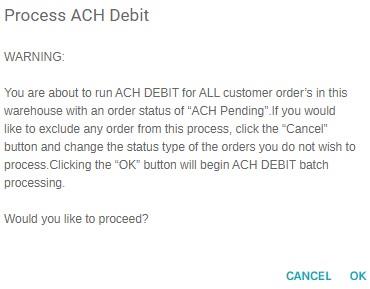
To process payments for ACH Pending orders, click on ACH Pending and a popup will appear. At the top of the
screen, click on the "Run ACH Debit" button.
After you confirm the charge attempt:
How Do I Retry the Payment?
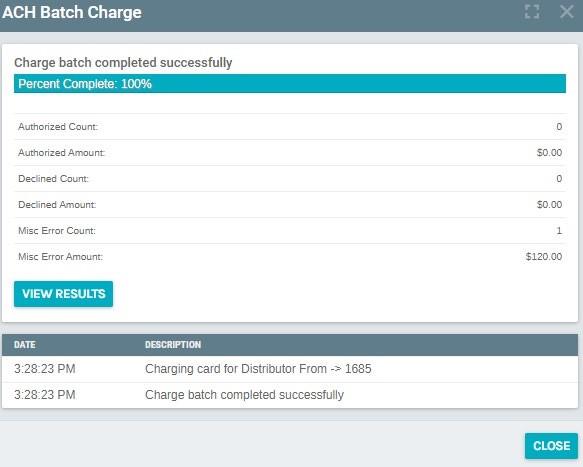
The ACH Batch Charge screen will appear:
You can then monitor the batch charging of the payments. If another User attempts to process the ACH Pending
orders by clicking on the same button, they will be redirected to this Batch Charge screen.
As the batch charge process runs, any payment attempt that is authorized by your ACH gateway will automatically
create the Payment record for the order and will change the Order status to Accepted.
For declined payments, no payment record is created, and the order status will be changed to ACH Declined.
For miscellaneous errors (missing checking account, bad wallet account), the order may stay in ACH Pending status.
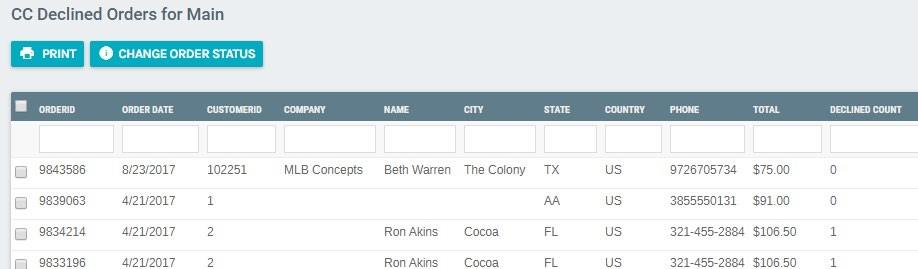
For Declined orders, you can retry the payment by changing the orders back to CC Pending status. To do this
navigate Accounting > Invoices > CCDeclined. A popup will appear showing the orders and a Declined Count
column. You can then mass select the orders from this screen that you want to retry and click on the Change Order
Status button at the top of the screen and select CCPending.
How Do I Change the Process Day?
To change the process day, navigate to the recurring order > Edit Recurring Order. Change the start date to the
date you next want the order to process. Selecting a date in the past may impact the schedule queue that has