Credit Card Types
This document provides a step-by-step guide for managing Credit Card Types in the Exigo Admin portal.
Overview
Credit Card Types are the card brands that the company is willing to accept as a payment instrument (credit or debit card) in Exigo. Every time a credit card is saved on a customer profile, attached to a recurring order, or used to pay an invoice, Exigo must recognize the brand so it can:
- Route the authorization to the correct processor configuration.
- Apply brand-specific validation rules (card number length, CVV length, accepted BIN ranges).
- Display the correct card logo in Admin and on storefronts.
- Report transaction volume by card brand.
The list of brands shown in the Accounting Settings summary — Unknown, Visa, MasterCard, Amex, Discover — are the ones currently enabled for the company. Any brand not present in this list will not be accepted at checkout, even if the underlying merchant gateway supports it.
Each entry is picked from a fixed Exigo-maintained catalog of supported card brands (see Available Card Brand Catalog below). Administrators do not type a free-form description — they select from the catalog, and Exigo automatically uses the brand's canonical description and BIN rules.
Accessing Credit Card Types
Navigation Path
- Log in to the Exigo Admin portal.
- Navigate to Administration > Settings.
- Select the ACCOUNTING SETTINGS tab.
- Scroll down to the Credit Card Types section (located between Dynamic Kit Categories and Tax Types).
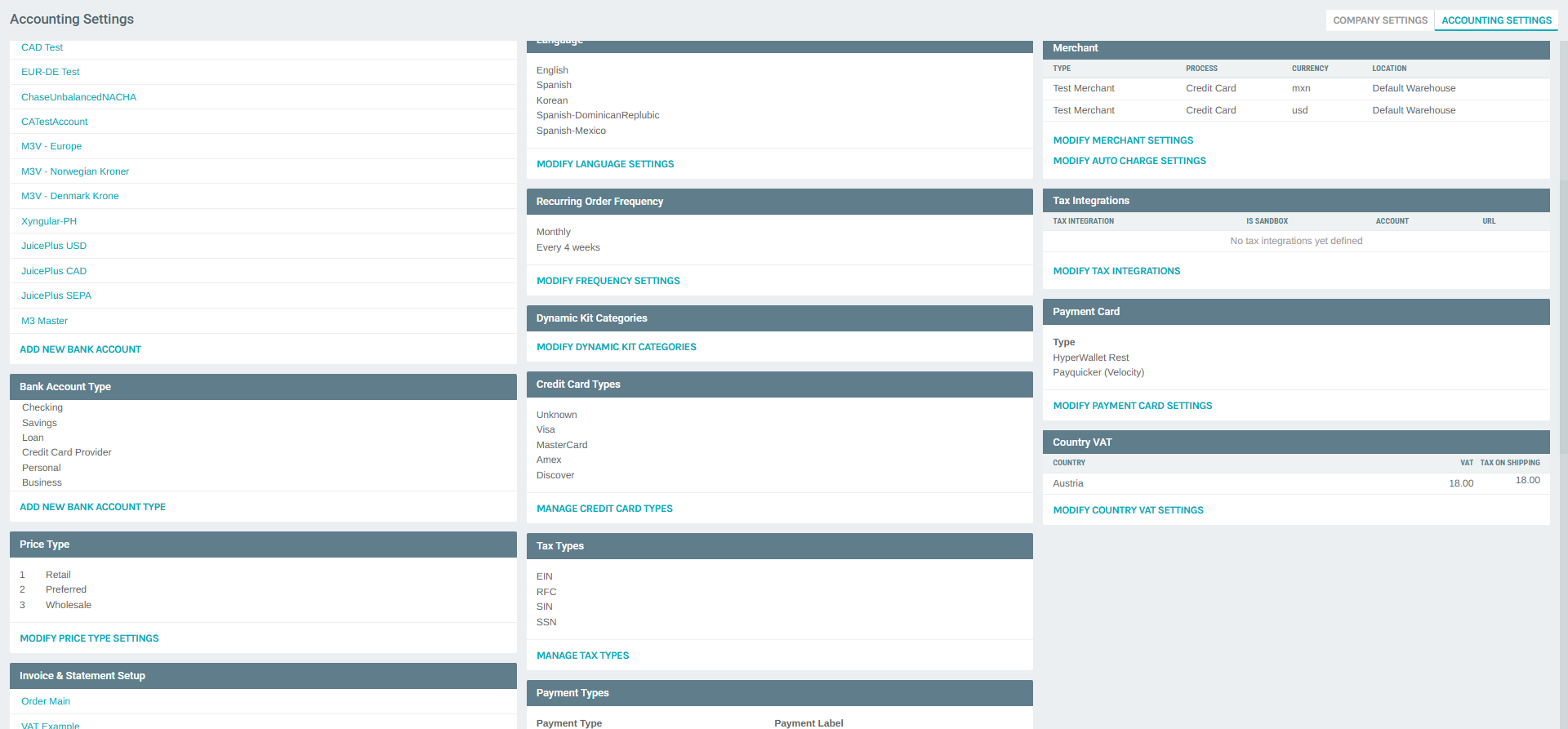
The section lists the brands currently accepted, followed by a MANAGE CREDIT CARD TYPES action button.
Viewing Configured Credit Card Types
Click MANAGE CREDIT CARD TYPES to open the Credit Card Types list dialog. The dialog shows one row per accepted brand, each with an EDIT action.
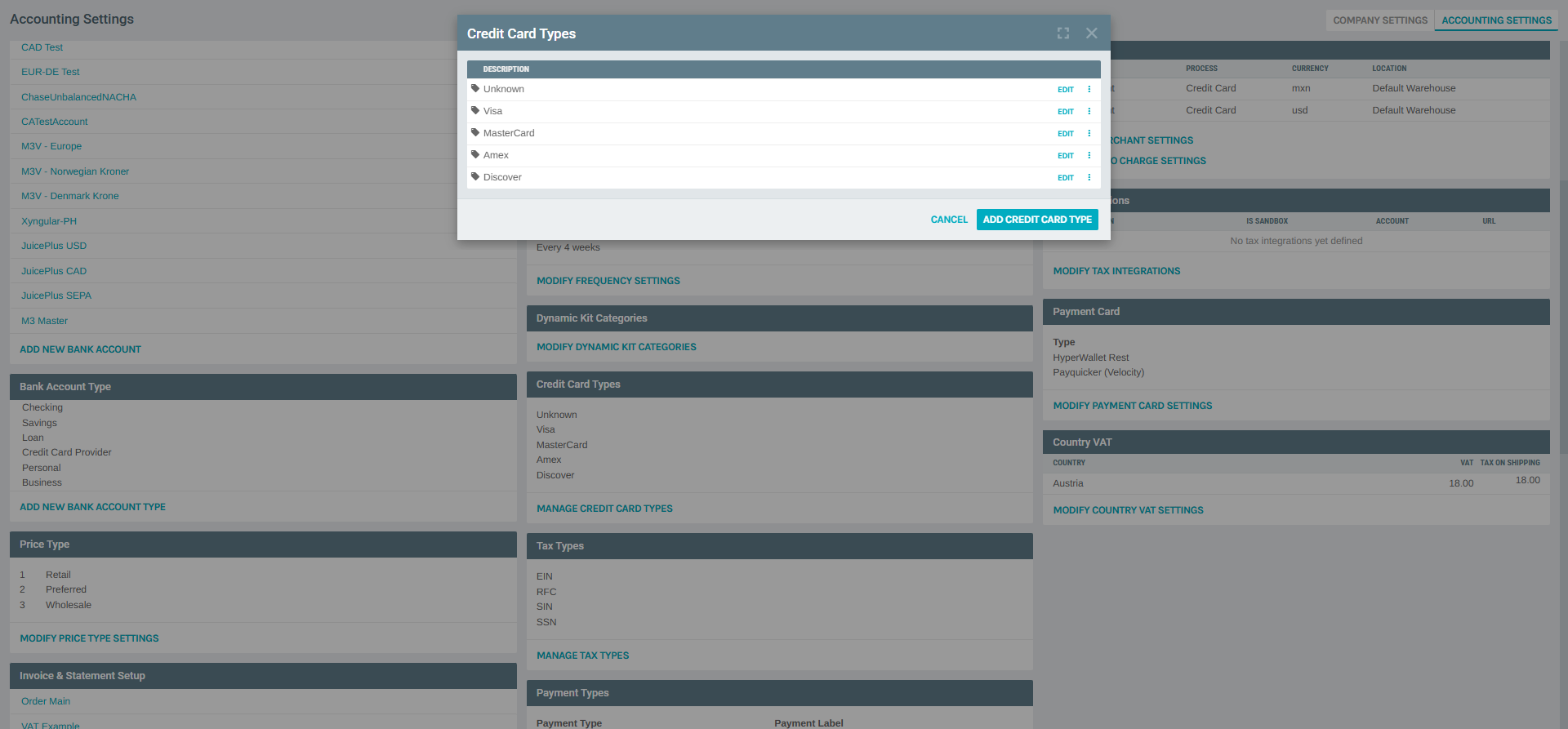
Default / commonly enabled brands:
| Description | Notes |
|---|---|
| Unknown | Fallback entry for cards whose BIN cannot be matched to a known brand. |
| Visa | Standard Visa credit and debit (BIN 4xxxxx). |
| MasterCard | Standard MasterCard credit and debit. |
| Amex | American Express. |
| Discover | Discover / Diners (US). |
From this dialog you can:
- Click ADD CREDIT CARD TYPE (top-right) to enable an additional brand.
- Click EDIT on a row to change which catalog brand that row maps to.
- Use the row-level ⋮ (more) menu to access the delete action for the row.
- Click CANCEL to close the dialog and return to the Accounting Settings summary.
Adding a New Credit Card Type
From the Credit Card Types list dialog, click ADD CREDIT CARD TYPE. The Credit Card Type Setup dialog opens.
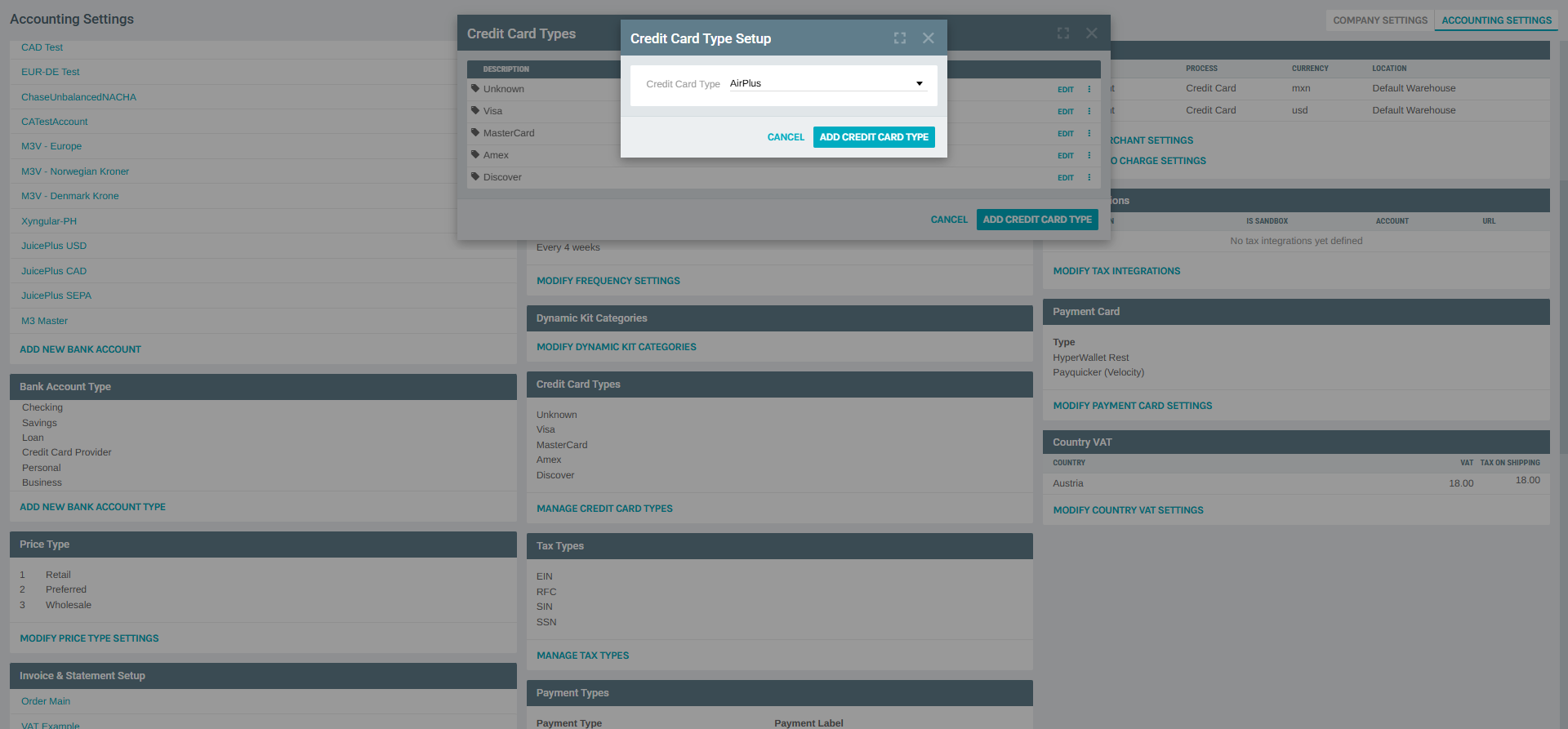
The add dialog contains a single configurable field:
- Credit Card Type — a dropdown listing every brand in Exigo's catalog that is not already enabled for this company. Brands already in the list are filtered out automatically, so each catalog entry can only be added once.
Select the desired brand and click ADD CREDIT CARD TYPE (header button) to save. The dialog closes and the new brand appears in the list.
Editing an Existing Credit Card Type
In the Credit Card Types list dialog, click EDIT on any row to open the Credit Card Type Setup dialog in edit mode.
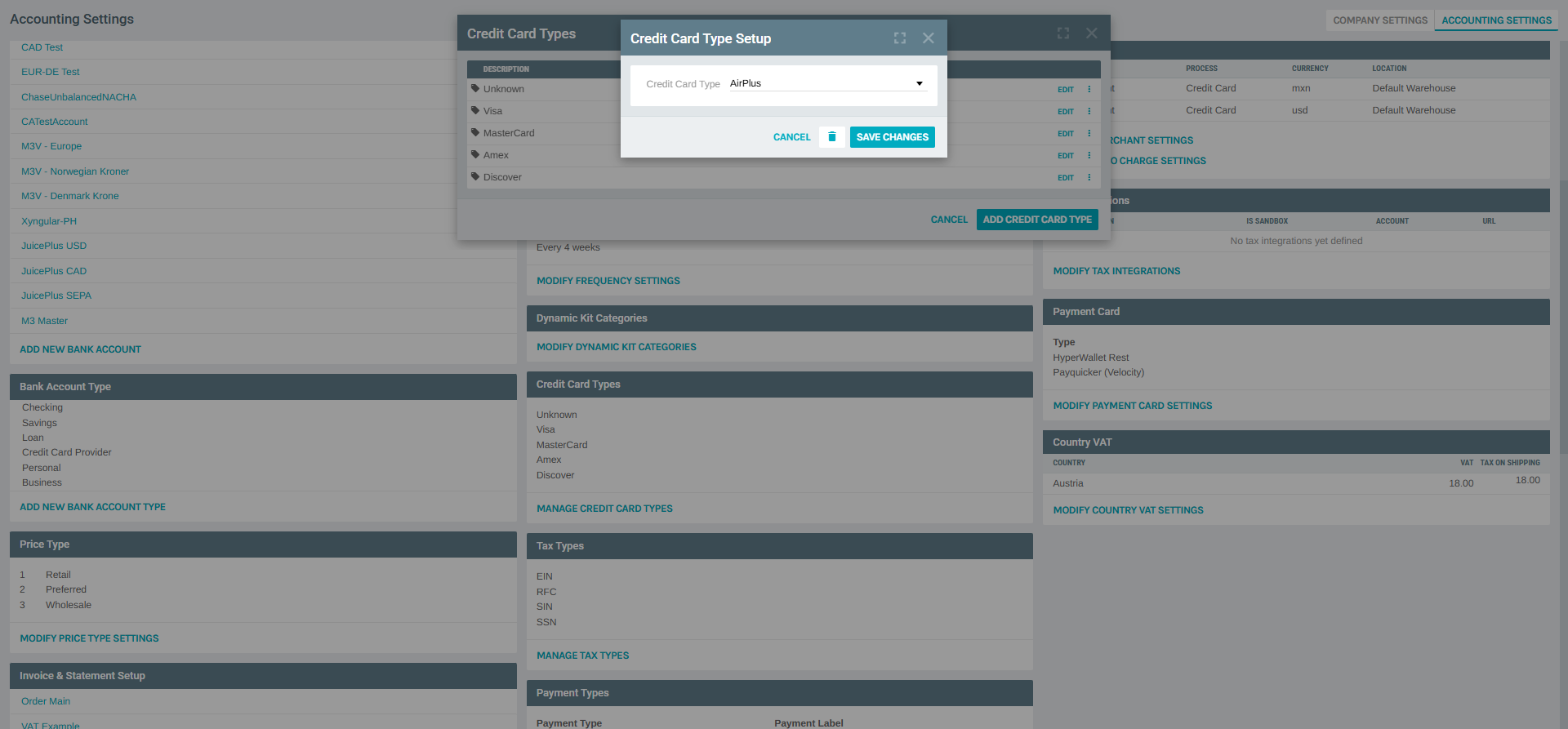
The edit dialog shows the same single field as the add dialog:
- Credit Card Type — the catalog brand this row is currently mapped to. You can change it to any other unused catalog brand.
Buttons available:
| Button | Action |
|---|---|
| SAVE CHANGES | Persists the new catalog selection. |
| delete (🗑) | Removes the brand from the company's accepted list (see cautions below). |
| CANCEL | Closes the dialog without saving. |
Available Card Brand Catalog
Clicking the Credit Card Type dropdown reveals the full Exigo catalog. Brands already enabled are filtered out, so the visible list depends on what is currently configured. In a company with the default five brands enabled (Unknown, Visa, MasterCard, Amex, Discover), the remaining selectable catalog entries are:
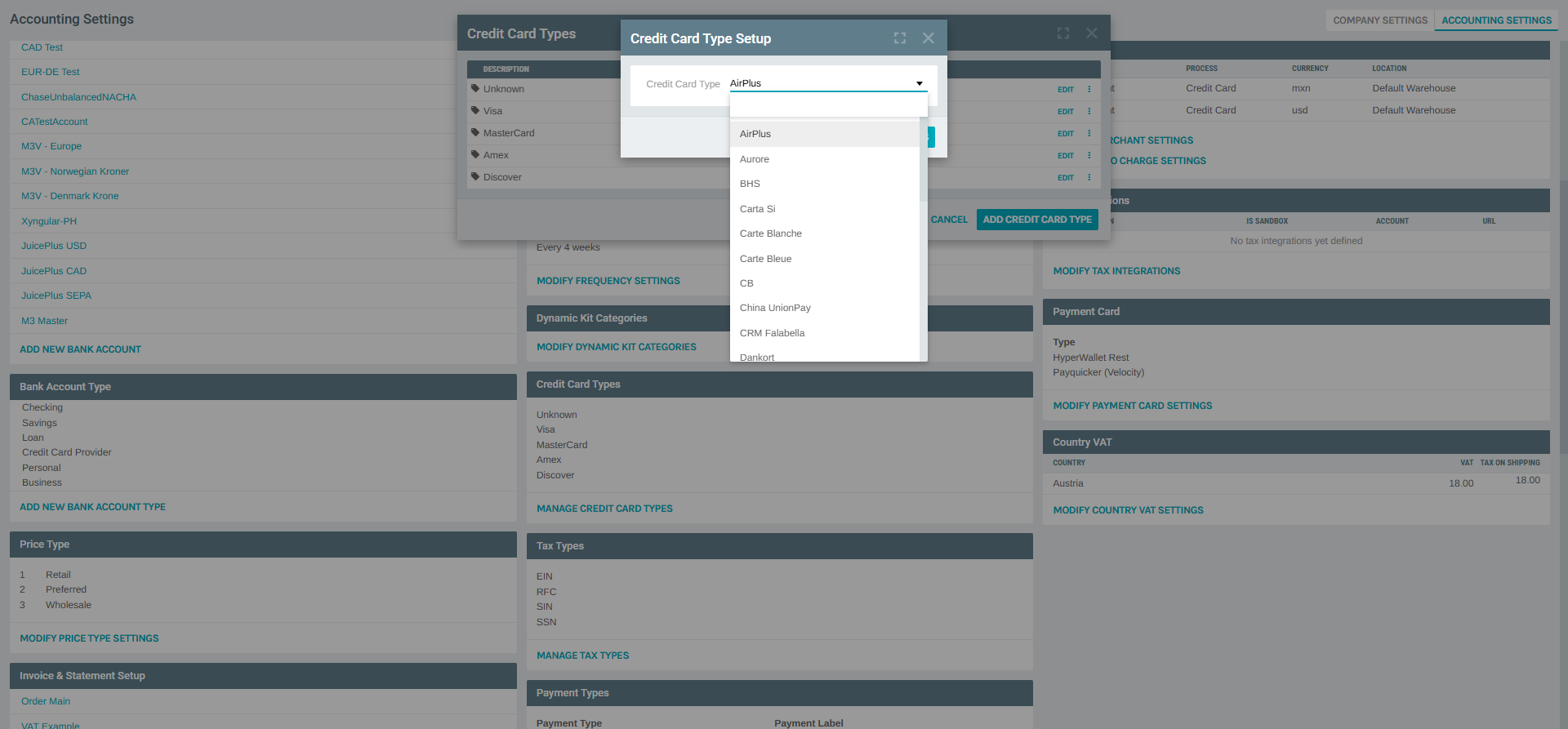
- AirPlus
- Aurore
- BHS
- Carta Si
- Carte Blanche
- Carte Bleue
- CB
- China UnionPay
- CRM Falabella
- Dankort
- Debito Maestro
- Delta
- Diners
- ECMC
- En Route
- Galeria
- GE Capital
- GE Money
- IKEA
- JAL
- JCB
- Laser
- Maestro
- Solo
- Switch
- UATP
- V PAY
- Visa Electron
These are all brands the platform has BIN recognition and validation support for. Any brand you enable becomes immediately available as an accepted card on customer payment methods, provided the configured merchant gateway(s) also accept that brand.
Deleting a Credit Card Type
From the edit dialog, clicking the delete (🗑) icon removes the brand from the company's accepted list.
Think twice before deleting
Removing a brand does not affect credit cards that were already saved against customer profiles using that brand, but:
- New customers will not be able to save cards of that brand.
- Existing recurring orders may fail to authorize if the brand is removed and a replacement gateway rule is not in place.
- The Unknown entry should generally never be deleted — Exigo uses it as the default when a BIN cannot be matched.
If you simply want to stop accepting a brand temporarily, consider disabling it at the merchant gateway level instead.
Best Practices
- Match the list to your merchant account. Only enable brands that your configured merchant gateway(s) are contracted to process. Enabling a brand in Exigo will not add acceptance at the processor.
- Keep Unknown enabled. It acts as a catch-all for edge cases and cards whose BIN isn't yet recognized by the platform. Without it, some legitimate cards may be rejected at data entry.
- Enable regional brands only where needed. Brands like Dankort (Denmark), Carta Si (Italy), China UnionPay, JCB (Japan), Carte Bleue (France), etc. should only be added for companies actually operating in the relevant market — otherwise they add noise to customer-facing card-brand pickers.
- Review after merchant changes. Any time you switch or add a merchant gateway under Merchant (in Accounting Settings), review the Credit Card Types list to make sure accepted brands still align with the new processor contract.
Related Concepts
- Bank Accounts — where credit card processor and deposit account configuration live.
- Restrict Payment Type by Warehouse — controls which payment types (including credit card) are available per warehouse.
- Money In Merchant Setup — SDK-level configuration for the merchant processor that ultimately authorizes these brands.
Notes
- Credit Card Types are a company-wide setting — they apply to every storefront, API client, and Admin entry point for the company.
- The underlying catalog (
AirPlus,Visa Electron,JCB, etc.) is maintained by Exigo. New brands are added via platform releases, not by customers. - Changes to this list take effect immediately — no cache refresh or deployment is required.
- The "Description" shown in the list is the canonical brand name returned by the catalog; it cannot be customized to show, for example, a company-specific label.