OrderCalc Promo Templates And Saved Groups
Templates and saved groups are reusable starting points. A template carries a whole promo setup: its qualifications, promo limits, and rewards. A saved group carries a list of values for one setting, such as a set of customer types or products.
Both copy their values. Changing or deleting a template or group later never changes the promos that already used it.
Guide Map
| If you need to... | Start here |
|---|---|
| Find your templates and groups | Template Management |
| Save a promo setup to reuse | Creating A Template |
| Start a new promo from a template | Starting A Promo From A Template |
| Fix a template after a new company app build | When A Template Needs Attention |
| Reuse a list of values across promos | Saved Groups |
Template Management
Open Promotions from the Promos section of the Order Calc app, then select the bookmark icon, Template Management. The page lists your Promotion templates and your Multi-select groups, and Search templates and multi-select groups finds either by name.
Each template shows its name and description, its Status, the qualifications, promo limits, and rewards it includes, and when it was last changed. A template is Ready when every part matches your live company app build, or Needs attention when something doesn't.
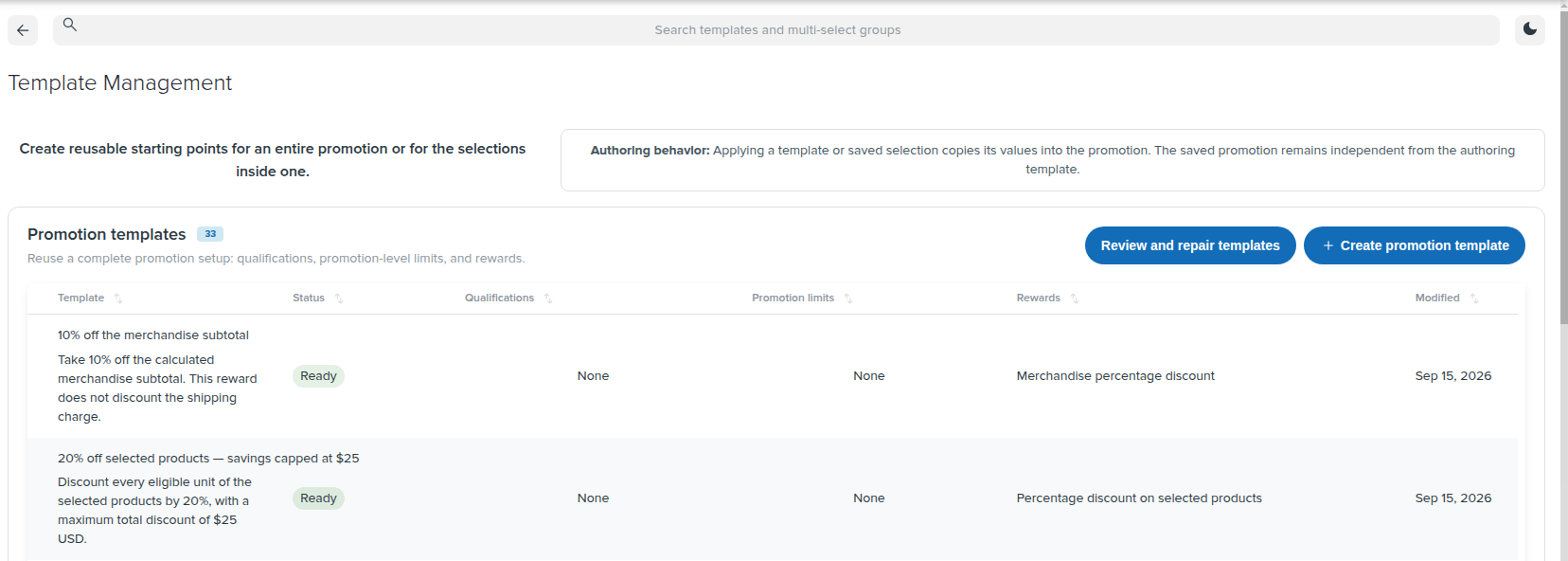
Template Management. Each template lists the parts it includes.
Promotion Templates
What A Template Holds
A template holds qualifications and promo limits with their settings, and rewards from the Reward Catalog with any reward limits. It does not hold a promo's name, currency, countries, warehouse, schedules, or codes; you fill those in on each promo.
A template's rewards have no settings of their own. A promo started from the template gets each catalog reward's default settings at that moment, and you set the values for that promo in Promotion View. See Catalog Rewards Are A Starting Point.
Creating A Template
- In Template Management, select Create promotion template.
- Enter a Name that describes what the offer does, and a Description and setup guide. The editor suggests three parts, separated by blank lines: what the offer is, an example, and the settings to customize.
- Add the parts with Add qualification, Add limit, and Add reward. Their settings become the starting values.
- Select Save.
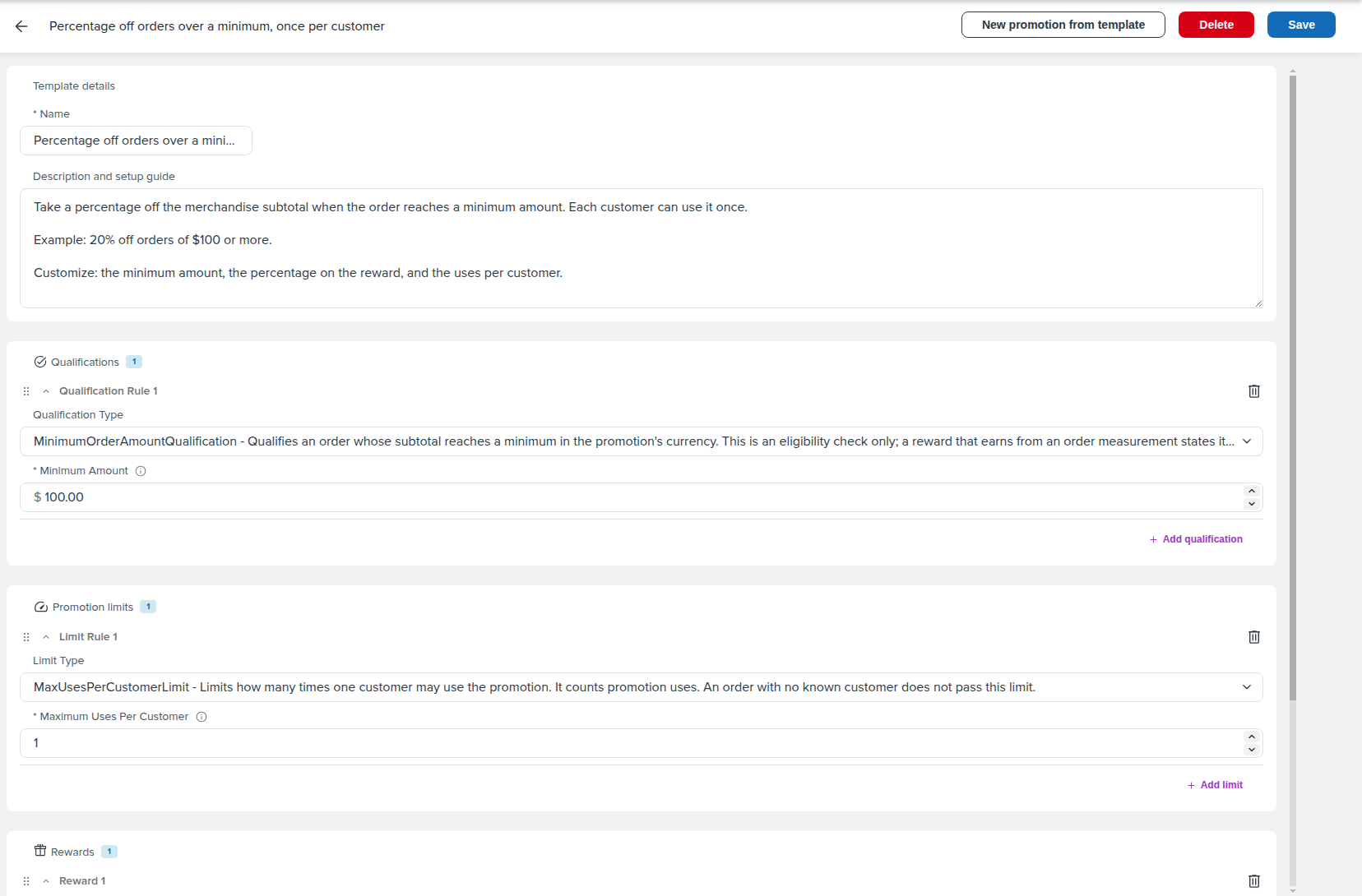
A template built from the Holiday Savings promo's parts: a $100 minimum, one use per customer, and the Order subtotal discount reward.
A template needs at least one qualification, limit, or reward, and each template needs its own name. Delete removes a template; promos already started from it are not affected.
Starting A Promo From A Template
On the New Promotion page, Start from a template lists the templates that are ready to use.
- Choose a template under Promotion template and read About this template.
- Select Apply template. The template's qualifications, promo limits, and rewards are added, and the editor switches to Promotion View.
- Fill in the promo's name, countries, currency, warehouse, schedule, and any codes, and review the values the template set.
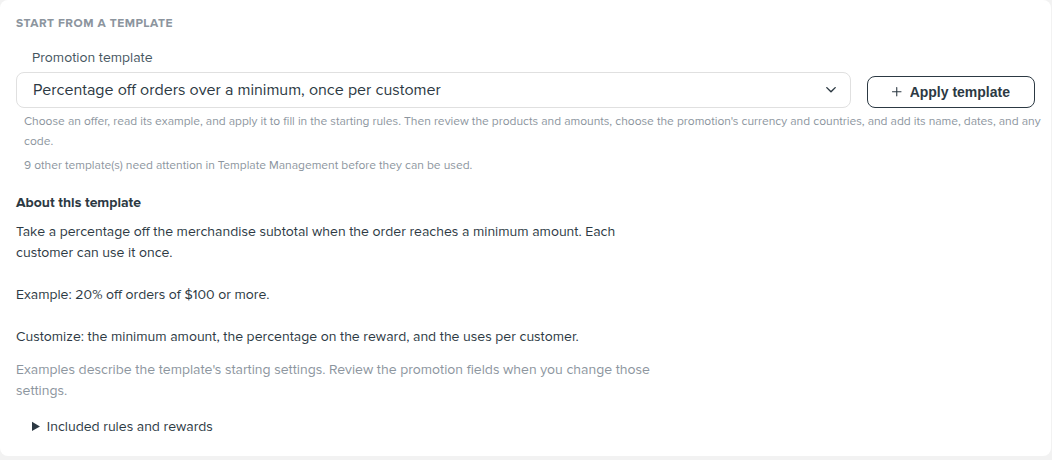
Choosing a template shows its description before you apply it.
If the promo already has qualifications, limits, or rewards, the editor asks before replacing them: "Replace current components?" The promo's name, schedules, and codes are kept. New promotion from template, in the template editor, opens a new promotion with the template already chosen.
The promo keeps no link to the template. Editing the template later does not change it.
When A Template Needs Attention
After a new company app build, a template needs attention when one of its parts no longer exists in the live build, when a catalog reward it uses is gone, or when its saved settings no longer fit. Templates that need attention don't appear under Start from a template; the New Promotion page notes how many there are.
Open the template to see each problem, or select Review and repair templates to fix several at once. Selected repairs are saved together: either every selected template changes or none does.
Saved Groups
A saved group, called a multi-select group in Template Management, is a named set of values of one kind: items (by item code or by item ID), customer types, price types, period types, order types, ship methods, or volume channels.
Creating A Saved Group
- In Template Management, select Create multi-select group.
- Choose the Value type, then enter a Name and an optional Description.
- Choose the Values in this group.
- Select Save.
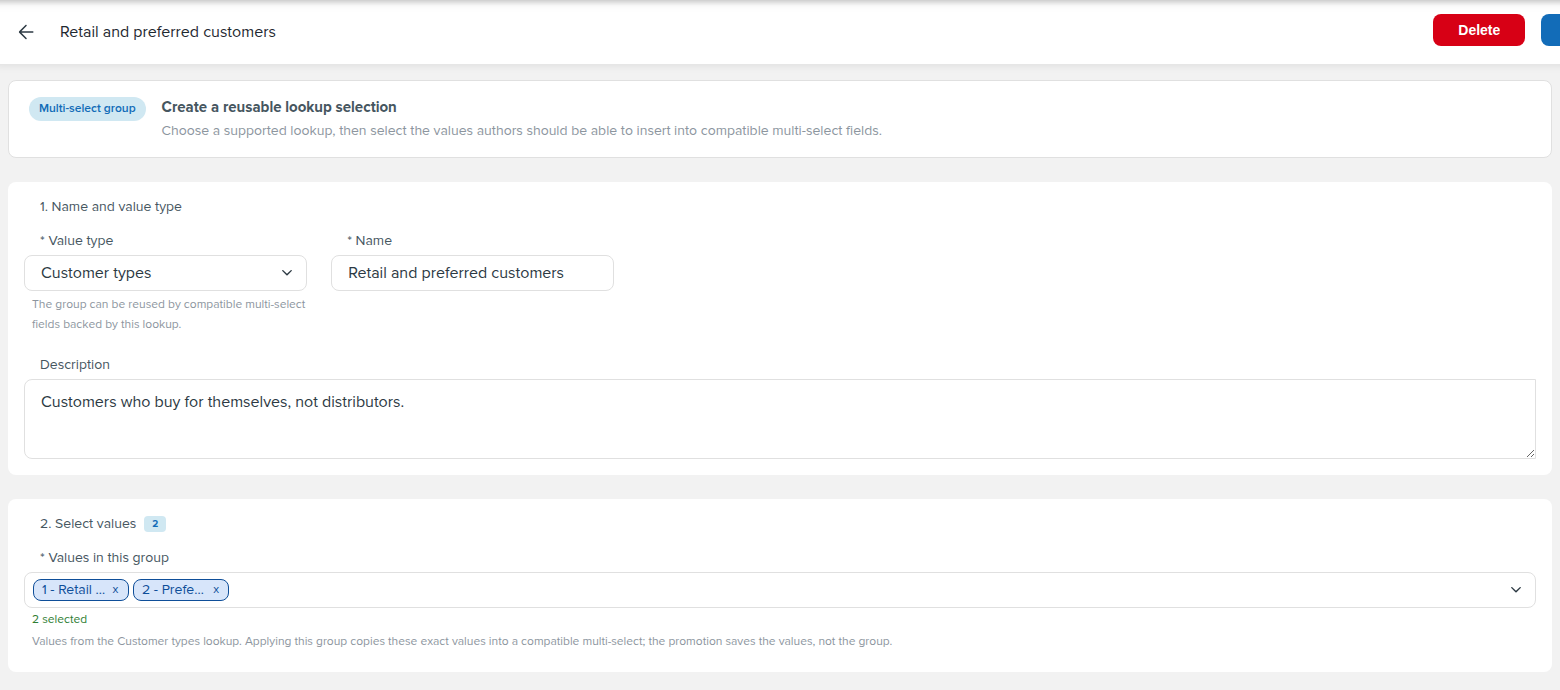
A saved group of two customer types.
Using A Saved Group
Any setting that takes several values of the same kind shows Use saved group with the number of groups available. Select it, then Add to add the group's values to what is already selected, or Replace to use only the group's values. This works in promos, templates, and Reward Catalog settings.
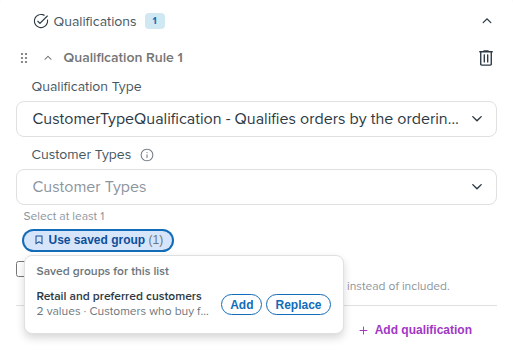
Using the saved group in a customer type qualification.
The values are copied into the setting. Editing or deleting the group later doesn't change promos, templates, or rewards that already used it. Values that no longer exist are left out, and the editor says so.
Continue Reading
- For ready-made settings for common offers, continue to OrderCalc Promo Common Offers.
- For saving, versions, and deployment, see the OrderCalc Promo Authoring And Management Guide.
- For how catalog rewards work, see OrderCalc Promo Rewards.