OrderCalc Promo Workbench (Preview)
The Workbench is a workspace for building and testing promos before they go live. It has the same editor you use under Promotions, plus two tools: an AI assistant that drafts changes from plain-language requests, and a test order that shows exactly what the promo does to an order you set up. Describe an offer, review what the assistant drafts, test it against different orders and customers, and save only when it does what you want.
Preview
The Workbench is a preview feature and may change. In the app, the assistant is marked Internal.
Guide Map
| If you need to... | Start here |
|---|---|
| Open a promo in the Workbench and save it | Opening And Saving A Promo |
| Ask for changes in plain language | The Assistant |
| See what a promo does to an order | The Test Order |
| See what to ask the assistant | Examples |
| Work on catalog rewards | Reward Catalog |
Opening And Saving A Promo
In Admin, open Promotions Workbench from the Promos section of the Order Calc app; the entries in that section depend on your company's menu setup. The switch at the top chooses between Promotions and Reward catalog. On Promotions, a tools panel next to the editor switches between Assistant and Test order.
- Promotion chooses what to work on: New promotion, or an existing promo. An existing promo opens at its deployed version, or at its latest saved version if none is deployed; Saved version opens a different version.
- You and the assistant both edit a working copy. The line next to the pickers says No unsaved changes or Unsaved changes.
- Choosing another promo or version replaces the working copy and starts a new conversation. If you have unsaved changes, the Workbench asks first: "Discard unsaved changes?" The test order is kept, though any simulated prior usage is reset to zero.
- The button at the top right saves the working copy. For a new promo, Create Promotion saves Version 1 and deploys it. For an existing promo, Save new version saves without deploying; to make it live, open the promo from Promotions and deploy it, as described in Saving, Versions, And Deploying.
- For a running promo, you can try any change, but only schedule changes can be saved (see Running Promos).
Leaving the Workbench discards unsaved work, the conversation, and the test order without asking. The conversation and the test order are never saved, so save the promo before you leave. Switching between Promotions and Reward catalog keeps the work in each, though an assistant reply or calculation still in progress stops.
The Assistant
Describe the change you want under Ask for a change and select Send. For example: "Give retail customers 15% off all products when they spend $100."
The assistant changes the working copy right away and lists what it changed, under Applied to the draft, Applied to the test order, or Applied to the assumed prior usage. It can also run the test order to check its work. Undo last assistant change puts the promo and the test order back as they were before that change. It isn't available once you edit or save.
When a request leaves out something the offer depends on, such as which items or what rate, the assistant asks for it rather than guessing. When it can't do something, it says so and changes nothing.
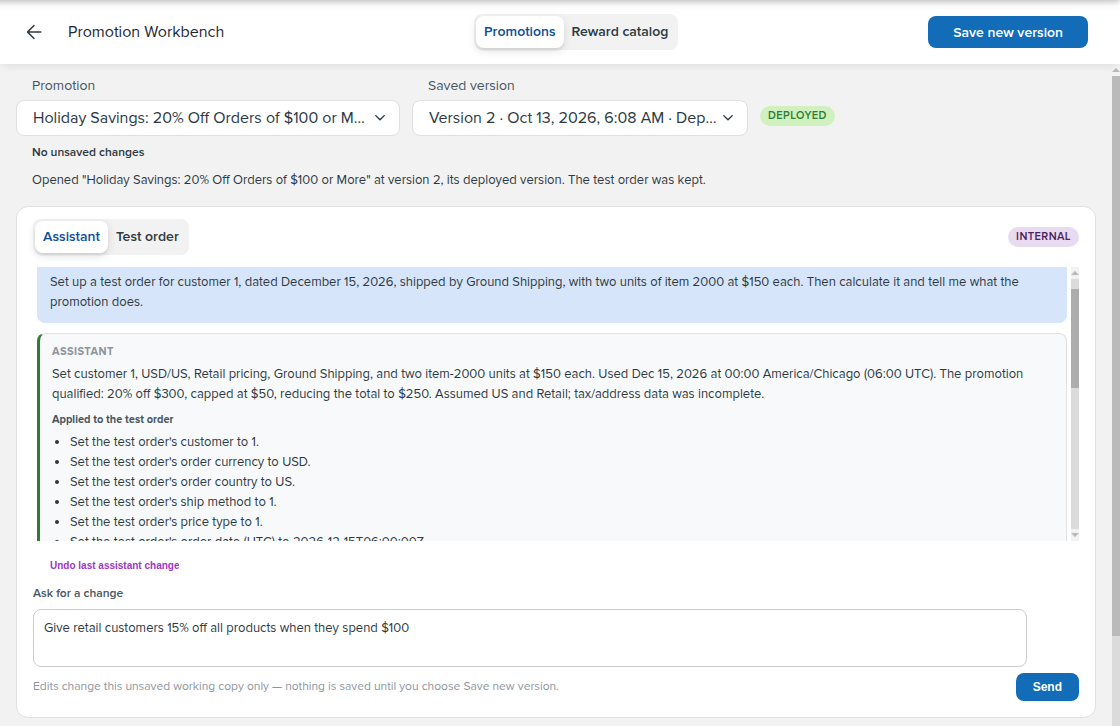
The assistant set up a December test order for Holiday Savings and calculated it. This is Version 2 of the promo, which caps the discount at $50 (see Comparing Versions), so 20% of $300 comes to $50 rather than $60.
The assistant can change:
- The promo's basics: name, description, currency, countries, and warehouse.
- Its qualifications, promo limits, rewards, and reward limits. It adds rewards from the Reward Catalog; to create a catalog reward, use Reward Catalog below.
- Its schedules and promotion codes.
- The test order and the simulated prior usage.
It can't save, deploy, open another promo, load an order, or look up customers. Nothing it does is kept until you select Create Promotion or Save new version, so review its changes first.
The Test Order
Test order calculates the working copy against an order you set up. It calculates only this promo: other deployed promos are left out, and nothing is saved, so no order, promo, or use is recorded.
- Open the promo under Promotion, then select Test order.
- Under Order, enter a Customer ID, Currency, Ship method, and Price type, and add at least one item. Or start from an existing order with Start from order.
- Set the Order date inside one of the promo's schedules.
- Select Run calculation. The answer opens in Result.
The promo itself needs at least one country and a schedule before a test order can run, so for a new promo, set those first.
Building The Test Order
- Items: add items with their Item code and Qty. Overrides sets per-unit values for a line: price, shipping basis, volumes, or discount. A blank price, shipping basis, or volume comes from your live company app build; a blank discount means the line has none of its own.
- Order context: Customer ID (the calculation uses that customer's own details, such as their customer type), Currency, Country, the tax location (City, State / province, Postal code, County), Warehouse, Ship method, Order type, Price type, Order date, Shipping amount, and Promotion codes entered. The Order date is in your user time zone, which the field names below it. Schedules are measured against it; a blank date means the moment you calculate.
- Simulated prior usage: Total prior uses, Prior uses by this customer, and a Prior uses of code count for each of the promo's codes. They stand in for earlier uses, so you can test limits and a code's Max Uses. Nothing here reads or changes real usage.
- Start from order: enter an existing order's number and select Load. The copy keeps that order's customer, currency, location, warehouse, ship method, order and price types, order date, shipping amount (if it was overridden), codes, and items, and replaces the current test order; simulated prior usage resets to zero. Changes that promotions made to the order are reversed (the Workbench notes any it couldn't reverse), and line prices and volumes come from your live build unless you override them. Because the order date is copied too, change Order date to test a schedule that hadn't started when the order was placed. The original order is never changed.
Clear test order empties the whole test order.
Reading The Result
The result starts with a verdict:
| Verdict | Meaning |
|---|---|
| Promotion qualified | The order meets the promo's rules. Rewards and effects shows what each reward did, which can be nothing |
| Promotion did not qualify | A qualification or promo limit failed. Rules shows which |
| Promotion not available for this order | The order date is outside the promo's schedules, or the order has none of its codes that can still be used. Rules shows which |
| Promotion not considered | The order's currency, country, or warehouse doesn't match the promo, so nothing else was checked |
Three sections follow:
- Rules: whether the promo was available for the order (schedule, currency, country, warehouse, codes), then each qualification and promo limit.
- Rewards and effects: each reward and what it did, or why it didn't apply.
- Order changes: the order totals and lines Without and With the promo.
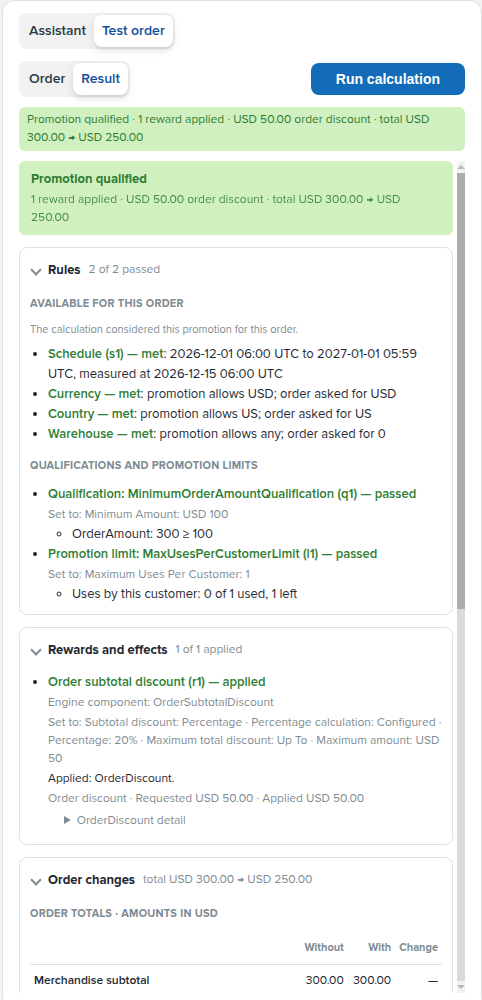
The December test order: every rule passed, and the reward applied its $50 cap.
If you change the promo or the test order after a run, the result is marked out of date until you run it again.
Examples
Build And Test An Offer From A Description
Start a New promotion and describe the whole offer, including how to test it:
"Give retail customers 15% off all products when they spend $100, once per customer, in the US in US dollars, during December. Then set up a test order for a retail customer with $120 of products, run it, and tell me what happens."
The assistant drafts the promo: it fills in the name, description, country, and currency; adds a customer type qualification for retail customers, the $100 minimum, and a once-per-customer limit; links a reward from your Reward Catalog set to 15%; and adds a December schedule. It then sets up the test order and calculates it: the promo qualifies and takes $18.00 off the $120.00 order. Everything it set is listed under Applied to the draft and Applied to the test order, and nothing is saved.
The assistant can't look up customers. If the test order has no customer yet, it makes the promo changes and asks for a customer ID; reply with the ID of one of your retail customers, and it finishes the test.
Check each setting it made before you save. Ask for a correction, or change a field yourself. Then try other cases the same way: a smaller cart, another customer, or a customer who has already used the offer (Simulated prior usage).
Try An Alternative, Then Undo It
With the offer above still open, ask for a variation and compare the results:
"Instead of a flat 15%, give 10% off from $100 and 15% off from $200. Then run the test order again and tell me what changed."
The assistant switches the reward's Percentage calculation to From Order Measurement Tiers (10% from $100, 15% from $200), runs the same test order, and reports the difference: the $120.00 order gets $12.00 off instead of $18.00. To go back to the flat 15%, select Undo last assistant change. It reverses that whole change in one step, and covers only the most recent one. Run the test order again to see the $18.00 result.
Find Out Why An Order Doesn't Qualify
- Open the promo and set up the order under Test order, or load a real order with Start from order.
- Select Run calculation. The verdict, such as Promotion did not qualify, and Rules show which check failed.
- Select Assistant and ask: "Why doesn't this order qualify?" The assistant reads the promo, the test order, and the last calculation, and explains the result in plain language.
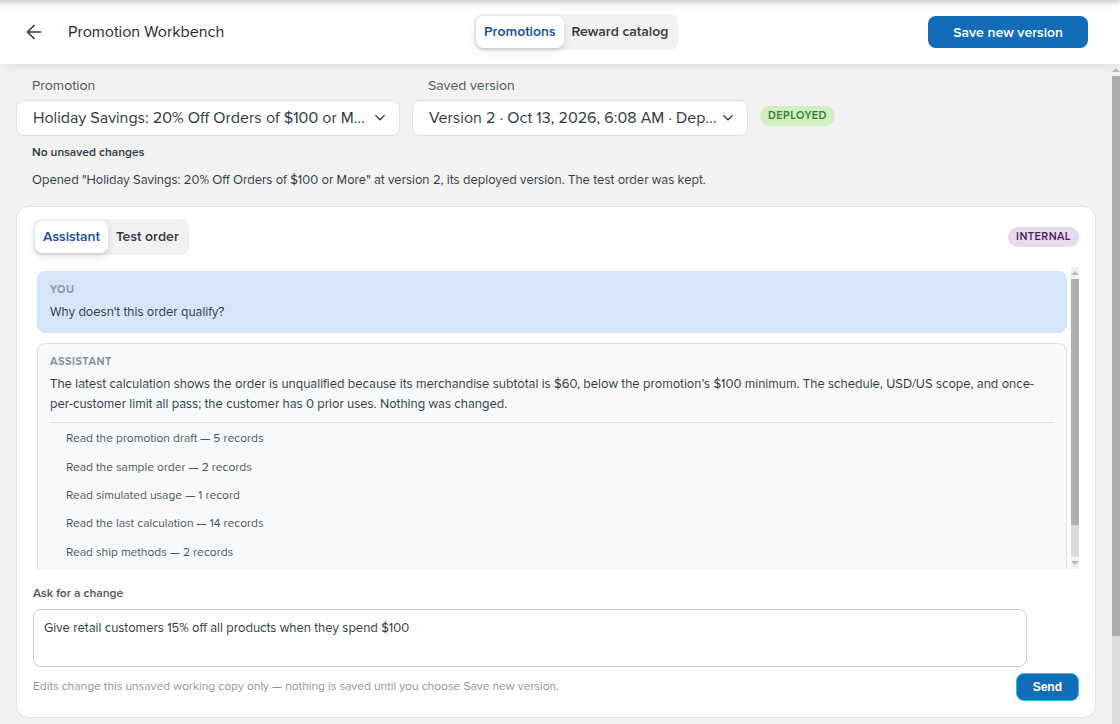
A $60 test order for Holiday Savings: the subtotal is below the $100 minimum, and every other rule passes.
You can then ask the assistant to change the test order, for example to raise the subtotal, and run it again.
Ask About A Setting Before You Change It
Some reward settings are easy to confuse. With the promo open, ask the assistant to explain them, for example:
- "What's the difference between Lowest Basis First, Highest Basis First, and Cart Order?"
- "What's the difference between Repeat limit and Maximum units on this reward?"
The assistant reads the promo's settings and explains the options. To see the Which units first options on an order, give the test order units at different prices, run it once with each option, and compare which lines are discounted under Order changes. For what each setting does, see How Many Units and How Much in OrderCalc Promo Rewards.
Reward Catalog
Select Reward catalog at the top to work on catalog rewards the same way. Choose a reward or New reward under Reward, ask the Reward assistant for changes, and save with Create reward or Save reward defaults.
For example, with New reward selected, ask: "Create a reward that adds one free Shaker Bottle for every two Protein Tubs in the order, up to three free units per order." The reward assistant drafts an Add Items reward: the Shaker Bottle as a Single Product at an Exact price of 0, added Per Step for every two Protein Tubs (Qualifying Item Quantity), with Maximum added units set to Up To 3, plus a name and description. Review it, then select Create reward to save it; until then, nothing is saved.
Saving defaults doesn't change promos that already use the reward; they keep their own settings (see Catalog Rewards Are A Starting Point). New conversation restarts the conversation without changing the draft. There is no test order for catalog rewards.
Continue Reading
- For building custom qualifications, limits, and rewards, continue to the OrderCalc Promo Extension Authoring Guide.
- For saving, versions, and deployment, see the OrderCalc Promo Authoring And Management Guide.
- For ready-made settings for common offers, see OrderCalc Promo Common Offers.
- For checking promos from your own systems, see the OrderCalc Promo API Guide.