Your First OrderCalc Promo
This walkthrough builds one complete promo: 20% off orders of $100 or more, once per customer, during December. It uses an Order subtotal discount catalog reward. If you don't have one yet, create it first as described in Creating A Catalog Reward: name it Order subtotal discount, choose the reward type Order / Discount - OrderSubtotalDiscount, and set the configuration's Percentage to 10.
What You Will Build
| Part | Setting |
|---|---|
| Name | Holiday Savings: 20% Off Orders of $100 or More |
| Where it applies | Orders in the United States, in US dollars, from any warehouse |
| Schedule | December 1, 12:00 AM to December 31, 11:59 PM |
| Qualification | The order's subtotal is at least $100 |
| Reward | Order subtotal discount, set to 20% for this promo |
| Limit | Once per customer |
The promo has no code, so it applies to every qualifying order without the customer entering anything.
The $100 minimum decides whether an order qualifies; the 20% decides how much a qualifying order gets. Qualifications, Limits, And Caps explains the difference.
Create The Promo
The editor has two views. Component View is where you add, remove, and choose the promo's parts. Promotion View shows the whole promo as one form, and is where you edit a reward's settings. You add the parts in Component View (steps 3 to 6), then set the reward in Promotion View (step 7).
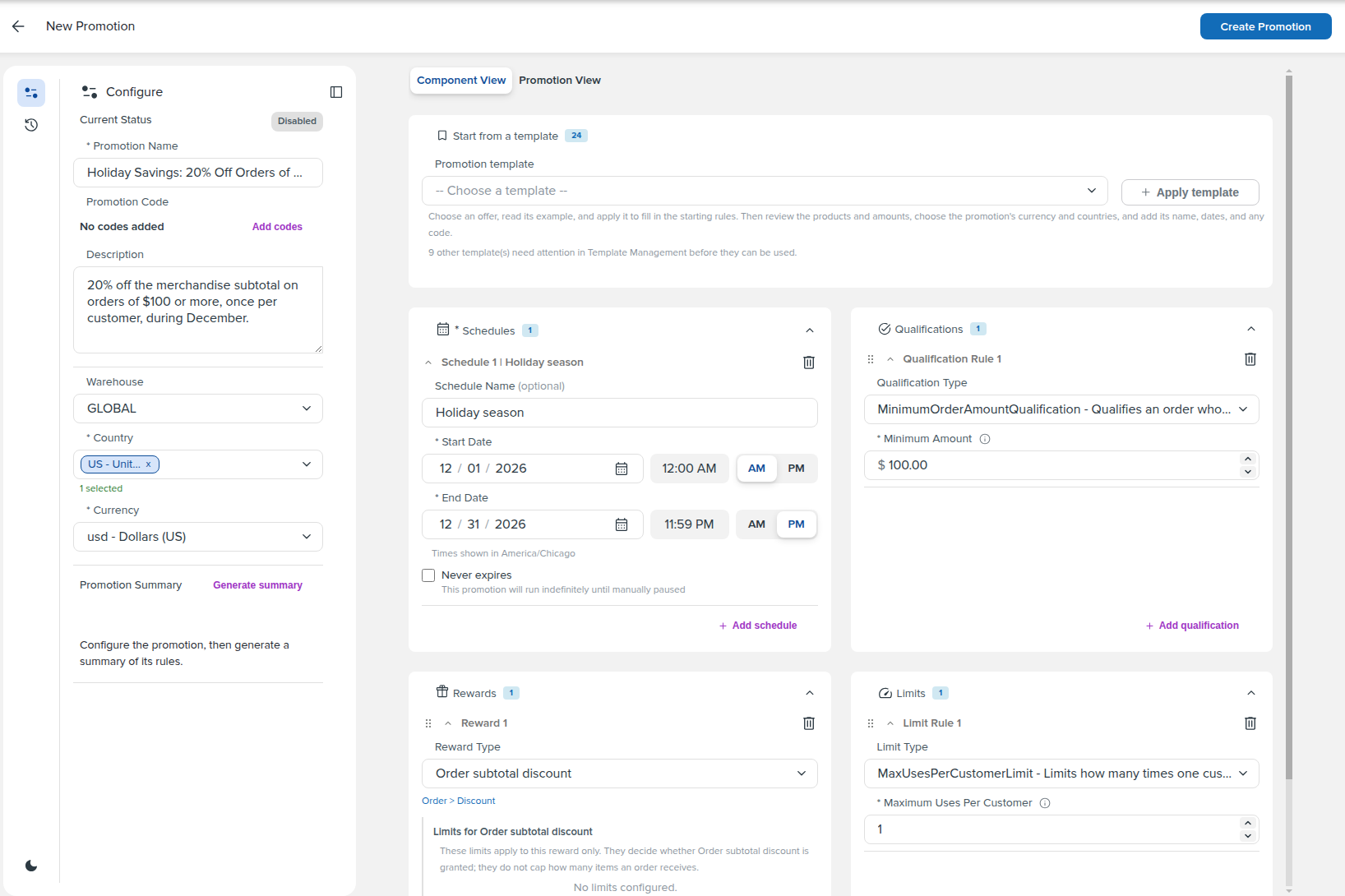
The finished promo in Component View, with every part added.
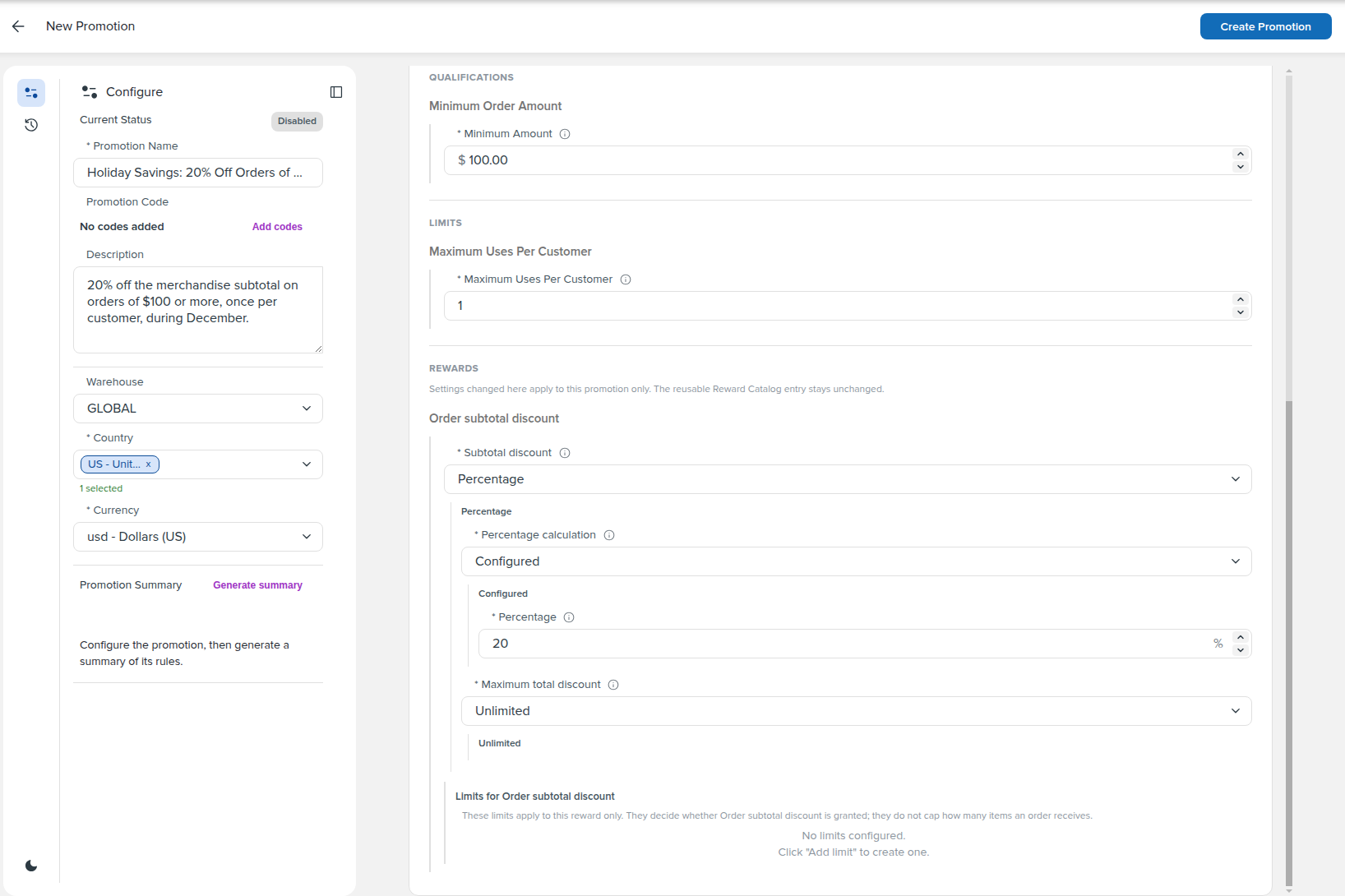
The finished promo in Promotion View, with the reward set to 20%.
- In Admin, open Promotions from the Promos section of the Order Calc app, and select the pencil icon to create a promotion.
- Under Configure, fill in the promo's details:
- Promotion Name: Holiday Savings: 20% Off Orders of $100 or More
- Description: what the promo does, for example "20% off the merchandise subtotal on orders of $100 or more, once per customer, during December."
- Warehouse: GLOBAL, so the promo applies to every warehouse
- Country: US
- Currency: usd - Dollars (US)
- Under Schedules, select Add schedule. Enter "Holiday season" as the Schedule Name (optional), set the Start Date to December 1 at 12:00 AM, and set the End Date to December 31 at 11:59 PM. Times are shown in the time zone named below the dates.
- Under Qualifications, select Add qualification, choose
MinimumOrderAmountQualification, and enter 100 as the Minimum Amount. - Under Rewards, select Add reward and choose Order subtotal discount.
- Under Limits, select Add limit, choose
MaxUsesPerCustomerLimit, and enter 1 as the Maximum Uses Per Customer. - Select Promotion View. Under Rewards, change the Order subtotal discount's Percentage from the catalog default of 10 to 20. The change applies to this promo only; see Catalog Rewards Are A Starting Point.
- Select Create Promotion.
What Happens Next
The promo opens in the editor with a Current Status of Pending. It starts applying to qualifying orders on December 1 and stops after December 31. While the schedule runs, the editor shows the promo as Active and the Promotions list shows it as Enabled. After the schedule ends, both show Expired.
To check the promo before December, run a test order with a December Order date through it in the Workbench (Preview). To make changes later, open the promo from the Promotions list; each save adds a new version, which goes live when you deploy it.
Continue Reading
- For schedules, codes, versions, and deployment, continue to the OrderCalc Promo Authoring And Management Guide.
- For every reward setting and how each reward type behaves, see OrderCalc Promo Rewards.