OrderCalc Promo Authoring And Management Guide
This guide covers looking after promos once they exist: finding them, what they are made of, schedules and codes, versions and deployment, and what you can change while a promo runs. To create a promo step by step, start with Your First OrderCalc Promo.
Guide Map
| If you need to... | Start here |
|---|---|
| Find a promo or check its status | The Promotions List |
| Understand a promo's parts, including qualifications and limits | What A Promo Is Made Of |
| Control when a promo runs, or require a code | Schedules And Codes |
| Save your changes and make them live | Saving, Versions, And Deploying |
| Change a promo that is running | Running Promos |
| Fix a save that fails | When Saving Fails |
| Work out why a promo did or didn't apply | Before You Troubleshoot |
The Promotions List
Open Promotions from the Promos section of the Order Calc app in Admin. The list shows each promo's Promotion Name, Currency, Warehouse (GLOBAL means every warehouse), Status, and Promotion Timing. Select a name to open the promo in the editor.
- Search by promotion name finds promos by name.
- Currency is, Warehouse is, and Status is narrow the list; each accepts several values. Date Range keeps promos whose schedules overlap the dates you choose. Clear Filters removes every filter.
- The pencil icon creates a promotion. The bookmark icon opens Template Management; see OrderCalc Promo Templates And Saved Groups.
| Status | Meaning |
|---|---|
| Pending | The promo's schedule hasn't started yet |
| Enabled | A schedule is running now. The editor shows this status as Active |
| Expired | Every schedule has ended |
| Disabled | The promo is paused |
What A Promo Is Made Of
| Part | What it does |
|---|---|
| Name and description | How people recognize the promo. Each promo needs its own name |
| Where it applies | One currency, one or more countries, and one warehouse or all of them (GLOBAL). An order must match all three |
| Schedules | When the promo runs. See Schedules And Codes |
| Promotion codes | Optional. With codes, the promo applies only when the customer enters one of them; without codes, it applies automatically |
| Qualifications | What an order needs for the promo to apply. Every qualification must pass |
| Limits | Whether the promo, or one of its rewards, can still be used |
| Rewards | What the promo gives, chosen from the Reward Catalog |
When several promos qualify for the same order, all of them apply.
The editor shows these parts in two views. Component View is where you add, remove, and choose parts. Promotion View shows every part's settings as one form, and is the only place to set a reward's settings. Your First OrderCalc Promo walks through both.
Generate summary, under Promotion Summary, writes a plain-language summary of the promo as it stands in the editor. The summary is marked "AI-generated from this draft. Review for accuracy; nothing has been saved." and is not stored with the promo.
Qualifications
These qualifications are built in. Your company app can add its own; they appear in the same list with their own descriptions. The editor's field help explains each setting.
| Qualification | Passes when |
|---|---|
MinimumOrderAmountQualification |
The order's subtotal, before shipping and tax, reaches the minimum amount |
ProductInCartQualification |
The cart contains any product, any one of the selected products (optionally with a minimum combined quantity), or none of the selected products |
CustomerTypeQualification |
The customer is one of the selected customer types, or with Exclude Selected, is not |
OrderTypeQualification |
The order type is one of the selected types, or with Exclude Selected, is not |
ShipMethodQualification |
The order's ship method is one of the selected methods, or with Exclude Selected, is not |
VolumeThresholdQualification |
One of the order's volume totals (business volume, commissionable volume, or Other 1 through Other 10) compares to a threshold as configured |
DistinctSkuCountQualification |
The order contains at least a minimum number of different products. Ten units of one product count as one |
A qualification only decides whether the promo applies. A reward that counts products or measures the order uses its own settings; see Qualifications, Limits, And Caps.
Limits
Limits decide whether the promo, or one reward, can still be used. Add the promo's limits under Limits, and a reward's limits under that reward.
| Limit | Attach to | Meaning |
|---|---|---|
MaxUsesPerCustomerLimit |
Promo or reward | The most times one customer may use the promotion. It counts uses of the whole promotion, even when attached to a reward. An order with no known customer does not pass it |
MaxTotalUsesLimit |
Promo or reward | The most times the promotion may be used in total, across all customers. It counts uses of the whole promotion, even when attached to a reward |
ValidUntilLimit |
Promo or reward | The last allowed date and time, in UTC. The order's date is compared when the order has one; otherwise the current time is |
MaxUsesPerOrderLimit |
Reward only | The most times the reward may be applied in one order. It counts applications, not units |
When a promo's limit fails, the promo does not apply. When a reward's limit fails, only that reward is skipped; the promo's other rewards still apply.
Rewards
Rewards come from the Reward Catalog. When you add one, the promo copies its settings, and you set them for this promo in Promotion View. OrderCalc Promo Rewards explains every reward setting.
Schedules And Codes
Schedules
Every promo needs at least one schedule. Each schedule has an optional Schedule Name, a Start Date and End Date with times, or Never expires in place of an end. Times are shown in your user time zone, which the editor names below the dates.
When a promo has several schedules, it runs whenever any one of them is running.
Promos are checked against the order's date: an order dated inside one of the promo's schedules can use the promo. An order without a date is checked against the current time.
Promotion Codes
To add codes, select Add codes under Promotion Code (it reads Manage once the promo has codes). In Manage Promotion Codes, select Add code for each code, then Save Changes. The codes are included when you save.
- A code uses letters, numbers, underscores, and hyphens, up to 50 characters. Codes are saved in uppercase, customers can enter them in any case, and one promo can't list the same code twice.
- Max Uses is the most times a code can be used. Leave it blank for unlimited uses.
- A code can have its own start and end dates (Add schedule on the code). A code without its own dates is valid whenever the promo is.
A promo with codes applies only to orders that enter one of its valid codes. A promo without codes applies automatically to every qualifying order.
Saving, Versions, And Deploying
Saving never changes an existing version. Each time you select Save, the editor saves the form as a new version, and earlier versions stay in History exactly as they were. A version reaches orders only after it is deployed, and each order uses the version that was live on the order's date.
Save And Deploy
- Create Promotion saves Version 1 and deploys it, so a new promo starts applying as soon as its schedule starts.
- Save stores the form as a new version; the live version stays live. Save is available once the form has changes.
- Deploy makes the newest saved version live. If you have unsaved changes, Deploy saves them as a new version first.
- To make a specific version live, use Deploy version N on its row in History. The editor asks you to confirm.
- When you open a promo, the form starts from its live version. Versions saved after it but not deployed are in History, not in the form.
- Deploying never changes orders that already happened: each order is calculated with the version that was live on its date.
History
The clock icon on the editor's left edge opens Promotion History. Each row shows Version N, who created it, when, and why: Created, Updated, or Schedule updated.
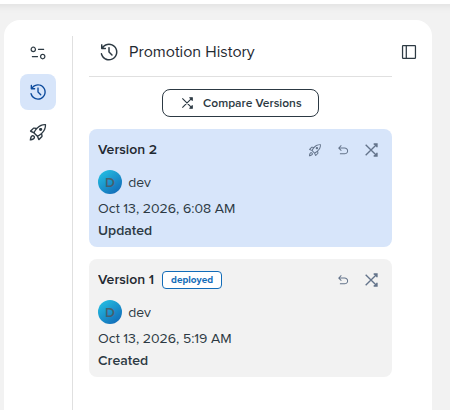
Version 2 is saved but not live yet; Version 1, marked deployed, is still the live version.
- The deployed badge marks the live version. The highlighted row is the newest saved version.
- Each row has Deploy version N (except the live row), Apply version N to editor, and Compare version N.
- Select a row to see that version's settings as JSON.
Comparing Versions
Compare Versions compares the selected version with the one before it, or the newest version with the one before it when no row is selected. To compare against a different version, select Compare version N on that row; it is marked BASE. Removed lines are highlighted in red and added lines in green. Exit Differences closes the comparison.
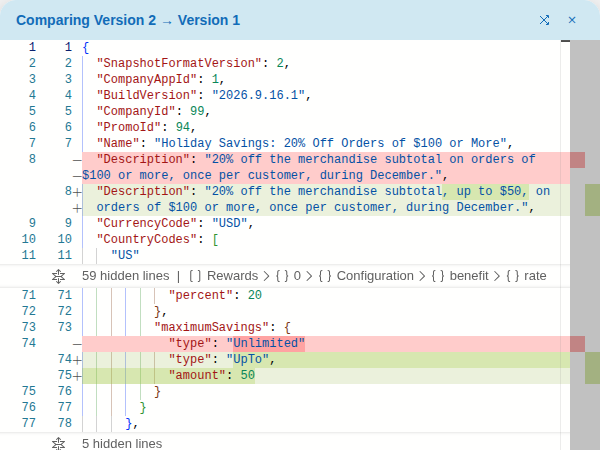
Comparing Version 2 of Holiday Savings with Version 1: Version 2 changes the description and adds a $50 maximum total discount.
Applying An Older Version
Apply version N to editor loads that version into the form as a starting point. Nothing is saved or deployed, and the older version stays as it was. If you have unsaved changes, the editor asks first: "Apply historical version?"
Make your changes and select Save to store them as a new version; Save becomes available once the form differs from the version you applied. To make the older version live exactly as it was, use Deploy version N on its row instead: Deploy in the toolbar deploys the newest saved version, not the version you applied.
If the older version uses parts the live company app build no longer has, the editor lists them under "Some extensions will be removed" and removes them when you select Apply Anyway.
Deployment History
The rocket icon opens Deployment history: every deployment, newest first, with when it went live (From), when it was replaced (Until) or Current for the live one, and who deployed it. Times are in your user time zone. Deployment history calls each version a Snapshot; Snapshot 2 is the same as Version 2 in History.
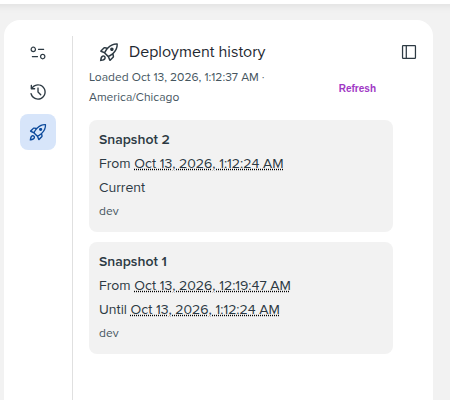
After deploying Version 2, Snapshot 2 is current and Snapshot 1 shows when it was replaced.
Running Promos
While a promo is running, only its schedules can change:
- Its name, description, currency, warehouse, countries, qualifications, limits, rewards, and codes are locked in the editor. Reward settings say "They cannot change while the promotion is running."
- You can move a running schedule's end date and time, change or remove a schedule that hasn't started, and add a schedule with Add schedule. A schedule that has ended stays as it is.
- Save, then deploy, to make the schedule change live.
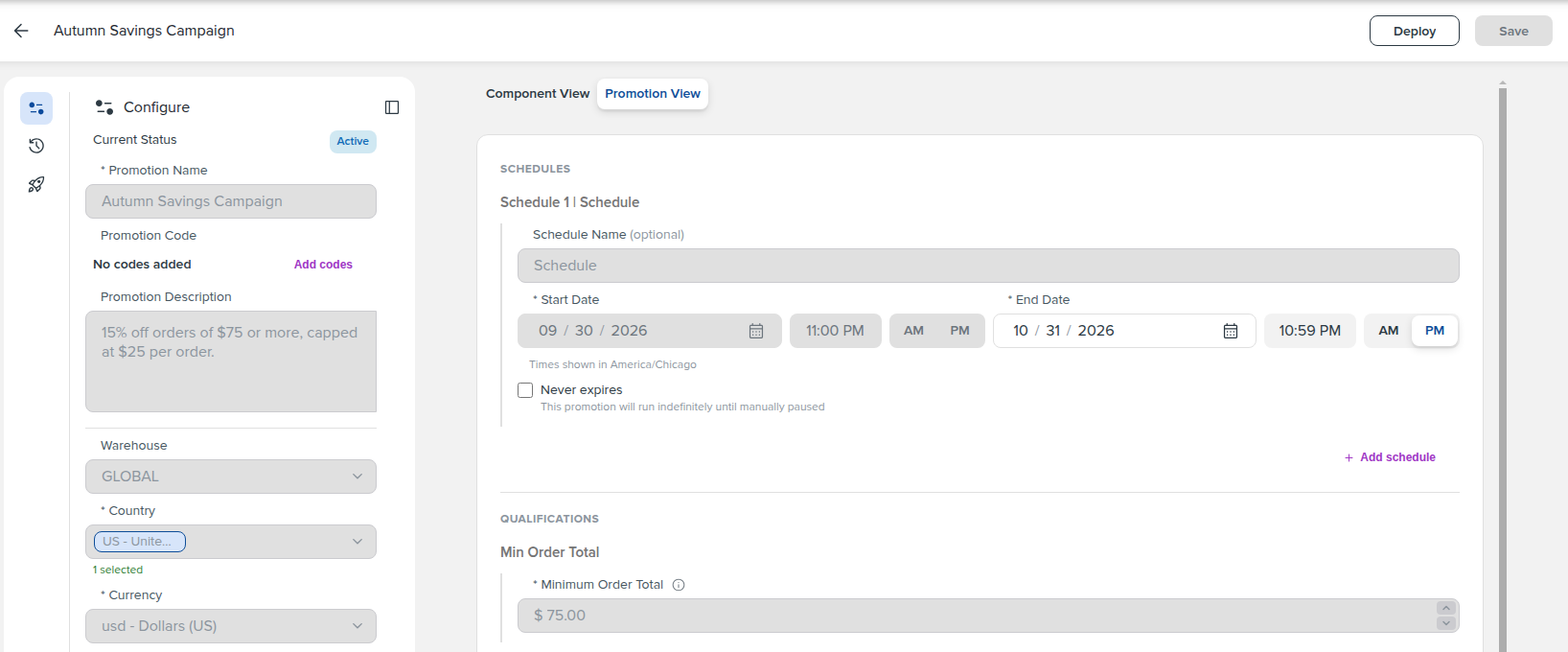
A running promo: the form is locked except the running schedule's end date and adding a schedule.
To change anything else, end the current run first:
- Move the running schedule's end to a time just ahead of now (the editor doesn't accept a time that has already passed), then save and deploy.
- Once that time passes, the promo is Expired. Open it again, and every setting can change.
- Make your changes, add a schedule for when the promo should run again, then save and deploy.
Orders dated between the two schedules don't get the promo. Promos that are Pending or Disabled can be changed freely.
When Saving Fails
Problems appear in a list titled "Please fix the following errors:", with the fields involved outlined in red.
| Message | What to do |
|---|---|
| Name is required and cannot be empty. / Name cannot exceed 200 characters. | Enter a name of up to 200 characters. Each promo needs its own name |
| At least one country is required. | Choose a Country |
| Currency code is required. | Choose a Currency |
| At least one schedule is required. | Add a schedule |
| Schedule N: End date must be after start date. | Move the end after the start |
| Schedule N: This time has already passed. Choose a time from now onward. | Choose a start or end from now onward |
| One or more qualification fields are invalid. | Fix the highlighted qualification fields. The same message appears for limit and reward limit fields |
| Promotion code #N needs a code value. Enter a code or remove this row. | Enter the code or remove the row in Manage Promotion Codes. Similar messages cover length, characters, duplicates, and Max Uses |
After A New Company App Build
The editor offers the qualifications, limits, and rewards of your live company app build. If you open a promo that uses a part the live build no longer has, or whose settings no longer fit it, the editor warns "Some saved definitions could not be loaded." The part is shown as saved, and saving fails until you replace or remove it. A running promo is shown with the build it was deployed with.
Catalog rewards are brought forward separately with Remap rewards; see After A New Company App Build in the Rewards guide.
Before You Troubleshoot
When a promo did or didn't apply to an order unexpectedly, check the management side first:
- Confirm the order's date, and that one of the promo's schedules was running then.
- Confirm the order matches the promo's currency, one of its countries, and its warehouse.
- If the promo has codes, confirm the order entered one of them, inside the code's dates and under its Max Uses.
- Confirm each qualification and limit passes for that order and customer. A once-per-customer limit fails when the order has no known customer.
- In Deployment history, confirm which version was live on the order's date. A version that was saved but not deployed never reaches orders.
- If parts of the promo show as unavailable, see After A New Company App Build.
- To see exactly what the promo does to an order, rebuild the order as a test order in the Workbench (Preview).
Continue Reading
- For every reward setting and reward type, continue to OrderCalc Promo Rewards.
- For reusable promo setups and value lists, see OrderCalc Promo Templates And Saved Groups.
- For checking promos from your own systems, see the OrderCalc Promo API Guide.
- For building custom qualifications, limits, and rewards, see the OrderCalc Promo Extension Authoring Guide.
- For how the parts of the platform fit together, see the OrderCalc Promo Platform Overview.